CHAPTER 4
146
Editing Video
Exactly how clips are added to the Timeline depends not just on the interaction of Take icons
and target tracks but also on the current states of other track and clip options. Certain combi-
nations of these factors may cause unintended tracks to shift in time; see “Tracks shift out of
sync” on page 371.
Note: The Take Video icon, Take Audio icon, and Target menus affect a clip only during the process
of adding it to the Timeline. They don’t otherwise change the state of clips.
To set up Take Video and Take Audio icons and target program tracks:
Do any of the following to specify how video and audio tracks are added to the Timeline:
• To include the source video track, make sure that the Take Video icon ( ) below the Source
view is not crossed out (if it is, click the icon to enable it). Then make sure a video track is
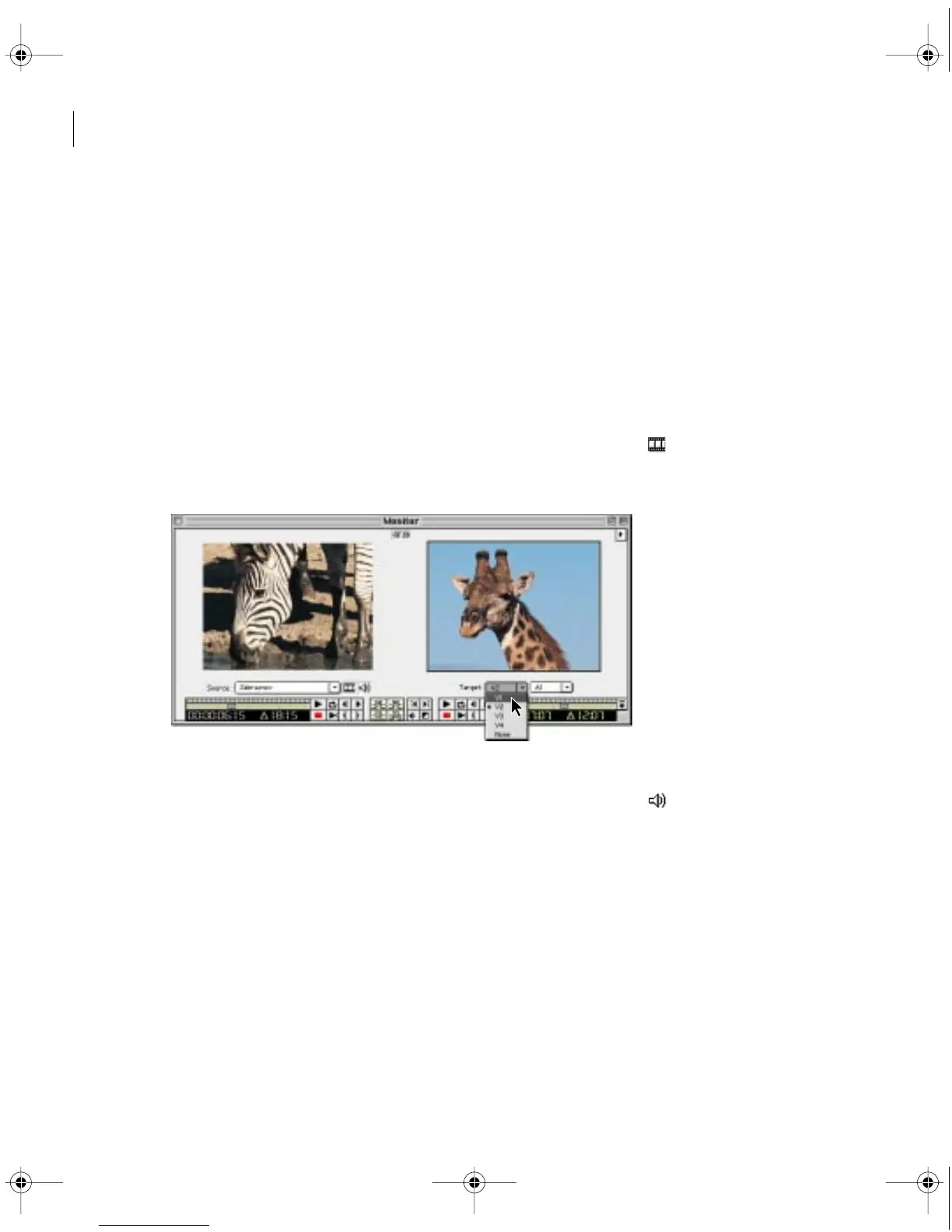
selected in the Target menu below the Program view; if necessary, choose a video track.
Selecting track Video 1 from the video target track menu in the Monitor window
• To include the source audio track, make sure that the Take Audio icon ( ) below the Source
view is not crossed out (if it is, click the icon to enable it). Then make sure an audio track is
selected in the Target menu below the Program view; if necessary, choose an audio track.
c00.book for PS Page 146 Tuesday, March 31, 1998 1:28 PM



 To Next Page