CHAPTER 1
48
A Tour of Adobe Premiere
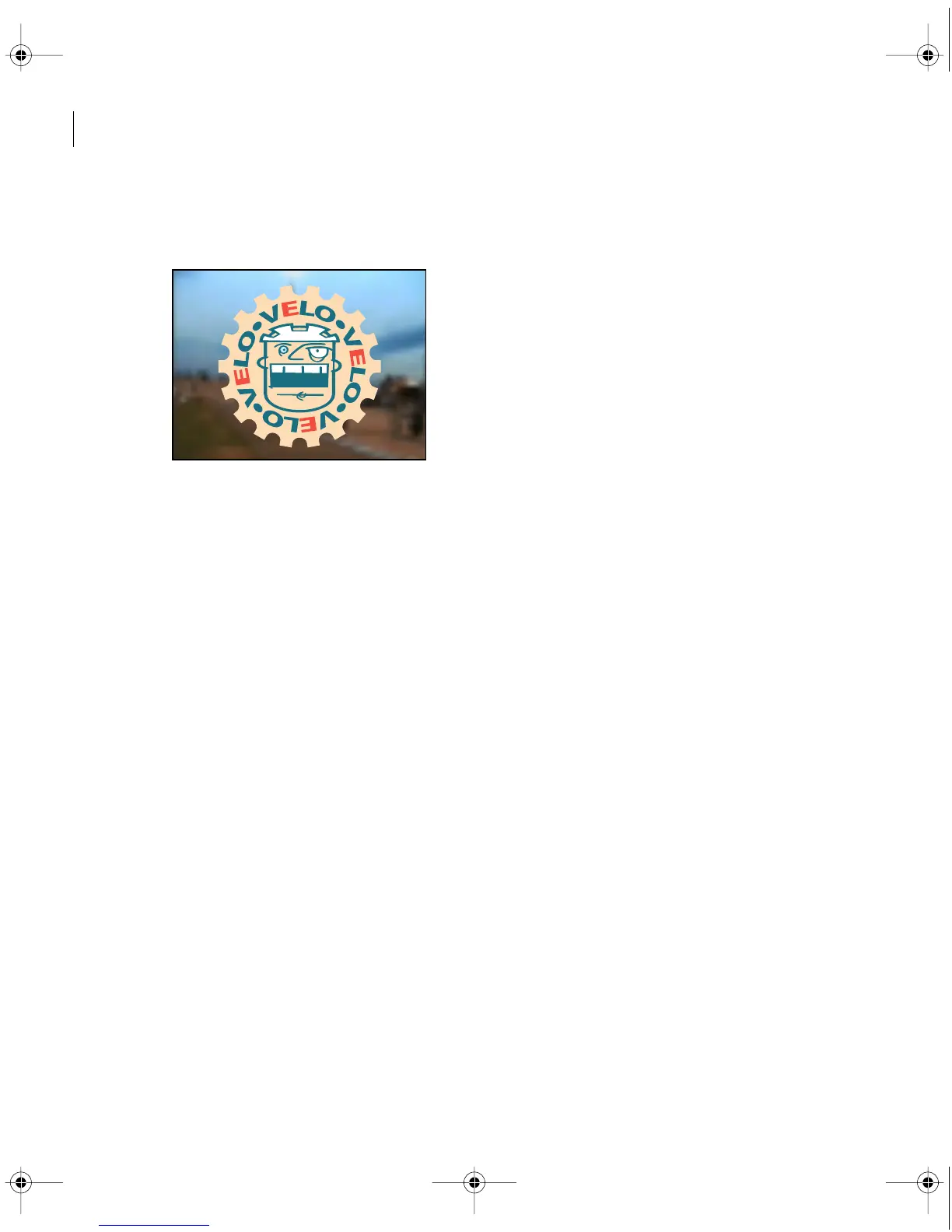
In the Sample area of the dialog box, the white areas of the Veloman.eps image are now
transparent, letting the underlying image—the Finale.mov clip—show through.
9 Click OK.
10 To preview the effect, hold down the Alt key (Windows) or the Option key (Macintosh)
and drag in the time ruler over the area where the superimposition occurs.
11 Save the project.
Animating a clip
For additional special effects, Premiere lets you move, rotate, or zoom a clip within the area
bounded by the video program’s frame. You cannot add motion to elements within the clip;
you can add motion only to the clip itself.
To add more visual interest to the Veloman.eps image, you’ll make it zoom into the frame,
from the left.
1 If the Veloman.eps image is not still selected in the Timeline window, select it now.
c00.book for PS Page 48 Tuesday, March 31, 1998 1:28 PM



 To Next Page