CHAPTER 9
284
Animating a Clip
•
Select Show Outlines to display an outline of the clip (including any rotation, zooming,
or distortion) at each motion point in the path.
•
Select Show Path to display the motion path as a series of dots between the motion points.
Dots closer together indicate a slower speed; dots further apart indicate a faster speed.
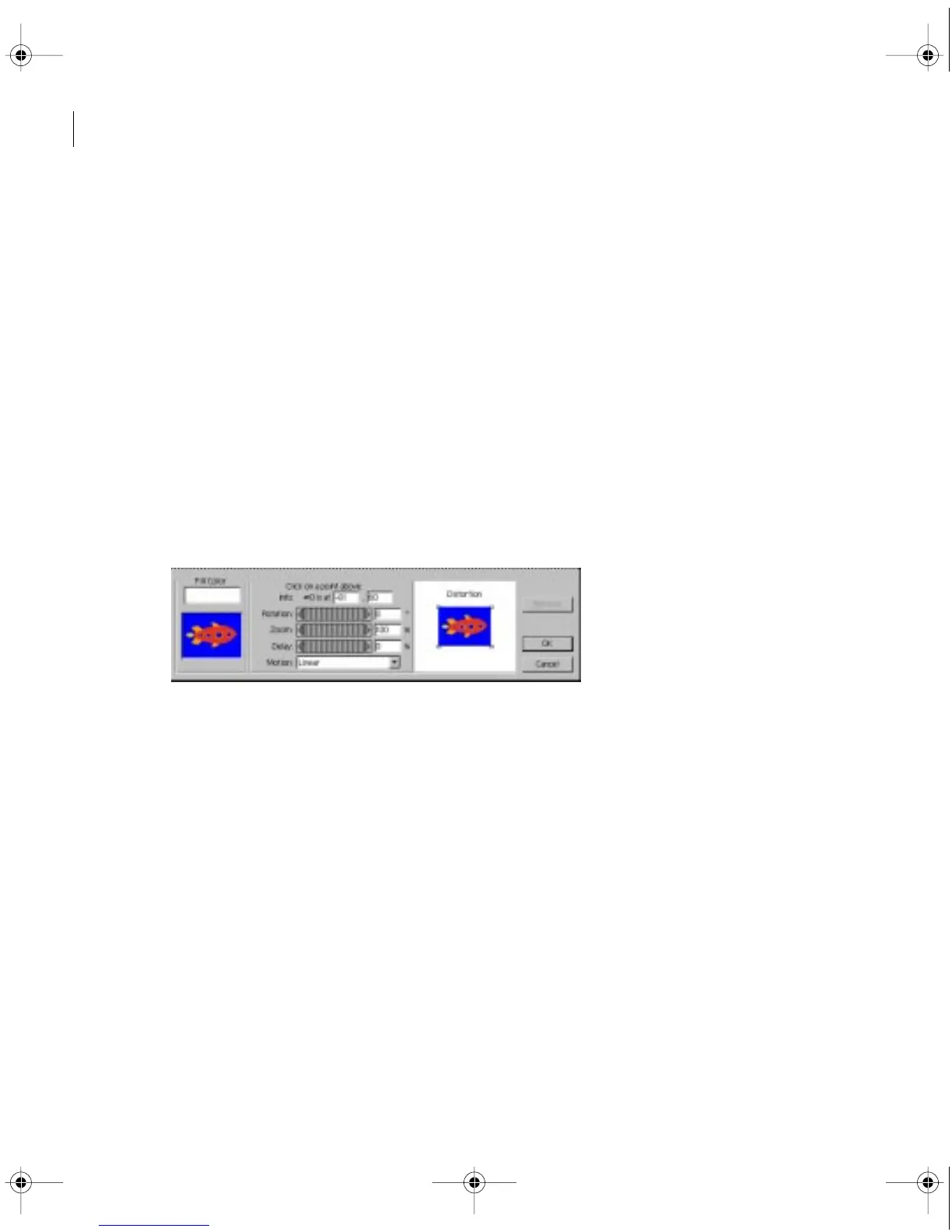
Rotating, zooming, delaying, and distorting
For each motion point on the path, you can set a value for rotation, zoom, and delay, and define
a shape for distorting the clip. By specifying different values at different motion points, you can
rotate, zoom, delay, and distort the clip over time.
To rotate, zoom, or delay the clip:
1
On the motion path or the timeline in the Motion Settings dialog box, select the motion
point at which you want to add rotation, zooming, or distortion.
2
Drag the slider or enter a value for the following controls as needed:
•
For Rotation, set the angle of rotation for a clip at the specified point. The angle can range
from –1440 degrees to 1440 degrees, resulting in up to eight full rotations of the clip between
points. (One full rotation is equal to 360 degrees.)
•
For Zoom, increase or decrease the size of a clip at a specific point on the motion path. The
zoom percentage can range from 0 to 500. At 0, the clip is not visible; at 100, the clip is at its
original size.
c00.book for PS Page 284 Tuesday, March 31, 1998 1:28 PM



 To Next Page