275
ADOBE PREMIERE 5.0
User Guide
To create a garbage matte:
1 Select a clip in a superimpose track and choose Video > Clip > Transparency. For more
details, see page 263.
2 In the Sample area of the Transparency Settings dialog box, drag the handles of the image
to include only the subject you want to preserve.
3 Choose a key to key out the background of your subject. Then click OK.
Creating split screens
You can use the Transparency Settings to create a split screen or other types of screen effects
that show two clips side by side.
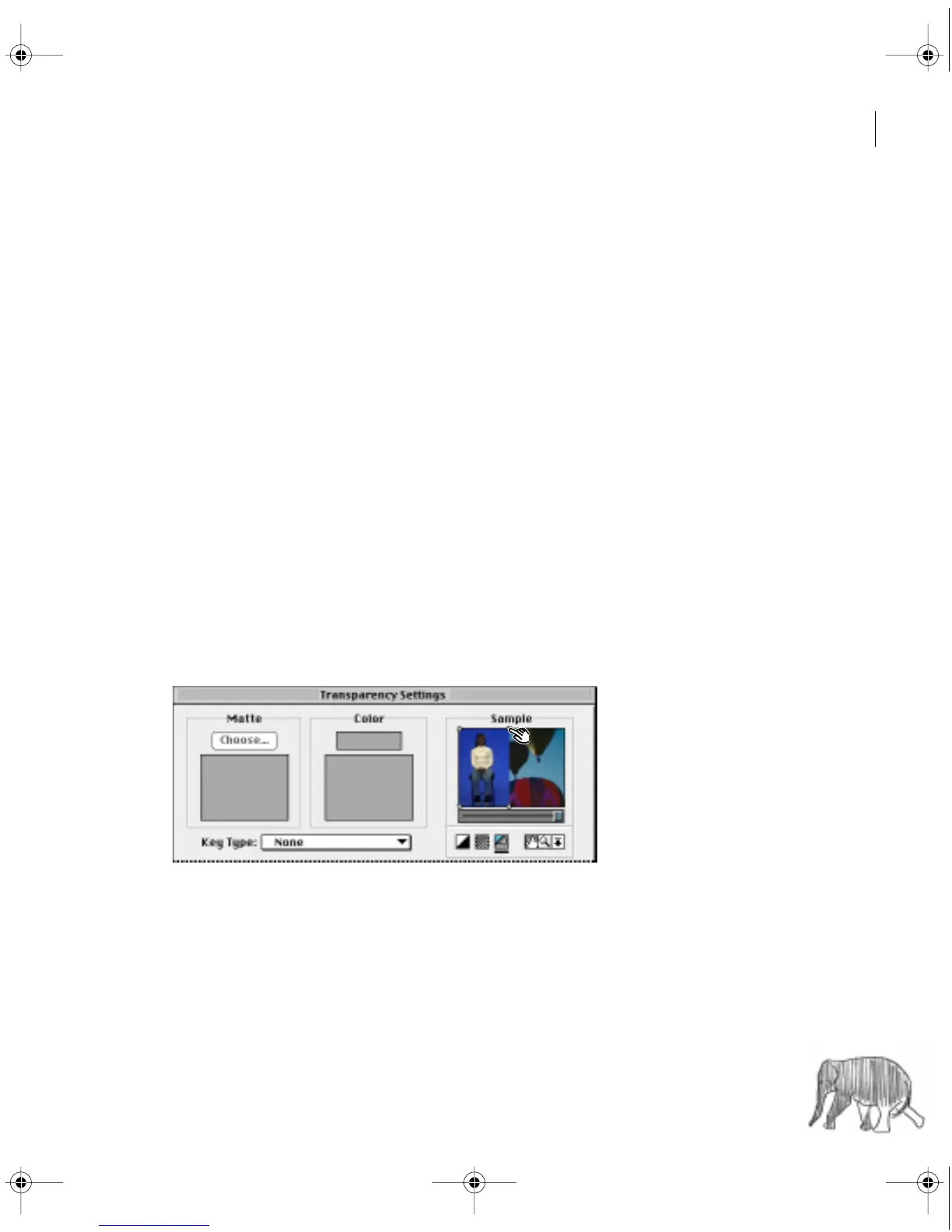
To create a split screen:
1 Place two clips in separate adjacent tracks. At least one track must be a superimpose track.
2 Select the clip in the upper track and choose Clip > Video > Transparency.
3 For Key Type, choose None.
4 Drag the handles in the Sample area to split or otherwise separate the screen into two
sections, one containing the clip in the upper track, the other containing the clip in the
lower track. Then click OK.
c00.book for PS Page 275 Tuesday, March 31, 1998 1:28 PM



 To Next Page