23
ADOBE PREMIERE 5.0
User Guide
The clips now take up less horizontal space, since you’re now displaying the Timeline
contents in a time unit requiring less detail.
Now it’s time to play the sequence of clips you’ve imported.
Previewing in the Monitor window
To see how your work is progressing, you can preview one or more clips in the
Monitor window.
1
If the Monitor window is not already open, choose Window > Monitor.
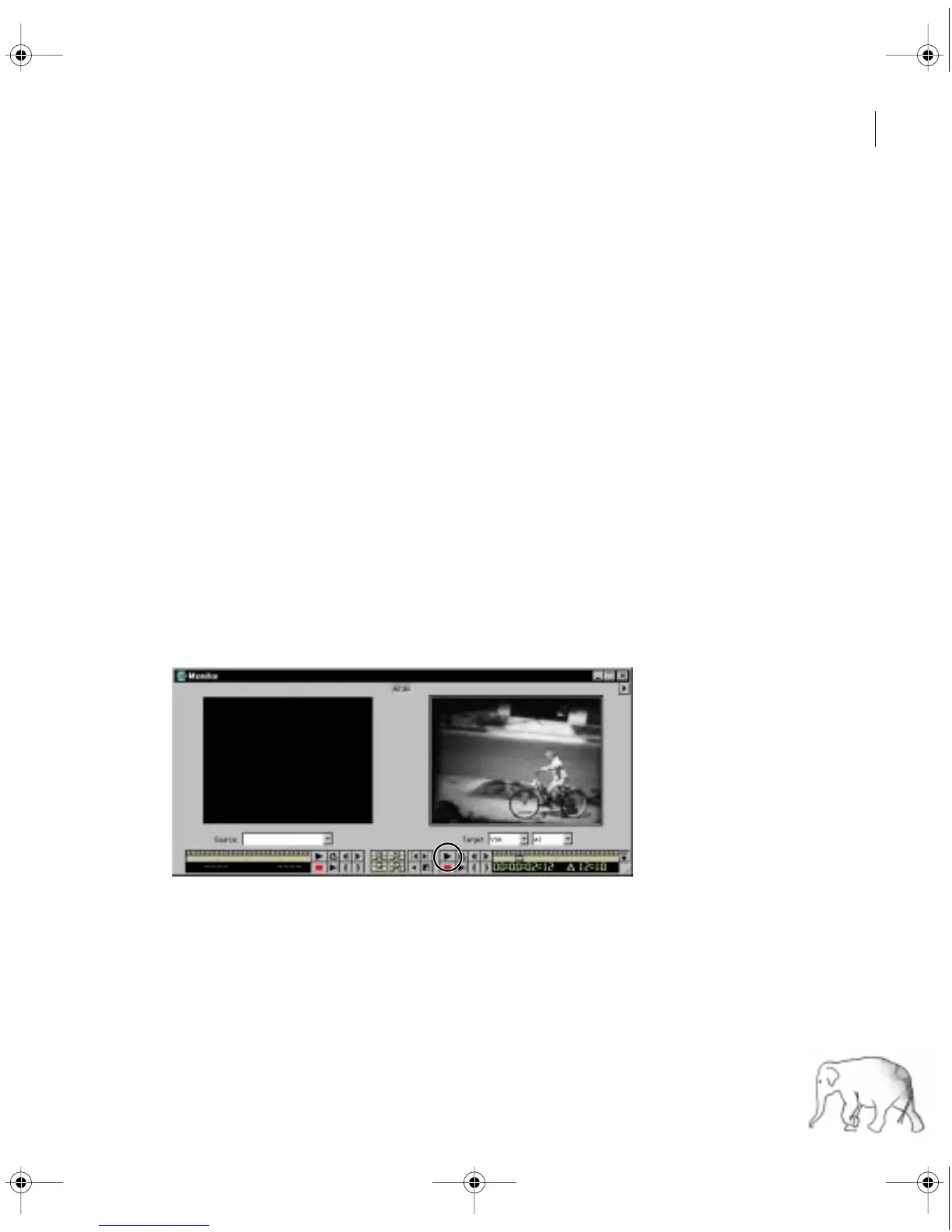
The Monitor window displays two views:
•
Source view (on the left side of the window) lets you preview a clip, trim it, and then
insert it into the Timeline window. This view can store many clips at a time, but you can
view and trim only one clip at a time.
•
Program view (on the right) lets you preview your entire video program, at any time.
This view displays the sequence of clips currently in the Timeline window. You can also use
the Program view to edit your video program.
2
In the Monitor window, click the Play button underneath the Program view, or press
the spacebar.
c00.book for PS Page 23 Tuesday, March 31, 1998 1:28 PM



 To Next Page