CHAPTER 1
42
A Tour of Adobe Premiere
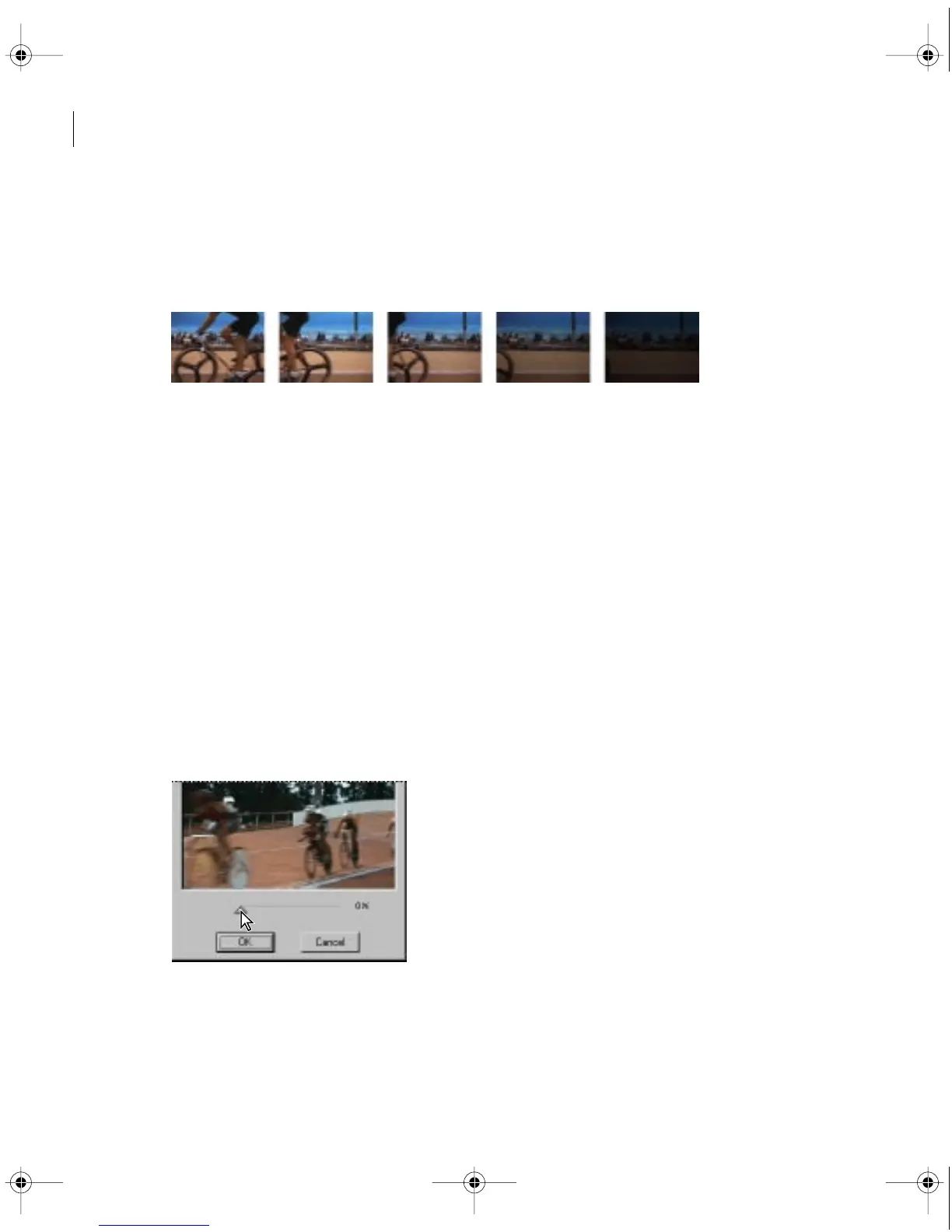
5 Hold down the Alt key (Windows) or the Option key (Macintosh) and slowly drag in the
time ruler above the clip you just adjusted. The preview plays in the Monitor window. Because
this clip is the only one playing in the Timeline, it fades into the background color, which
is black.
6 Save the project.
Adding special effects to a video clip
Premiere 5.0 lets you create many different kinds of special effects using video filters. For the
last clip in the video program, you’ll add the Camera Blur effect, which blurs a clip as if it were
leaving the focal range of the camera.
1 Select the Finale.mov clip in the Timeline window.
2 Choose Clip > Filters.
3 Move the Filters window so that you can see both it and the Monitor window.
4 In the Filters window, select Camera Blur from the Available column, and then click the
Add button.
The Camera Blur control window appears, displaying the first frame of the Finale.mov clip.
5 Drag the slider bar to zero, and then click OK.
c00.book for PS Page 42 Tuesday, March 31, 1998 1:28 PM



 To Next Page