41
ADOBE PREMIERE 5.0
User Guide
The handle divides the control bar into sections that you can adjust by dragging. A control bar
includes a handle at each end to define the beginning and ending opacity settings.
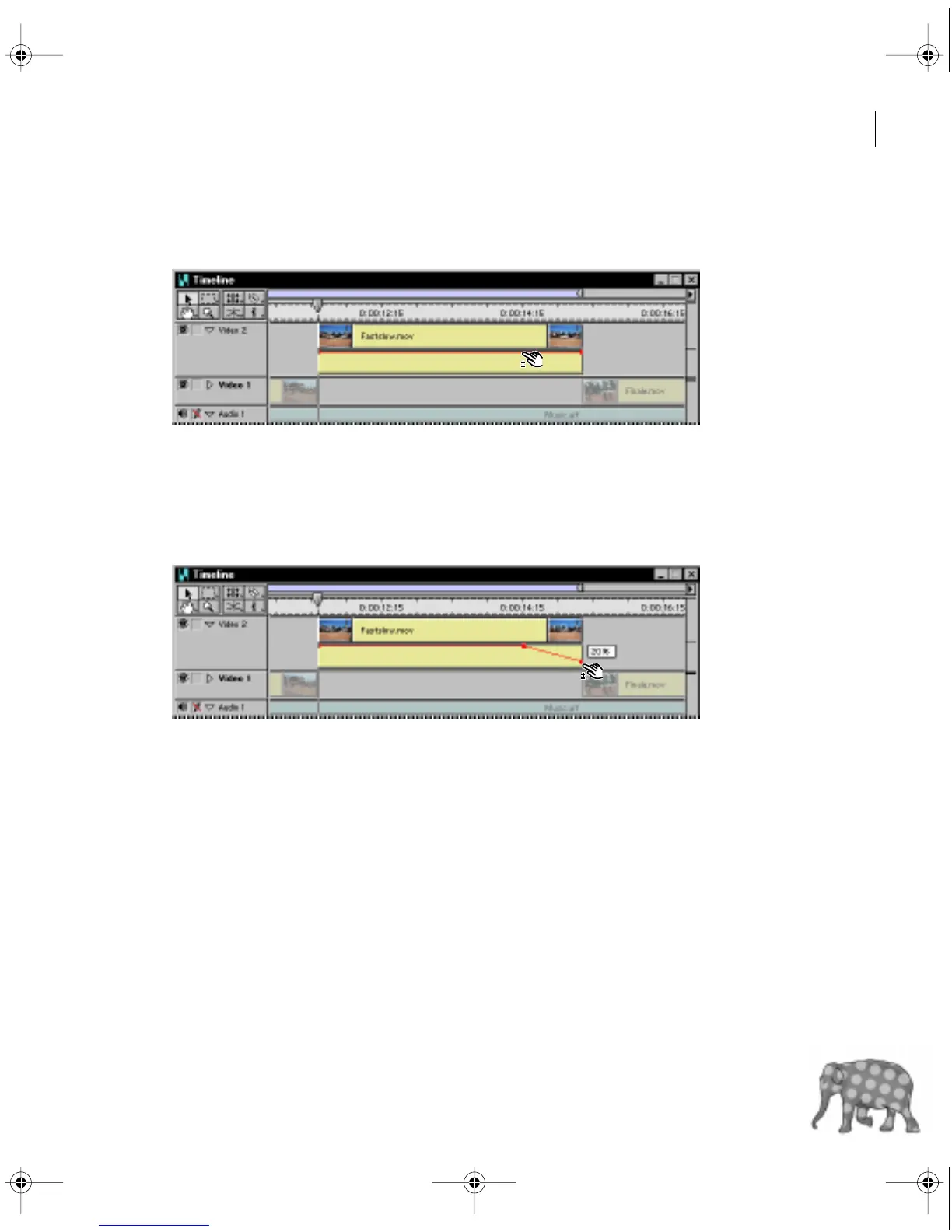
3 In the Video 2 track of the Timeline window, click the rightmost handle. Keep the mouse
button depressed throughout the next step.
4 Press Shift, and then drag the selected opacity handle down until the value beside the handle
displays 20%.
This creates a downward slope in the control bar, starting at the first handle you created.
A downward slope decreases opacity. In this case, the opacity of the clip begins at 100% and
decreases to 20%. (Make sure you press the Shift key after you select the handle, otherwise
the change applies starting with the leftmost handle in the control bar.)
Note: You can also drag handles without holding down Shift, but that limits you to 5-percent
increments and does not produce a pop-up display. You can, however, use the Info palette to
view the opacity setting if you drag without holding down the Shift key.
Preview what you’ve done.
c00.book for PS Page 41 Tuesday, March 31, 1998 1:28 PM



 To Next Page