CHAPTER 8
274
Superimposing and Compositing with Transparency
To use a temporary matte for keying:
1 Create a background matte as described above. Typically, a bright green or yellow works best.
2 Place the matte in a track beneath the clip you are keying, in either a superimpose track or
the Video 1 track.
3 Make the matte the same length as the clip you are keying so that you can preview trans-
parency across the entire clip.
4 Create transparency in the clip as described on page 263. The brightly colored matte shows
through in the areas that are transparent.
5 When you are satisfied with your keying, delete the colored matte from the Timeline
window.
Creating garbage mattes
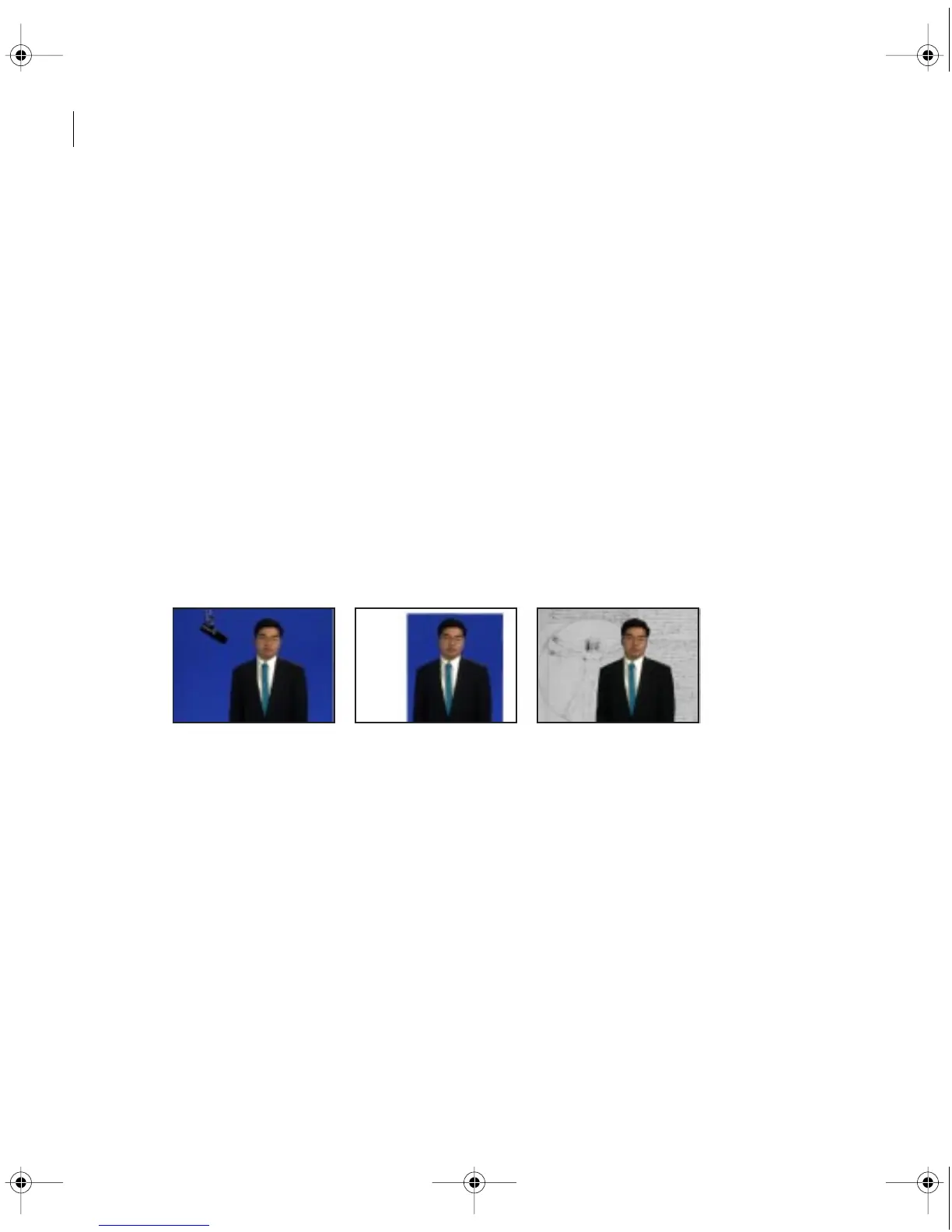
Sometimes the subject of a scene will be properly keyed except for undesired objects. A garbage
matte lets you mask out those objects. You can then place the keyed subject in another scene for
simple effects.
The microphone (left) is masked out by repositioning image handles in the Transparency dialog box
(center), creating a garbage matte which is then keyed and composited onto a background (right).
c00.book for PS Page 274 Tuesday, March 31, 1998 1:28 PM



 To Next Page