CHAPTER 4
148
Editing Video
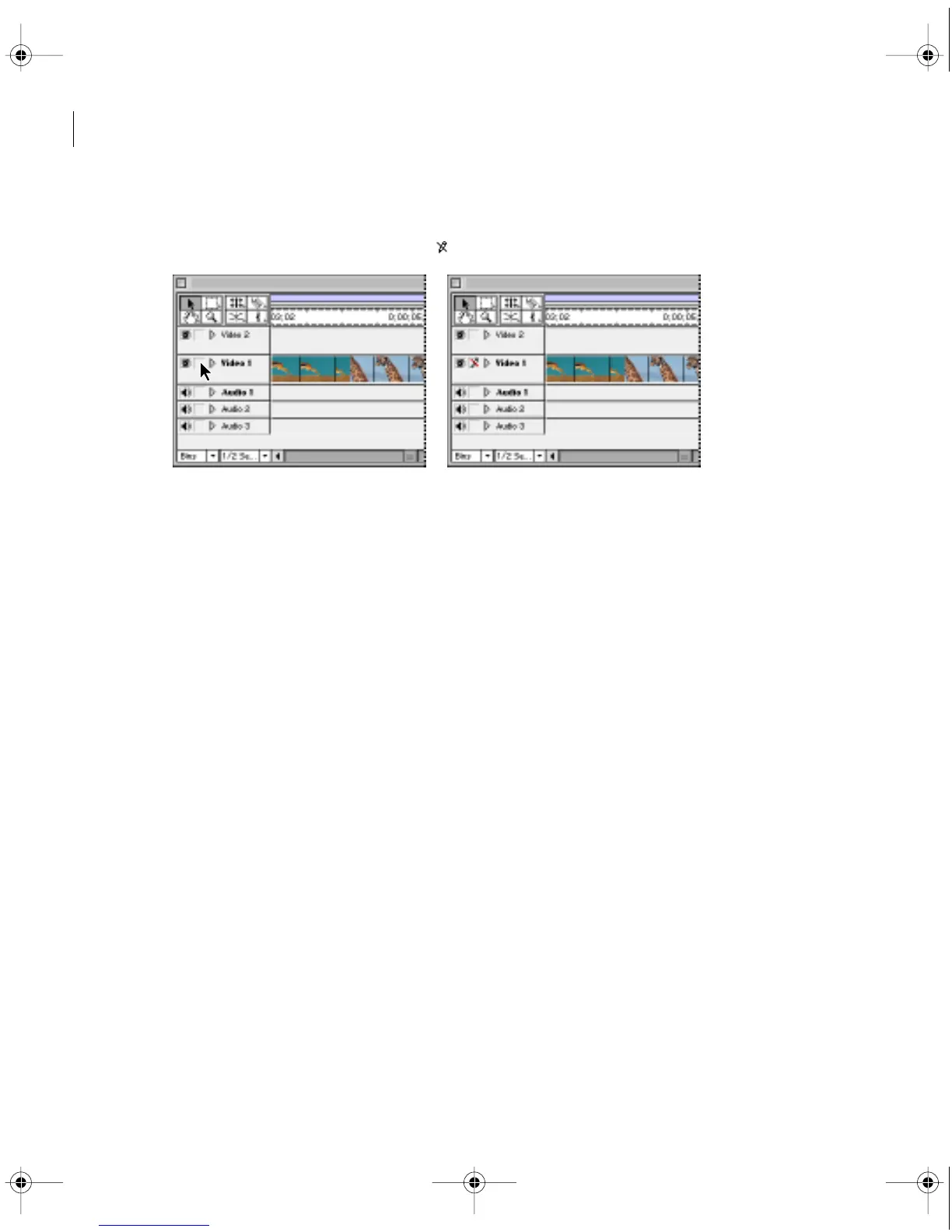
To lock or unlock a track:
Click to display or hide the pencil icon ( ) next to the track name.
Editing In and Out points
Most clips are captured with extra footage at the beginning and end to allow for more precise
editing later. It’s common to fine-tune the beginning and end of a clip just before moving a clip
into the program. You define the beginning by marking an In point (the first frame of a clip
that will appear in the video program), and you define the ending by marking an Out point
(the last frame that will appear in the video program).
Marking and finding In and Out points
For numerical precision, you can set In and Out points using the Monitor Source or
Program view. For visual precision, or if you prefer to use the mouse, you can edit directly
in the Timeline by using the edge trim tool if you zoom into the Timeline far enough to see
individual frames (see “Moving around in the Timeline” on page 138). This interactive
tool is useful for a rough cut, and it can be as precise as specifying In and Out points
numerically if you set the Timeline to display individual frames in the Time Ruler. The
pointer automatically changes to the edge trim tool when you use move the selection tool
near the edge of a clip in the Timeline.
c00.book for PS Page 148 Tuesday, March 31, 1998 1:28 PM



 To Next Page