279
ADOBE PREMIERE 5.0
User Guide
Chapter 9: Animating a Clip
dobe Premiere lets you move, rotate, and zoom a video or still-image clip through
the area bounded by the video program’s frame. You can specify a motion path,
change motion over time with keyframes, and speed up or slow down the motion
you’ve defined. In addition, you can distort the shape of a clip to create other special effects.
Moving a clip across the frame
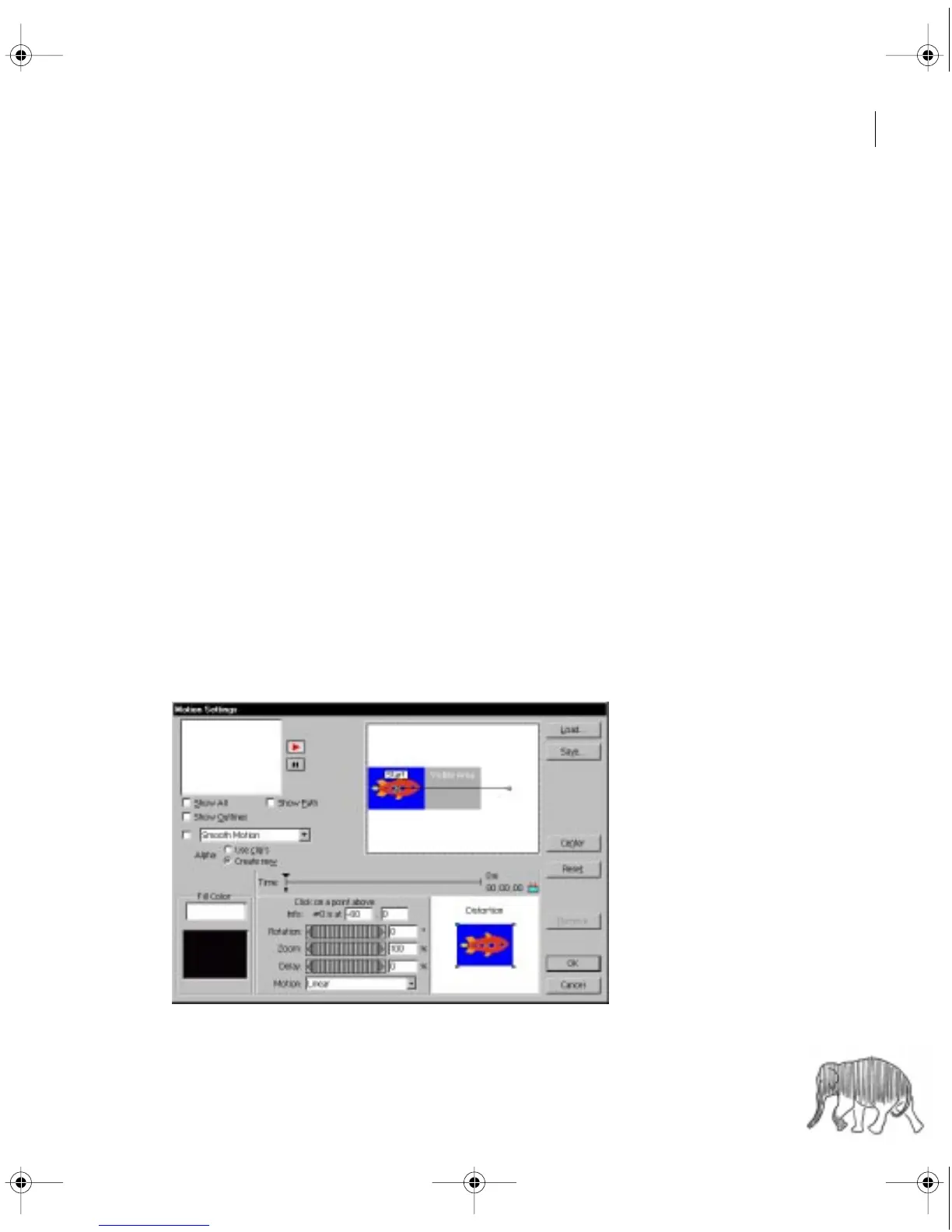
You can move a clip across the visible area bounded by the video program’s frame by creating
a motion path. You can specify the path completely within the visible area, or extend it beyond
so that the clip enters and exits at the boundaries. Note that you can add motion only to the
clip itself; you cannot add motion to elements within the clip. In addition, you can specify
rotation, zooming, delays, and distortion to create more complex motion. See “Rotating,
zooming, delaying, and distorting” on page 284.
To define a motion path for a clip:
1
Select a clip in the Timeline window.
2
Choose Clip > Video > Motion. The Motion Settings dialog box appears.
c00.book for PS Page 279 Tuesday, March 31, 1998 1:28 PM



 To Next Page