CHAPTER 1
38
A Tour of Adobe Premiere
Changing the speed of a clip
You can change the playback speed of a clip to make it play slower or faster. Changing the
speed changes its duration without adding or removing any frames. To make the bike
sequence more interesting and attention-getting, you’ll slow down the second portion of
the clip you just cut, increasing its duration.
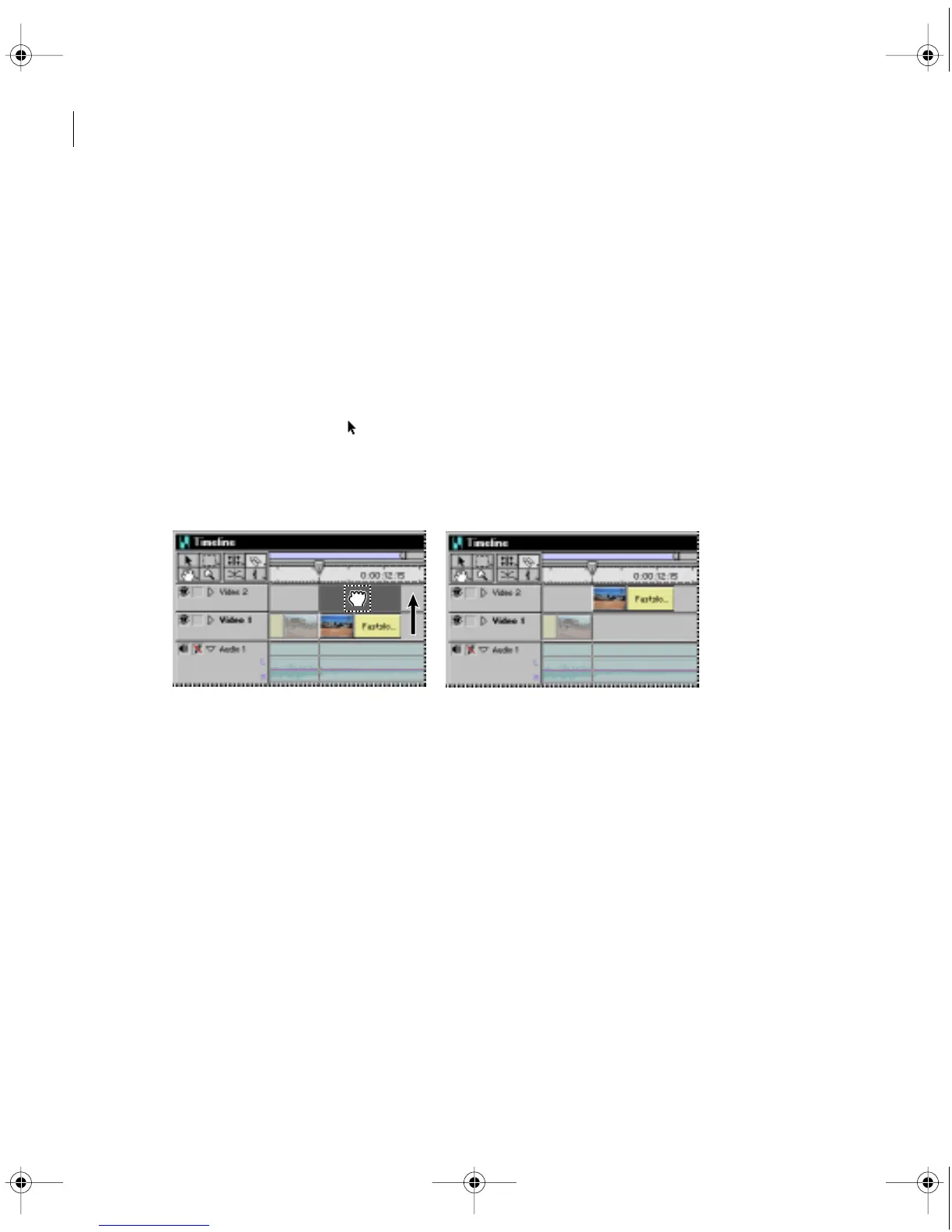
Since you also want to fade out the same clip, which requires it to be placed in a superimpose
track, you’ll place it there now.
1 Collapse the Video 1 track by clicking the downward pointing arrow to the left of the track.
2 Click the selection tool ( ) to select it, and then drag the second portion of the Fastslow clip
upward into the Video 2 track.
Make sure to keep the position of the clip at exactly the same point in time; the edges of
the clip snap to its same location in the Video 2 track.
Now you’ll change its speed.
3 Select the clip you just moved (if it is not already selected), and choose Clip > Speed.
c00.book for PS Page 38 Tuesday, March 31, 1998 1:28 PM



 To Next Page