CHAPTER 1
32
A Tour of Adobe Premiere
You have trimmed the Out point of the Cyclers.mov clip. Since you trimmed the clip using
a ripple edit, the subsequent clips have followed suit, shifting to the left
.
8
Select the selection tool ( ), since you are done with ripple editing.
Now you’ll move on to applying a transition between clips.
Adding a transition
A
transition
is a change from one scene to the next, or from one clip to another. The simplest
transition is the
cut
, where the last frame of one clip leads directly into the first frame of the
next. By placing the first two clips together—Boys.mov and Cyclers.mov—you created a cut
between them.
To add texture, nuance, or attention-getting special effects between scenes, you can use special
transitions available in Premiere 5.0, such as dissolves, wipes, and zooms. In this tour, you’ll use
the Cross Dissolve transition.
1
Choose Window > Show Transitions.
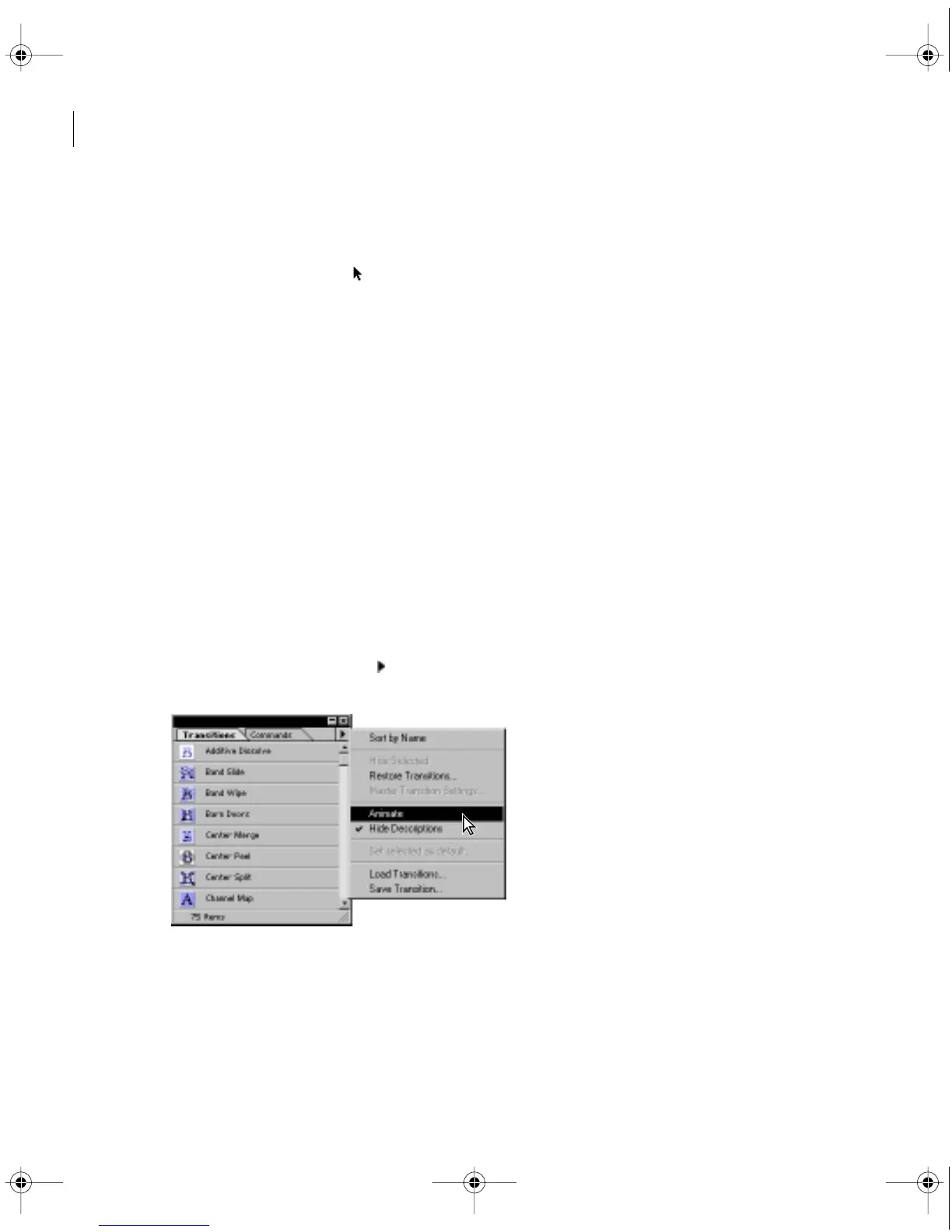
The Transitions palette appears, displaying the available transitions. Each icon graphically
represents how the transition works. You can also animate these icons to see a dynamic view
of each transition. Do that now.
2
Click the small black arrow ( ) in the upper right corner of the Transitions palette,
and then choose Animate.
c00.book for PS Page 32 Tuesday, March 31, 1998 1:28 PM



 To Next Page