31
ADOBE PREMIERE 5.0
User Guide
Now you’ll trim the Cyclers.mov clip so that its endpoint corresponds with an exact point
in the Timeline. To trim the Cyclers.mov clip to this time, you’ll use the Info palette.
5
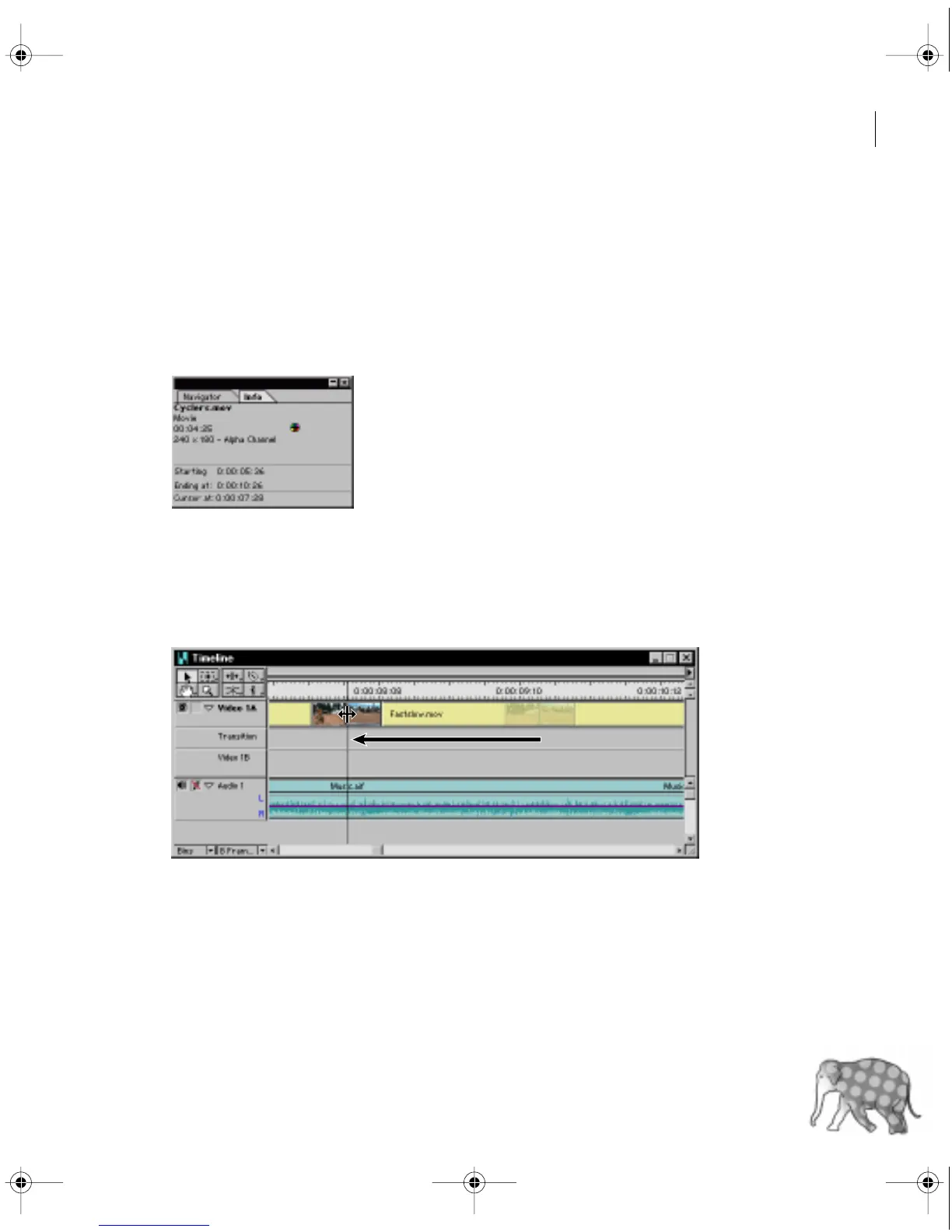
Select the Cyclers.mov clip and choose Window > Show Info.
The Info palette displays the name, duration, and the starting and ending points of the selected
clip. In addition, it displays the current location of the pointer; you’ll use the pointer infor-
mation to help you trim.
6
With the ripple edit tool still selected, move the pointer across the line where the
Cyclers.mov and Fastslow.mov clips join.
7
Drag the ripple edit tool to the left, until the position of the pointer in the Info palette
reads 0:00:08:01, and then release the mouse button.
c00.book for PS Page 31 Tuesday, March 31, 1998 1:28 PM



 To Next Page