273
ADOBE PREMIERE 5.0
User Guide
Superimposing two or more clips
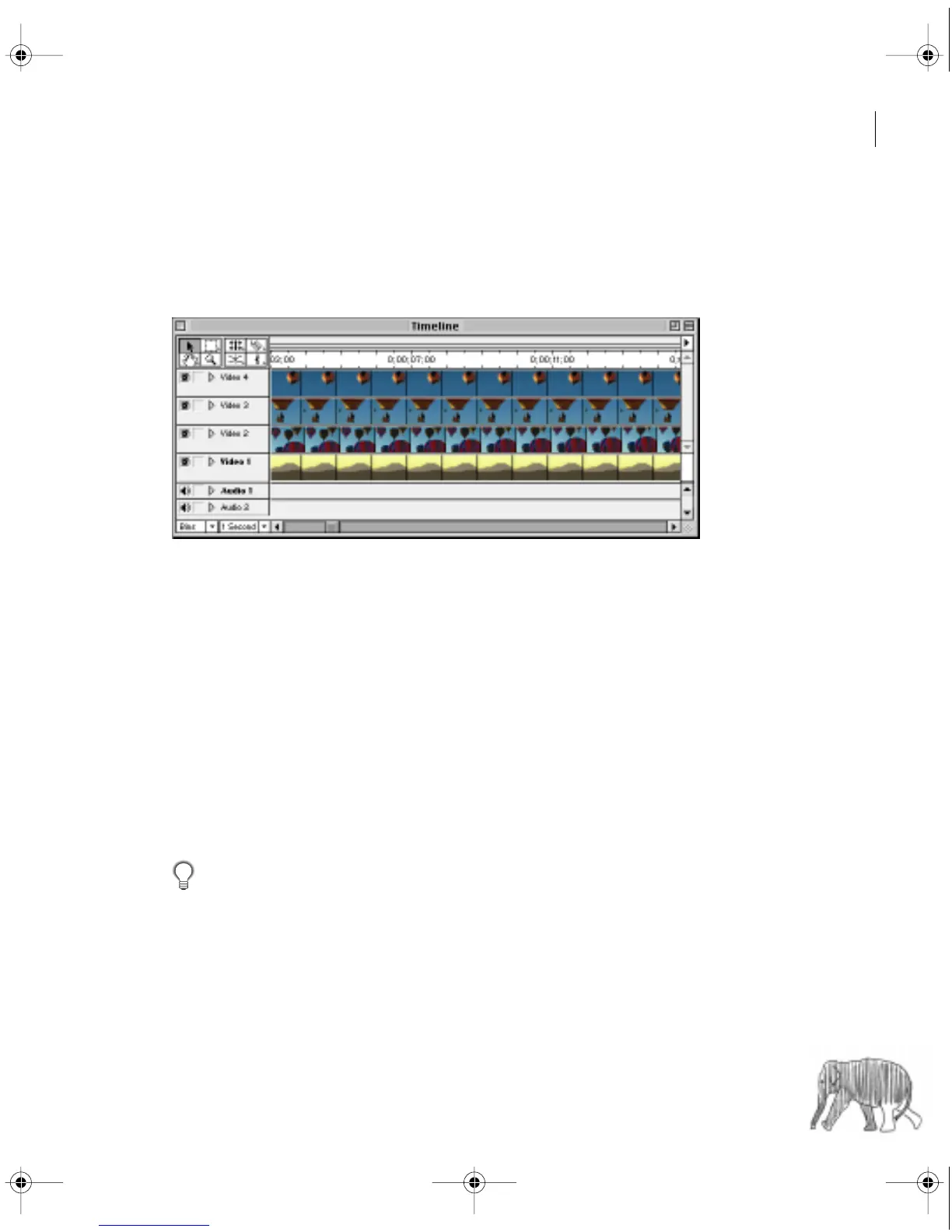
You can superimpose several clips one on top of another. Each clip must be on a separate super-
impose track. You can create up to 97 superimpose tracks. You can also rename each track with
descriptive names. For details, see “Adding, naming, and deleting tracks” on page 144.
Timeline with multiple superimpose tracks
Adding a background matte
Adobe Premiere lets you create a full-frame matte of a solid color that you can use like a clip.
You can use mattes, for example, as a solid background for titles. Brightly colored mattes can
serve as temporary backgrounds while you use a key to help you see transparency more clearly.
To create a background matte:
1 Activate the Project window.
2 Choose Project > Create > Color Matte.
3 Select a color from the Color Selection window and click OK.
4 Type a name for the matte, as it will appear in the Project window. Then click OK.
You can create a backdrop from an existing frame by exporting a frame as a still image.
See “Exporting a still image” on page 328.
c00.book for PS Page 273 Tuesday, March 31, 1998 1:28 PM



 To Next Page