205
ADOBE PREMIERE 5.0
User Guide
2
Choose Save Transitions from the palette menu.
3
Specify a name and location for the file in which the transition information is stored,
and click Save. On Windows, the filename must use the .PFX extension.
To load a set of transitions:
1
Choose Load Transitions from the Transitions palette menu.
2
Locate and then double-click the file that defines the set of transitions you want to load.
Creating transitions
To add a transition, you place it in the Timeline window between two clips. Transitions can
be applied only to clips on the Video 1A and 1B tracks. You can add a transition to the Video 1
track either when it is collapsed or expanded. You can also click the default transition button
in the Monitor window (or use keyboard shortcuts in the Monitor or Timeline windows) to
apply a default transition (see “Specifying and adding a default transition” on page 208).
The method you use to add a transition does not affect the way the transition works; the
transition acts on the two clips in the same way.
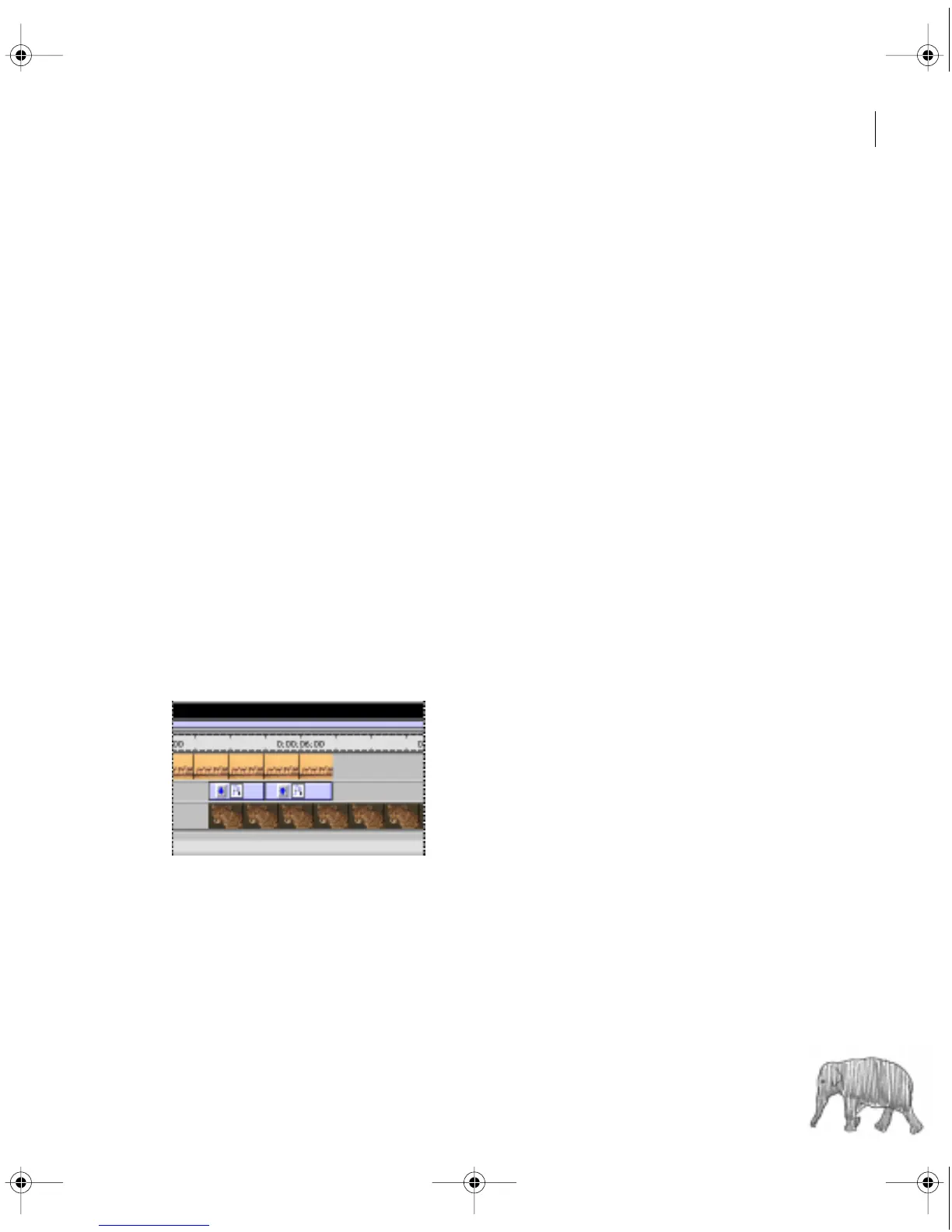
To combine the effects of two or more transitions as a sequence, you can place the transitions
side by side in the area where the clips overlap. In this way, you can creatively enhance the
transitions provided with Premiere.
Two transitions creating a transition sequence
c00.book for PS Page 205 Tuesday, March 31, 1998 1:28 PM



 To Next Page