CHAPTER 5
206
Adding Transitions
Working with the expanded Video 1 track
When the Video 1 track is expanded, you can easily add and adjust transitions between
two overlapping clips. Because a transition somewhat obscures the overlapping area of the
two clips, you should make sure that this area does not include elements essential to your
video program.
To add a transition to the expanded Video 1 track:
1
Position one clip in the Video 1A track and another clip in the Video 1B track so that some
(or all) of the two clips overlap. The amount of overlap determines the default size of the
transition.
2
If the Transitions window is not visible, choose Window > Transitions.
3
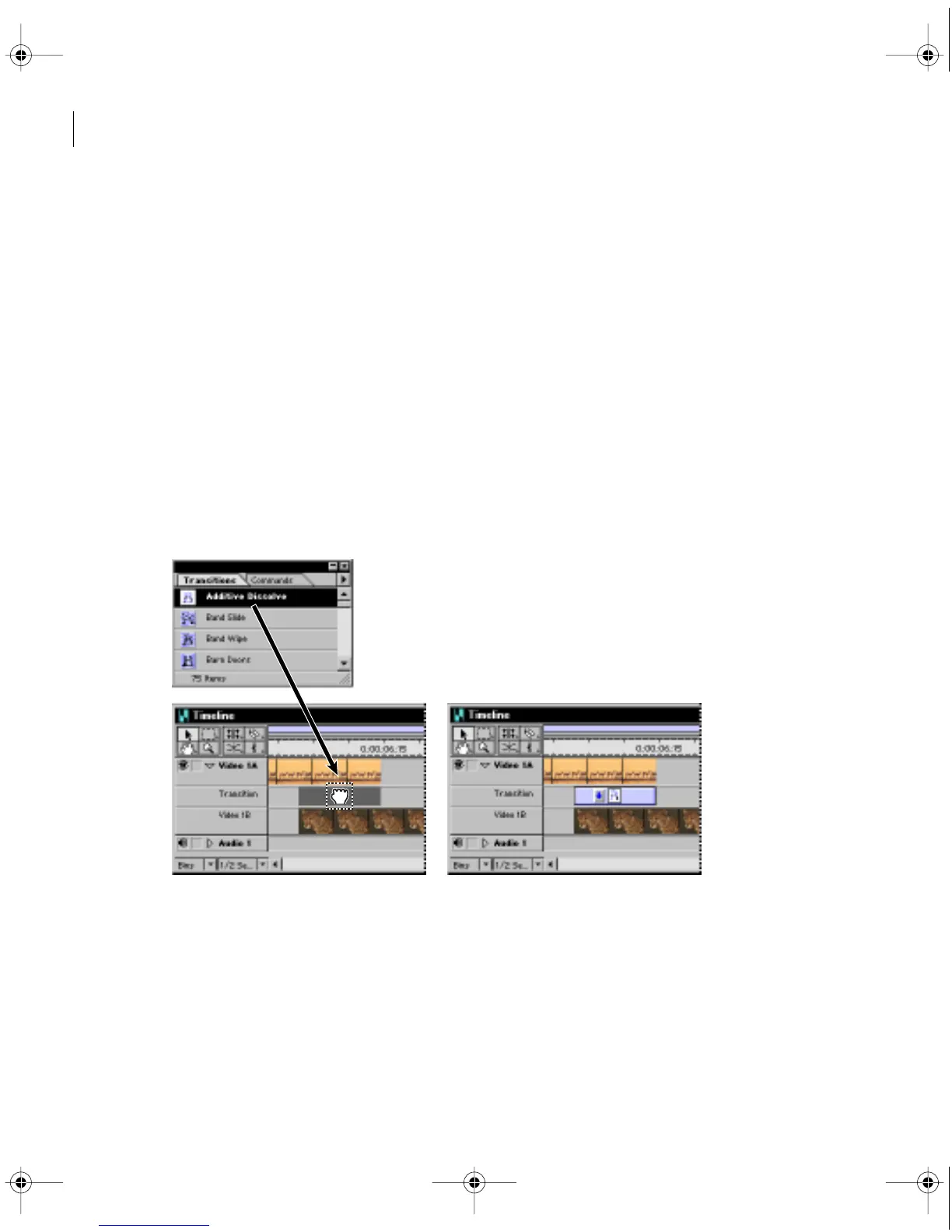
Select and drag a transition from the Transitions palette to the Transition track in the
Timeline window, between the overlapping area of the two clips. The duration of the transition
is automatically sized to the overlapping area.
Transition placed and automatically sized in overlapping area
c00.book for PS Page 206 Tuesday, March 31, 1998 1:28 PM



 To Next Page