29
ADOBE PREMIERE 5.0
User Guide
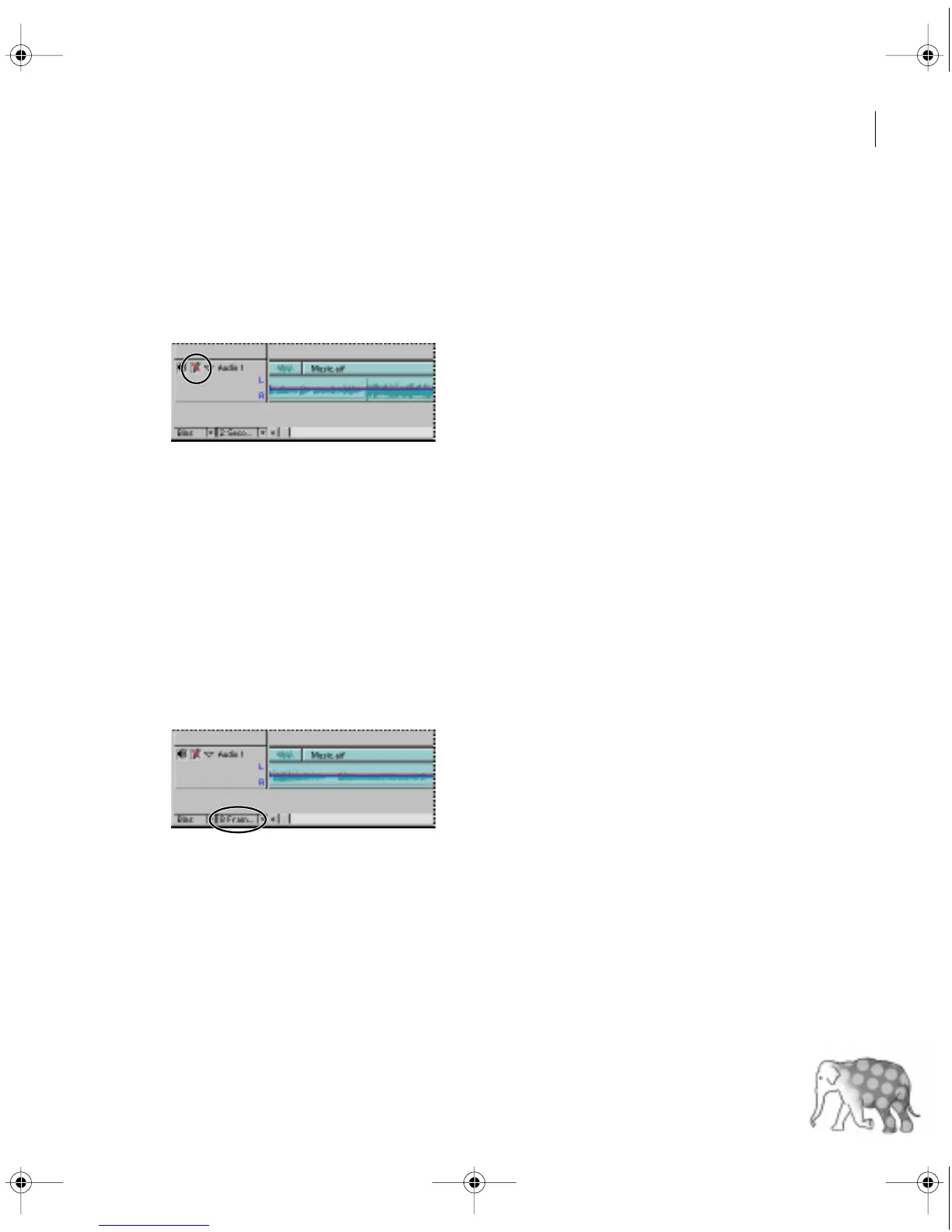
The expanded view shows the waveform of the clip. The waveform displays the volume of the
audio over time. Higher peaks in the waveform indicate greater volume. In the next section,
you’ll come back to the audio track to synchronize events in the video with the music. For now,
you’ll lock the track so it doesn’t get repositioned later.
4
Click in the box next to the speaker icon to lock the audio track.
5
Click the Program view Play button in the Monitor window to preview the video and the
audio together.
Trimming clips in the Timeline window
In addition to trimming clips in the Monitor window, you can trim clips in the Timeline
window using a number of different methods. To edit more precisely in the Timeline window,
it’s often easier to view a wider range of frames. By default, the Timeline window displays the
frame at each second.
1
From the Time Units pop-up menu in the lower left of the Timeline window, choose
8 Frames.
c00.book for PS Page 29 Tuesday, March 31, 1998 1:28 PM



 To Next Page