CHAPTER 4
192
Editing Video
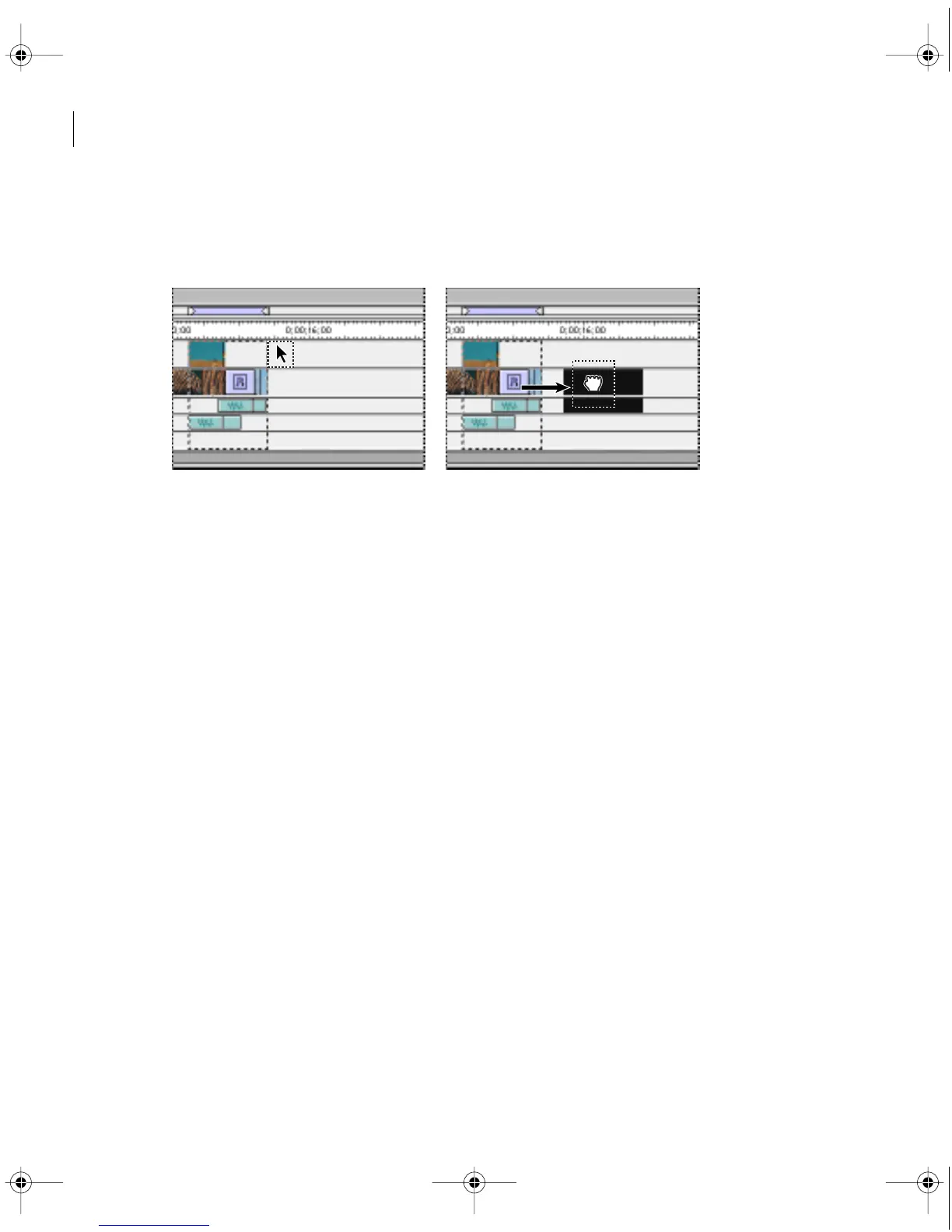
6 Drag the selected block to any other available location in the Timeline. As you drag,
the virtual clip is represented by a black rectangle identical to the one you see when you
drag a source clip.
To locate the original frames that make up a virtual clip:
Do one of the following:
• In the Timeline, double-click the virtual clip.
• In the Timeline, select the virtual clip and then choose Clip > Locate Clip.
The Timeline displays the selection rectangle around the source frames for the virtual clip.
Tip: You can change the area in the Timeline that is the source for a virtual clip just by dragging
the edge of the virtual clip. You can observe the difference if you double-click the virtual clip before
and after you trim it.
Previewing a video program
So that you can evaluate the program as you edit it, Premiere lets you preview part or all of the
video program without having to export the entire video program. You can display previews
in the Monitor Program view, in the center of a monitor on a black background, or on any
compatible monitor attached to your computer. Previewing is relatively quick for a program
that simply cuts between clips. Applying transitions, filters, effects, or superimposition settings
adds processing time to a preview.
c00.book for PS Page 192 Tuesday, March 31, 1998 1:28 PM



 To Next Page