CHAPTER 1
22
A Tour of Adobe Premiere
Now you have four clips in your Video 1A track, forming a video program about 32 seconds
in length. This is a rough cut, giving you some idea of how your sequence works and what
needs to be trimmed, edited, and modified. In the next section, you’ll preview this sequence.
Before moving on, though, you’ll change how the clips are represented in the Timeline.
5
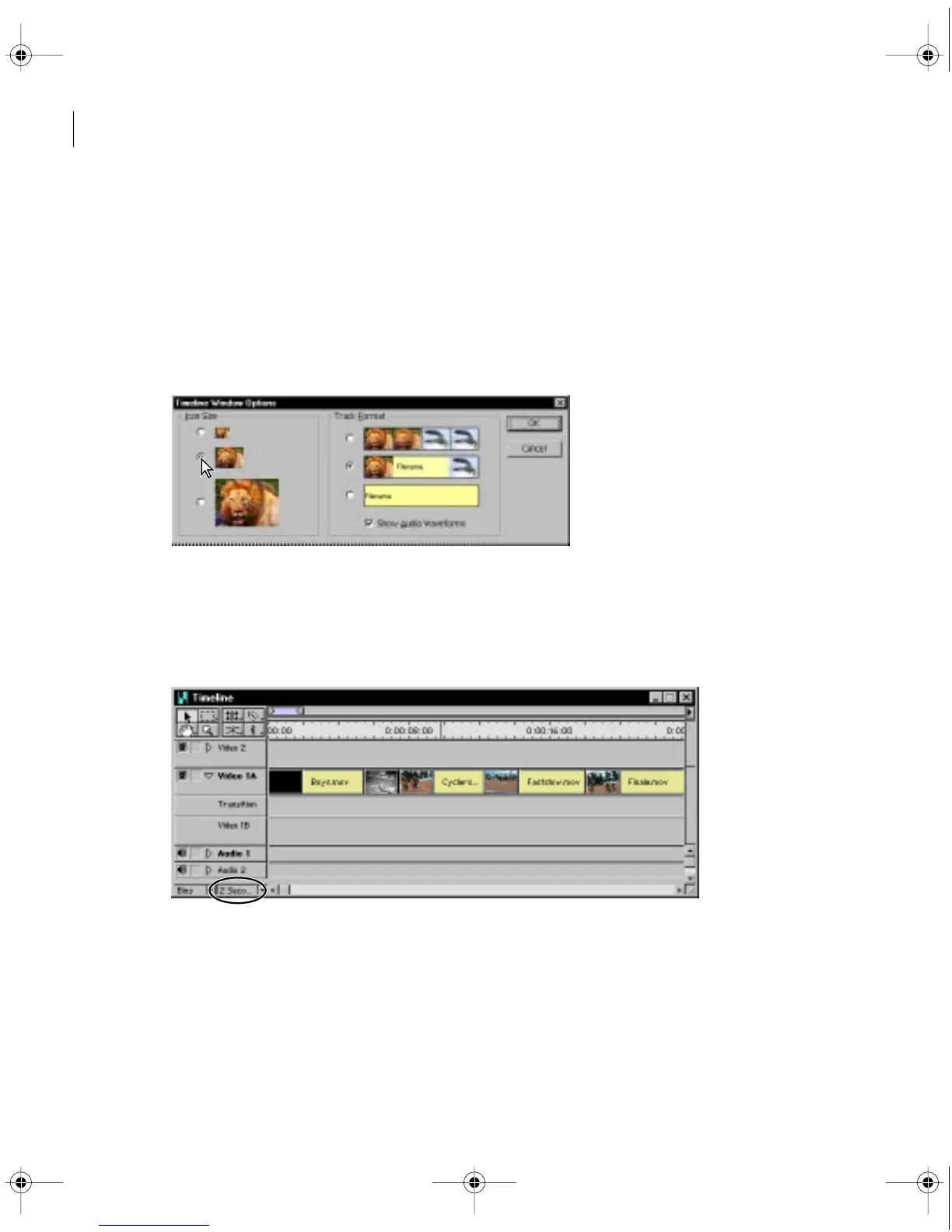
Click the Timeline window title bar to make sure the window is active, and choose
Window > Timeline Window Options.
6
For Icon Size, select the middle option, and then click OK.
The clip representations in the Timeline change size accordingly. Now change the unit of time
displayed throughout the Timeline.
7
From the Time Units pop-up menu in the lower left of the Timeline window, choose
2 Seconds.
c00.book for PS Page 22 Tuesday, March 31, 1998 1:28 PM



 To Next Page