283
ADOBE PREMIERE 5.0
User Guide
2
Drag the arrow to the left or right. Dragging the arrow closer to another motion point
increases the speed between the two points; dragging it further away from a point decreases the
speed between the points.
Previewing motion
The motion settings are applied to the sample in the upper left corner of the Motion Settings
dialog box, letting you preview any changes you make.
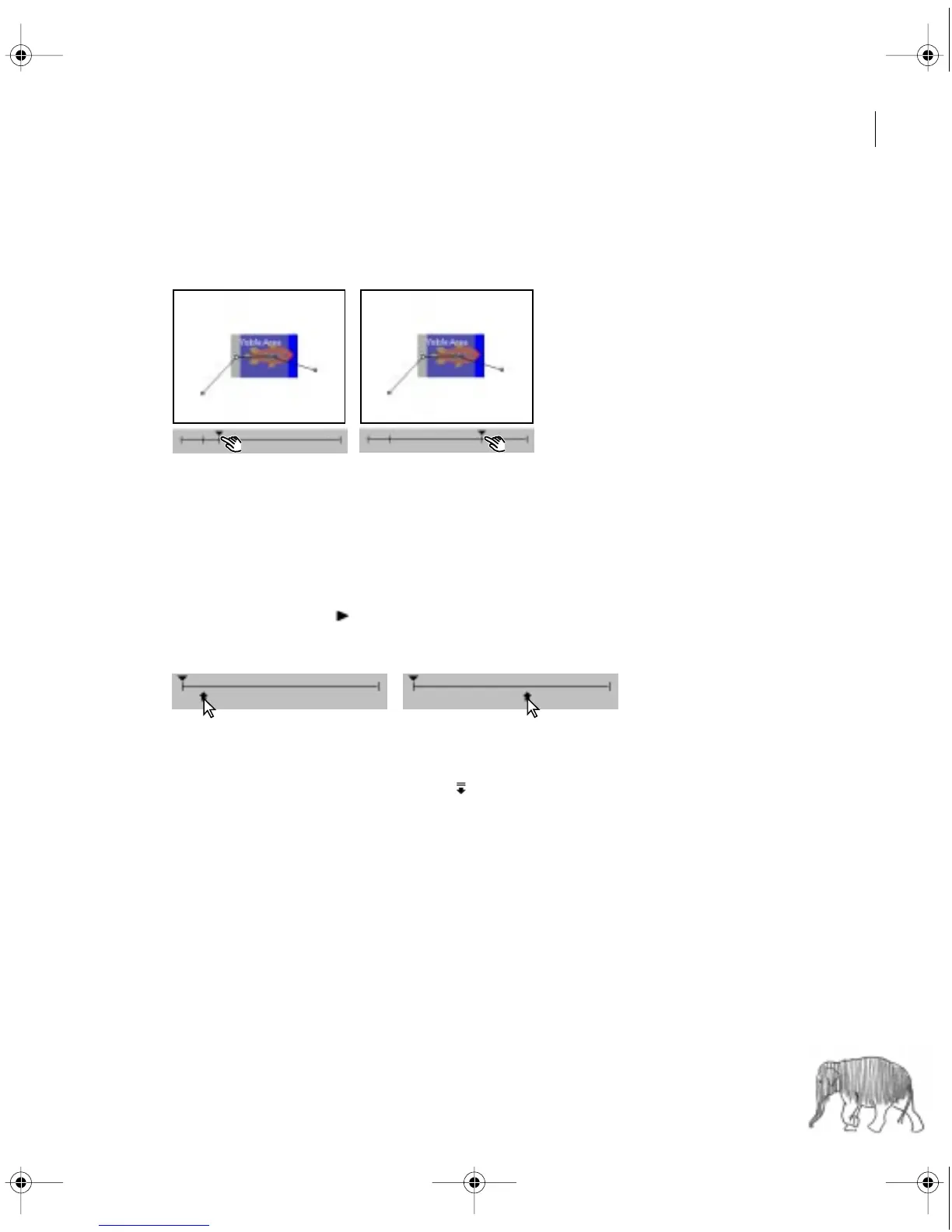
To preview motion in the Motion Settings dialog box:
•
Click the Play button ( ) next to the motion thumbnail.
•
Drag the upward-pointing arrow along the timeline.
•
To pause the preview, click the Pause button.
•
On Mac OS only, click the Collapse icon ( ) to move the preview to the Program view in the
Monitor window.
•
Select Show All to display the image along the motion path as it would appear in the final
video program, including transitions, filters, and transparency settings. Note that the motion
thumbnail may not play as smoothly with this option selected.
c00.book for PS Page 283 Tuesday, March 31, 1998 1:28 PM



 To Next Page