CHAPTER 9
282
Animating a Clip
To delete a point on the motion path:
Select the point, and press Delete.
Changing the speed of motion
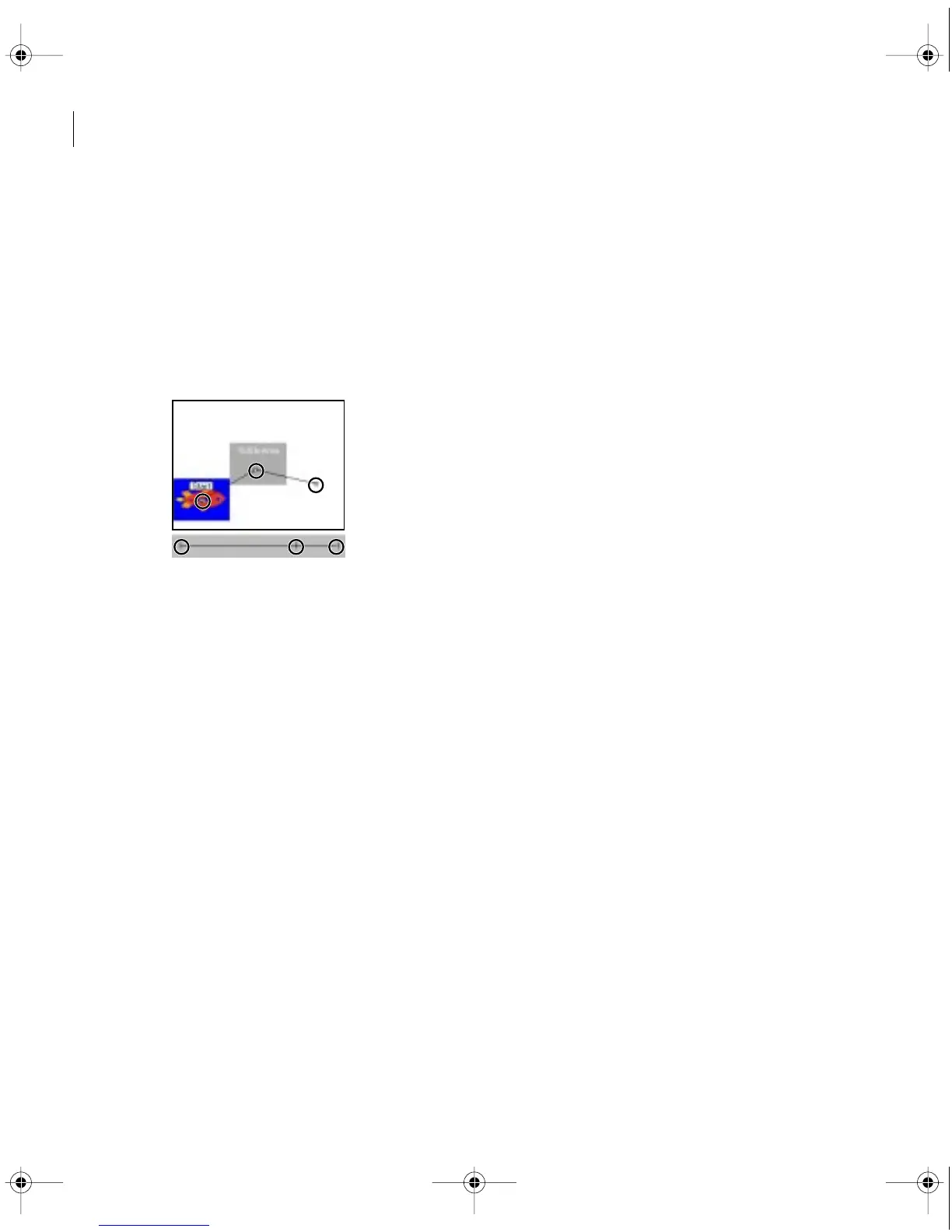
You can change the speed of motion by positioning motion points along the timeline. Points
that have been added to the motion path are represented in time on the timeline below the
path. The length of the timeline represents the duration of the clip.
For each point on the timeline,
there is a point on the motion path.
The timeline also includes a control that lets you specify the view of time. Clicking the two red
arrows to the right of the timeline toggles the time display between the clip duration and the
project duration. You can use this control to synchronize motion or specify motion at an exact
point in time. See “Specifying an exact time for motion” on page 286.
To change the speed of the motion:
1
Select the motion point in either the path or the timeline in the Motion Settings dialog box.
You can also press Tab or Shift+Tab to select each motion point in succession. A black
downward arrow indicates which point is selected in the timeline.
c00.book for PS Page 282 Tuesday, March 31, 1998 1:28 PM



 To Next Page