49
ADOBE PREMIERE 5.0
User Guide
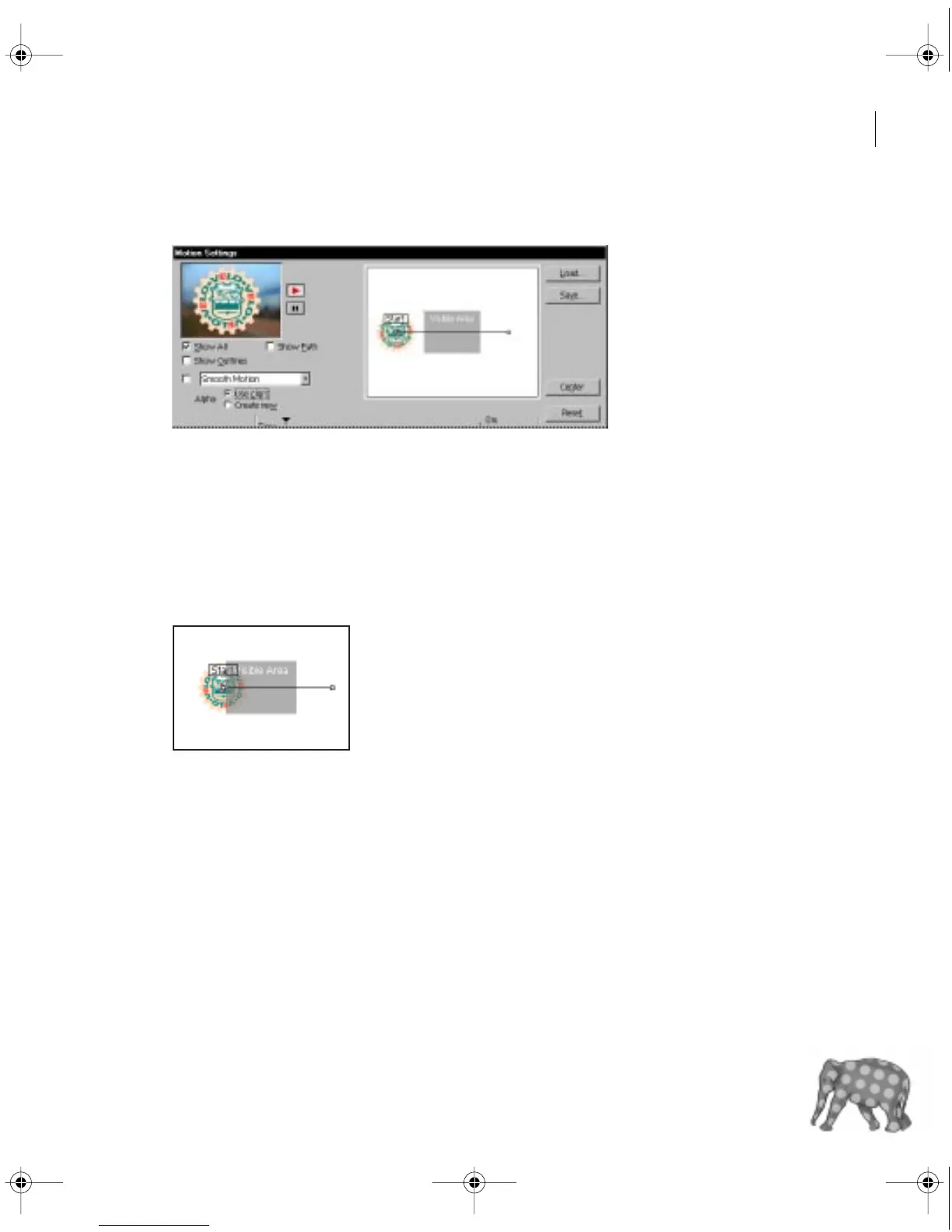
2 Choose Clip > Video > Motion.
In the middle of the dialog box is the motion path for the clip. By default, the path is a
straight line, starting outside the frame on the left, and ending outside the frame on the
right. The area on the left half of the dialog box previews the motion for you.
You’ll now define a new motion path.
3 In the Motion path area, drag the Start point to the right, so that approximately half
of the image overlaps the Visible Area.
c00.book for PS Page 49 Tuesday, March 31, 1998 1:28 PM



 To Next Page