47
ADOBE PREMIERE 5.0
User Guide
To specify that certain areas of a clip become transparent and other areas remain opaque, you
need to use a transparency key. A transparency key (often referred to simply as a key) makes
designated colors (or a range of colors) in a clip transparent or partially transparent. A blue
screen key, for example, makes a shade of blue transparent; in this way, an actor can be filmed
in the studio against a blue screen, and then superimposed on an outdoor action scene.
Creating transparency with a particular color is called keying out that color. To superimpose
the Veloman.eps image, you need to key out the white background.
6 Select the Veloman.eps image in the Timeline window, and then choose
Clip > Video > Transparency.
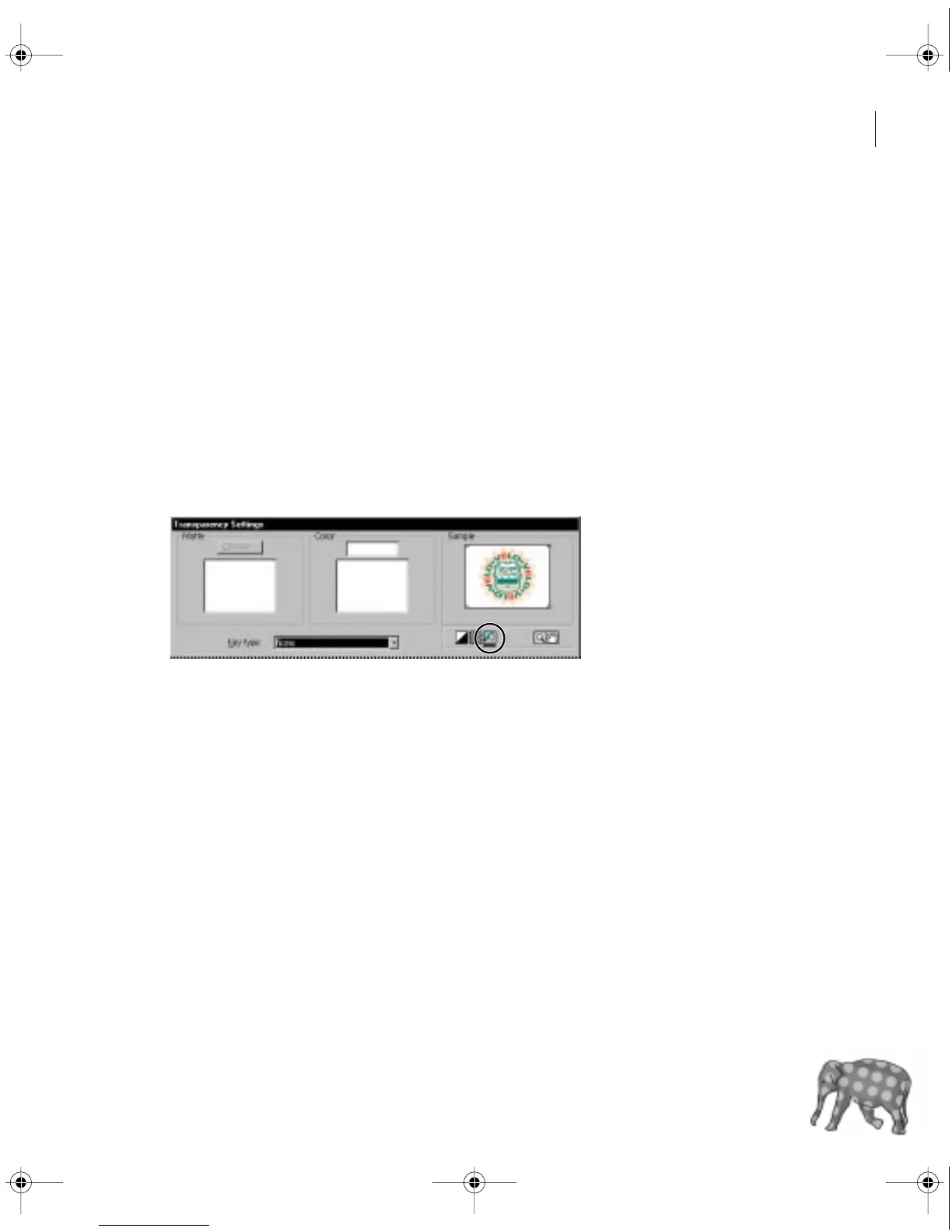
The Transparency Settings dialog box shows the selected clip in the Sample area. The key you
choose is applied to the clip, and the resulting effect is displayed in this area.
7 Select the Page Peel icon, which displays the actual clips in the Sample area.
8 In the Transparency Settings dialog box, choose White Alpha Matte for the Key Type.
The White Alpha Matte key will key out any areas of alpha white in an image that contains
an alpha channel.
c00.book for PS Page 47 Tuesday, March 31, 1998 1:28 PM



 To Next Page