CHAPTER 4
150
Editing Video
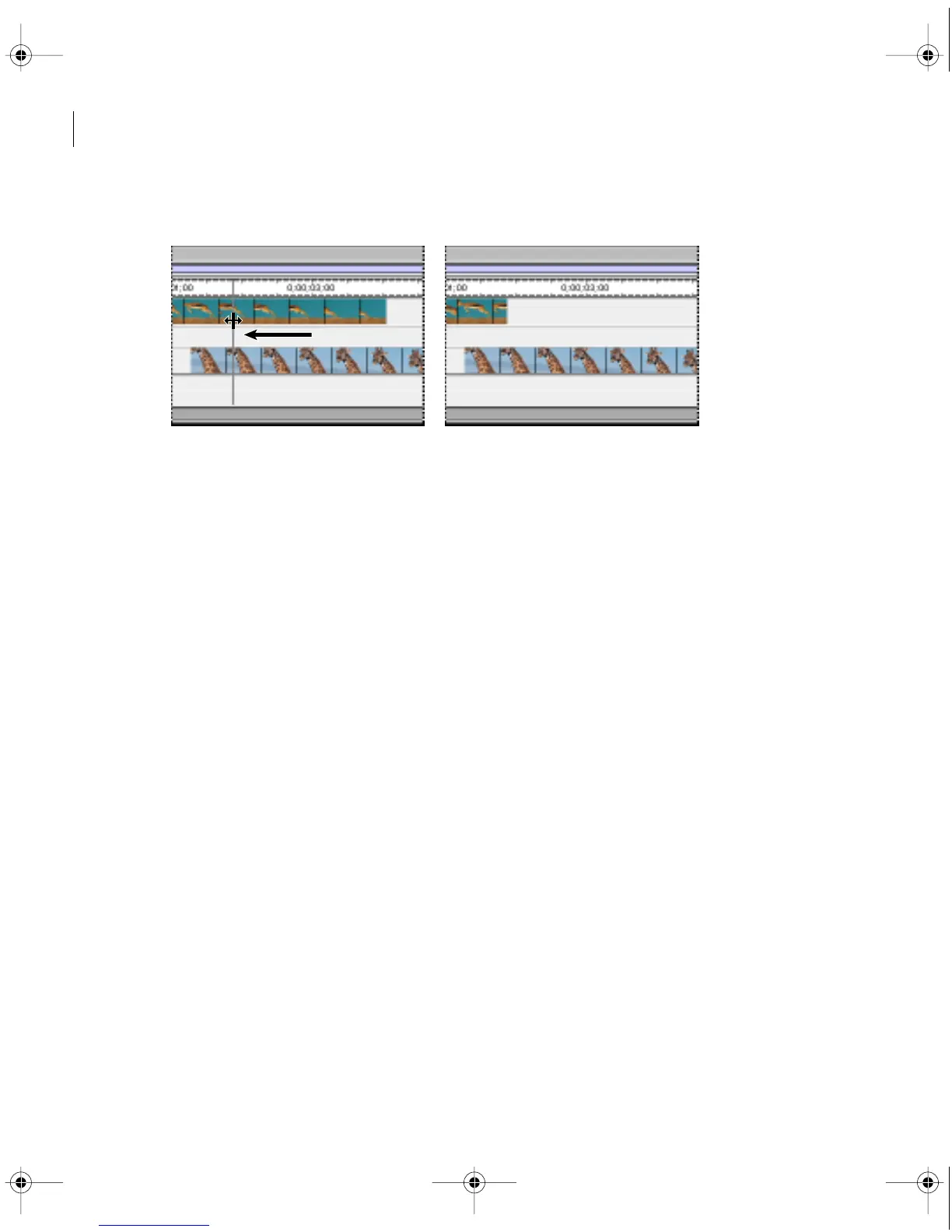
• To edit the Out point, drag the right edge of the clip.
To find a clip’s In or Out point:
1 Do one of the following:
• For a clip’s source In or Out point, open the clip and activate the Source or Clip window.
• For a clip’s program In or Out point, open the clip and activate the Program view.
2 Choose Clip > Go To Marker > In or Clip > Go To Marker > Out.
Marking in and out points for a subclip
If you’re working with a subclip that was trimmed (see “Using named subclips and unnamed
instances of clips” on page 152), you may want to set a new In or Out point beyond the In and
Out point of the subclip. You can do this by opening the subclip’s master clip.
To mark In and Out points beyond the current start and end of a subclip:
1 Open the clip, and choose Clip > Open Master Clip.
2 Create a new subclip if you don’t want to trim the master clip. See “Using named subclips
and unnamed instances of clips” on page 152.
3 Set the In and Out points.
c00.book for PS Page 150 Tuesday, March 31, 1998 1:28 PM



 To Next Page