CHAPTER 4
154
Editing Video
To add a marker:
1 Do one of the following:
• To add a marker to a clip, open it in the Source view or the Clip window, or select a clip
in the Timeline.
• To add a marker to a clip in the Timeline, select the clip or double-click the clip to open it.
• To add a marker to the Timeline, activate the Program view or the Timeline. Make sure
no clips are selected in the Timeline—if a clip is selected, click the clip to deselect it.
2 Go to the time location where you want to set the marker.
3 Choose Clip > Set Marker, and choose the marker you want to add from the Set
Marker menu.
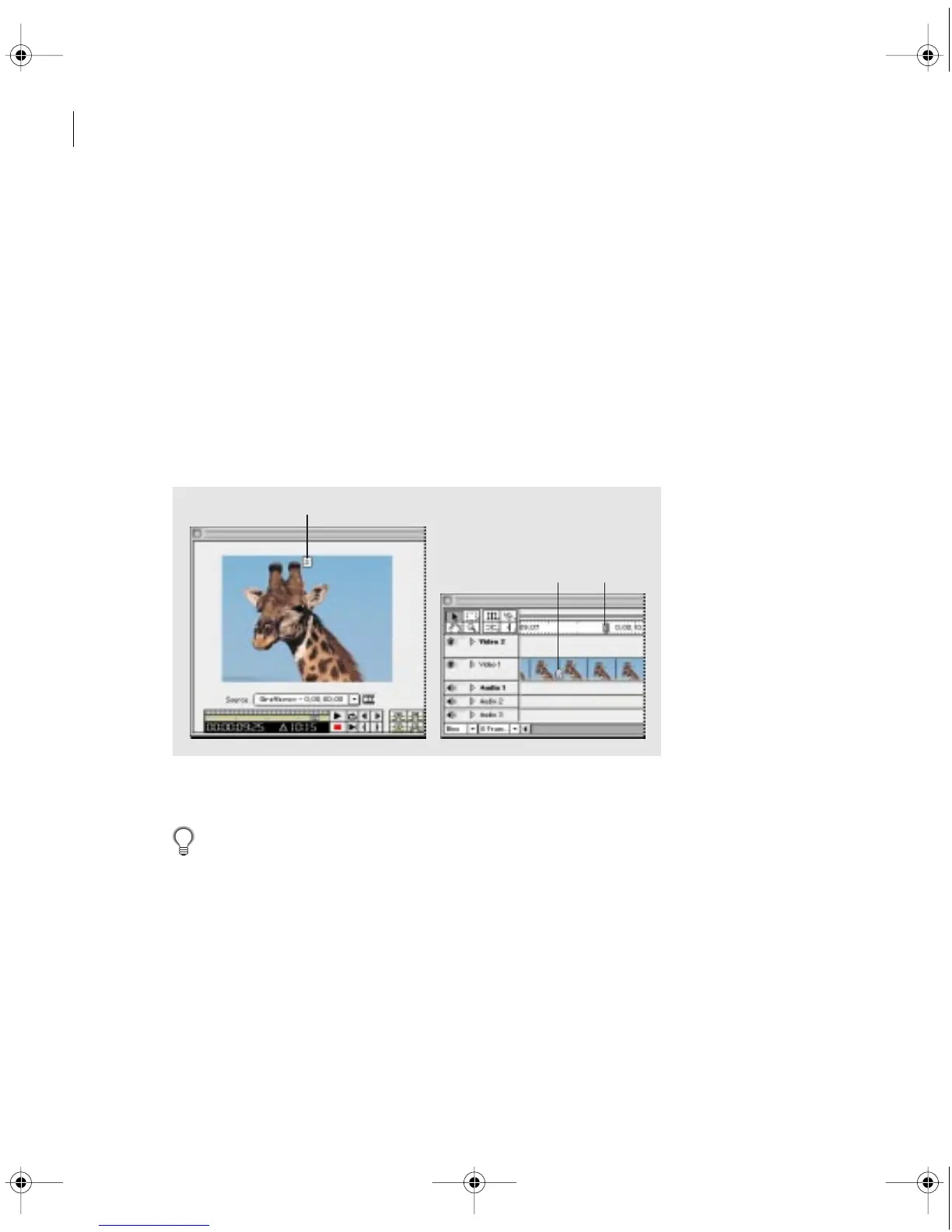
A marker appears at the top of its frame in the Monitor window (A) and is added with the
clip to the Timeline (B). A Timeline marker appears only in the time ruler (C).
To insert markers while a clip or the Timeline plays, play the clip and press * (the asterisk key)
on the numeric keypad whenever you want to insert a marker. You can also insert a numbered
marker by pressing its keyboard shortcut as a clip or the Timeline plays. (For keyboard shortcuts,
see the Quick Reference Card.)
C
A
B
c00.book for PS Page 154 Tuesday, March 31, 1998 1:28 PM



 To Next Page