187
ADOBE PREMIERE 5.0
User Guide
2 Do any combination of the following:
• To remove one frame from the left clip when it is active, or add one frame to the clip on the
right when it is active, click the left-facing single-frame trim button ( ). To edit five frames,
click the Trim Left 5 Frames button ( ).
• To add one frame to the clip on the left when it is active, or remove one frame from the clip
on the right when it is active, click the right-facing single-frame trim button ( ).To edit five
frames, click the Trim Right 5 Frames button ( ).
Note: You can set the number of frames edited by the Trim Left 5 Frames or Trim Right Five Frames
buttons (see page 188).
• To perform a ripple edit numerically, type a negative number (to move left) or a positive
number (to move right) in the option above the buttons, and press Enter (Windows)
or Return (Mac OS).
• To perform an interactive ripple edit, drag the jog tread for the left or right clip.
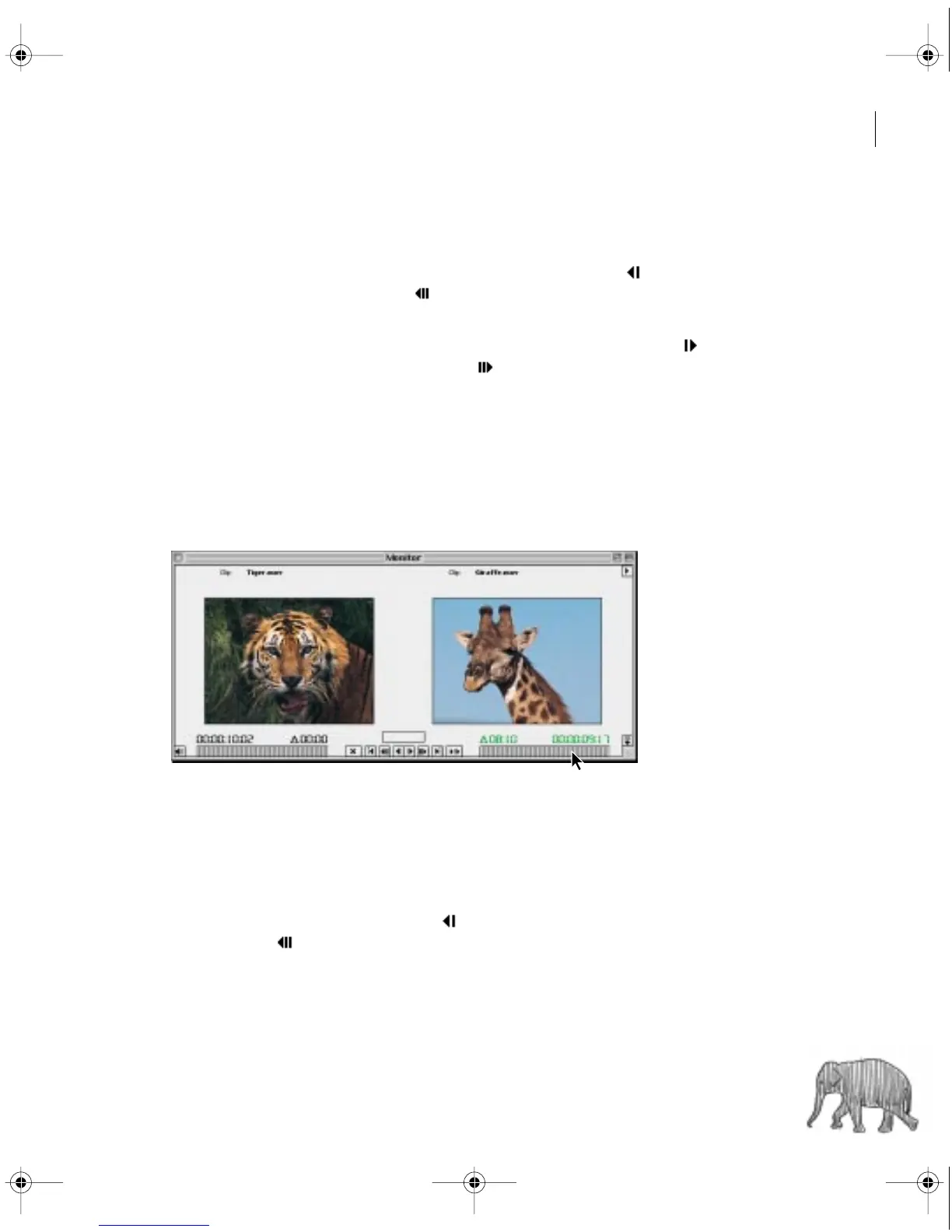
To perform a rolling edit using Trim view:
1 Click between the two views to activate both the clips to the left and right of the edit line.
2 Do any of the following:
• To remove one frame from the left clip and add one frame to the clip on the right, click
the left-facing single-frame trim button ( ). To edit five frames, click the Trim Left 5
Frames button ( ).
c00.book for PS Page 187 Tuesday, March 31, 1998 1:28 PM



 To Next Page