219
ADOBE PREMIERE 5.0
User Guide
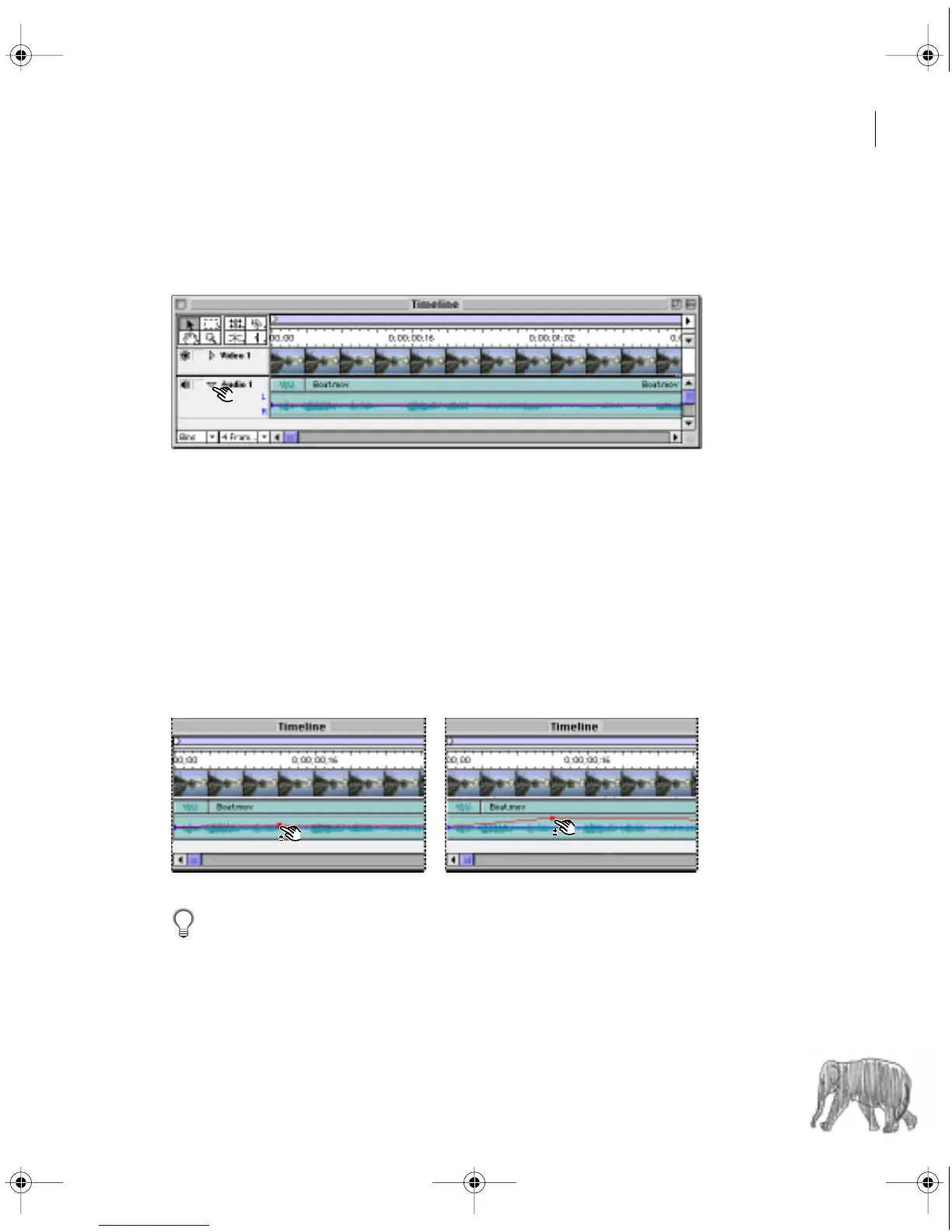
To fade audio at a specific point:
1
If necessary, click the triangle to the left of the track name to expand the audio track you
want to adjust.
2
With the selection tool selected, position the pointer over a part of the red fader line where
you want to create a new handle. The pointer changes to a pointing finger with red plus and
minus signs to indicate that you are about to edit the red fade control.
Note:
When adjusting gain, ignore the blue L and R labels at the left end of the waveform graph.
They indicate stereo channels for the blue pan control and are not relevant to the red fader control.
3
Click to create a new fade handle.
4
Drag the fade handle up or down to adjust how the incoming segment (if present) fades
to the gain level at the handle you drag, and how the gain level changes from the handle
you drag to the outgoing segment (if present).
If you activate the Info palette before you drag, you can watch the fade level update
in the Info palette as you drag.
c00.book for PS Page 219 Tuesday, March 31, 1998 1:28 PM



 To Next Page