CHAPTER 6
224
Mixing Audio
To cross-fade audio tracks linked to video:
1
If necessary, click the triangle to the left of each track name to expand the audio tracks
you want to adjust.
2
Make sure each audio clip is on a different audio track. Press Control (Windows) or
Command (Mac OS) as you drag the audio clip to a track where the audio can overlap
the other audio track in time. The tracks do not have to be adjacent. See “Linking video
and audio clips in the Timeline” on page 185.
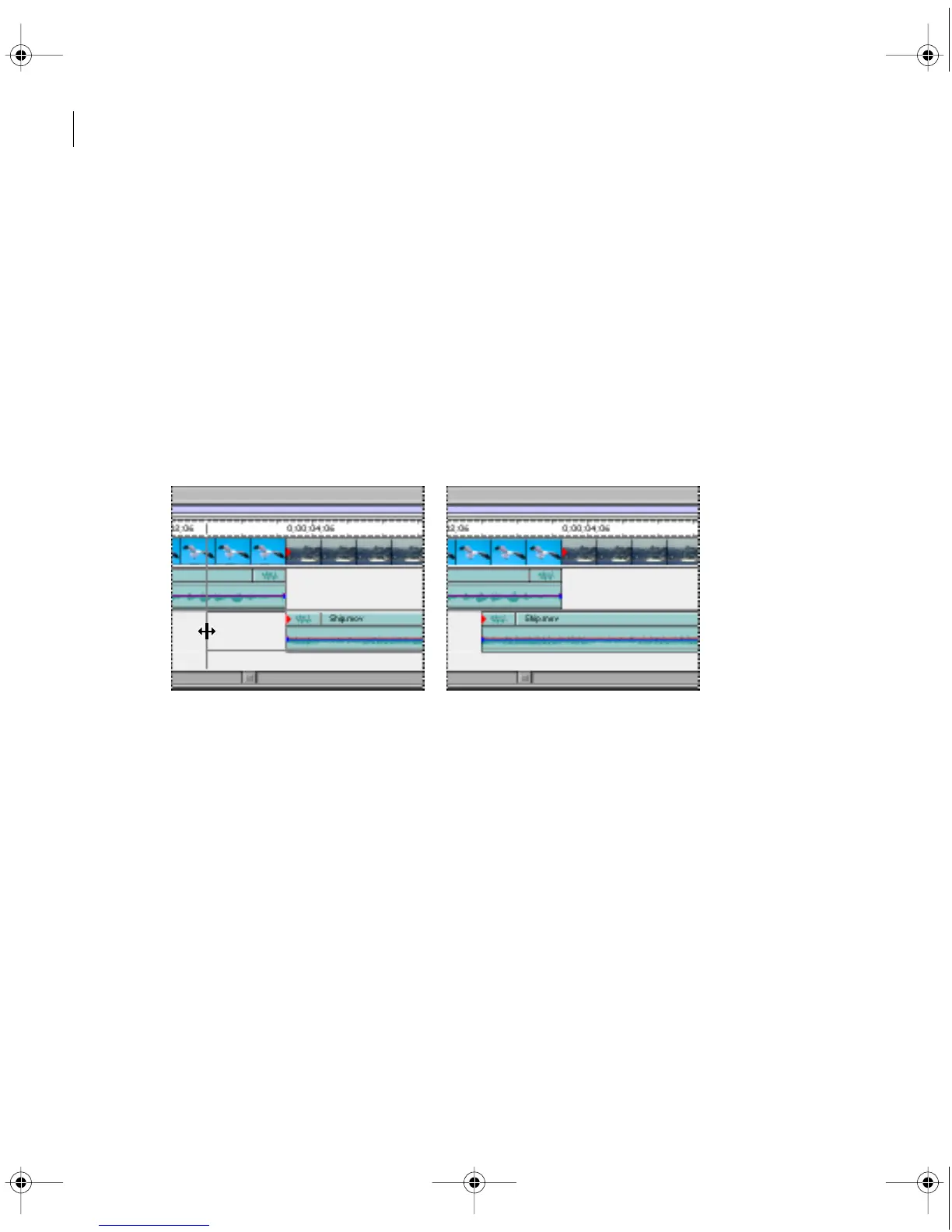
3
With the selection tool selected, hold down the Control/Command key, and begin dragging
the In or Out point of the audio portion of one of the clips. Drag to extend the audio track
In or Out point as far past the edge of the other audio clip as needed. Make sure that only the
In or Out point is moving, not the entire audio clip.
4
Select the cross-fade tool.
5
Click the clip you want to fade out, and then click the clip you want to fade in. Premiere
automatically creates and adjusts fade handles on both clips.
c00.book for PS Page 224 Tuesday, March 31, 1998 1:28 PM



 To Next Page