243
ADOBE PREMIERE 5.0
User Guide
To create rolling or crawling type:
1
Select the rolling title tool ( ).
2
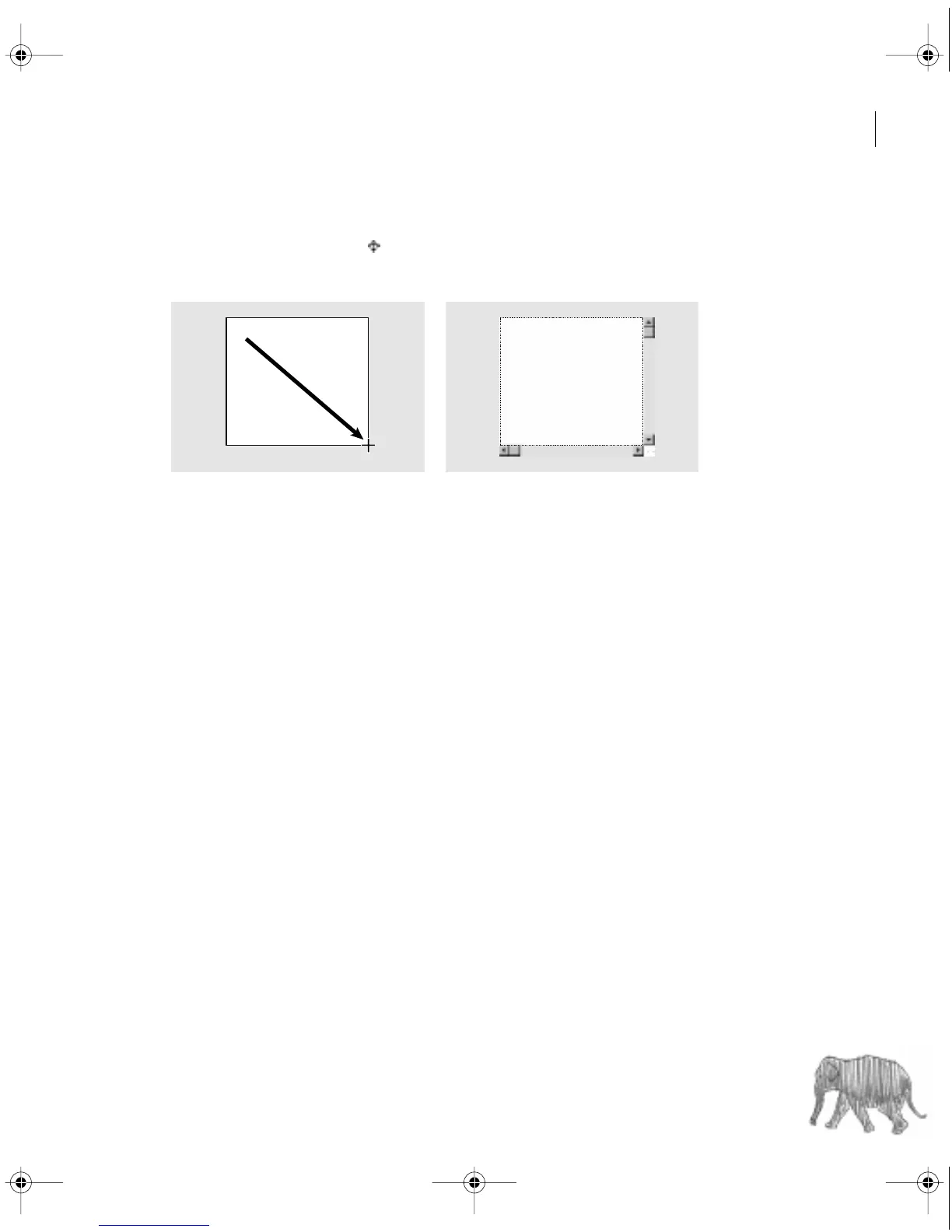
Drag to specify the size of the text object that will contain the rolling title.
Dragging the rolling title tool (left) and an empty rolling title text object (right)
3
Type the text you want in the title.
4
With the rolling title still selected, choose Title > Roll Options.
5
In the Direction section, select the direction in which you want the type to move.
6
Select Enable Special Timings if you want more control over rolling or crawling motion.
Then specify the following values as needed and click OK:
•
For Pre Roll, specify how many frames you want to appear motionless (starting with the title
clip In point to the frame in which the title starts moving).
•
For Ramp Up, specify how many frames the clip should use to accelerate to normal speed.
Type 0 (zero) to start moving the title at normal speed. To accelerate more gradually, specify
more frames.
•
For Ramp Down, specify how many frames the clip should use to decelerate to a halt.
For faster deceleration, specify fewer frames. Type 0 (zero) to stop the title immediately.
To decelerate more gradually, specify more frames.
•
For Post Roll, specify how many frames you want the title to appear motionless (starting with
the frame in which the title stops to the title Out point).
c00.book for PS Page 243 Tuesday, March 31, 1998 1:28 PM



 To Next Page