265
ADOBE PREMIERE 5.0
User Guide
7
Adjust the transparency sliders and select other options as described in the following
sections on individual keys.
8
Drag the slider beneath the Sample to view your transparency settings across the duration
of the clip.
9
Click OK to apply the settings to the clip.
Using the Chroma key type
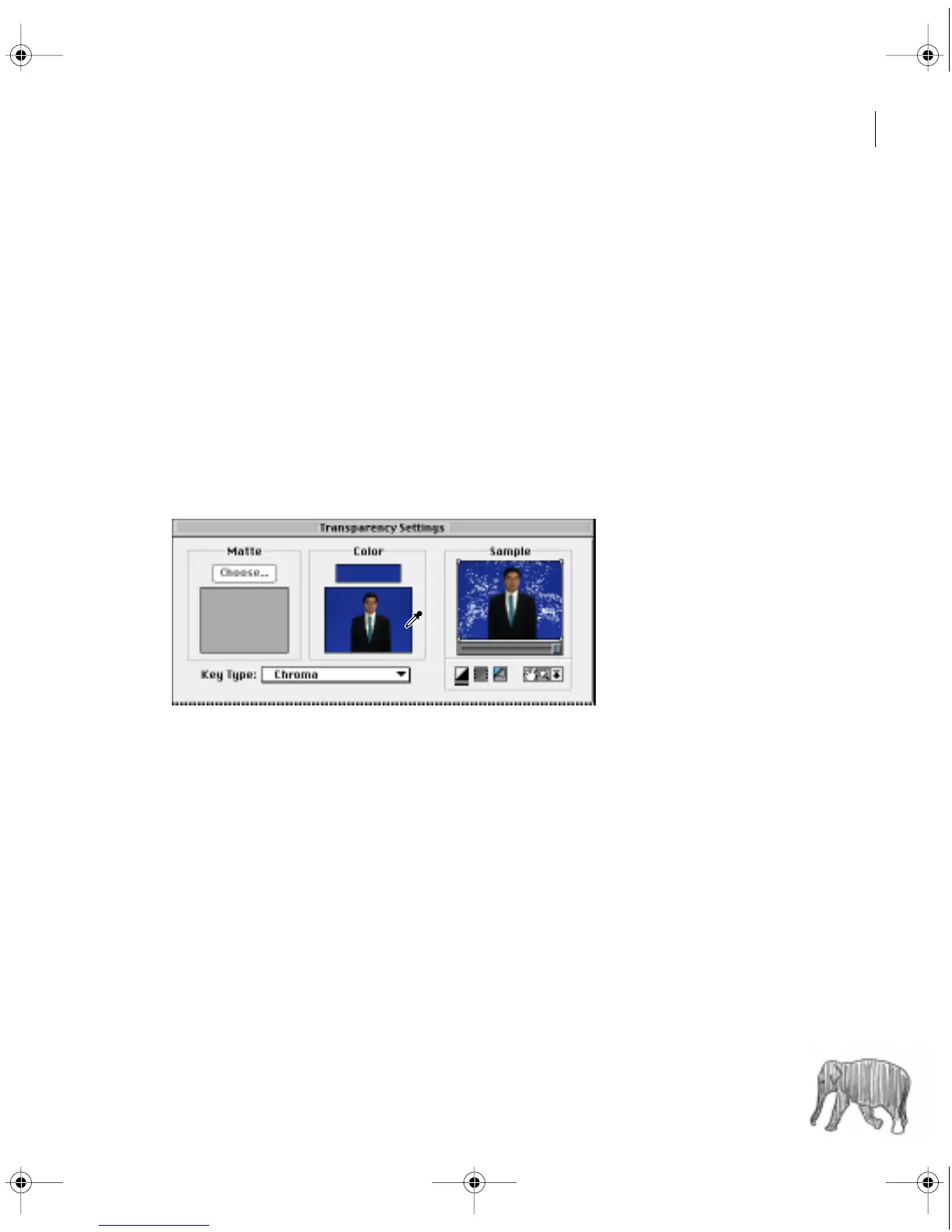
The Chroma key lets you select a color or a range of colors in the clip to be transparent. You
can use this key when you have shot a scene against a screen that contains a range of one color,
such as a shadowy blue screen. Select a key color by clicking the color swatch or by using the
eyedropper to choose a color from the thumbnail beneath the color swatch; use the slider bars
in the dialog box to adjust the color you want to key out.
Similarity
Broadens or reduces the range of color that will be made transparent. Higher values
increase the range.
Blend
Blends the clip you are keying out with the underlying clip. Higher values blend more of
the clip.
Threshold
Controls the amount of shadows in the range of color you keyed out. Higher values
retain more shadows.
Cutoff
Darkens or lightens shadows. Drag to the right to darken shadows but do not drag
beyond the Threshold slider; doing so inverts gray and transparent pixels.
c00.book for PS Page 265 Tuesday, March 31, 1998 1:28 PM



 To Next Page