305
ADOBE PREMIERE 5.0
User Guide
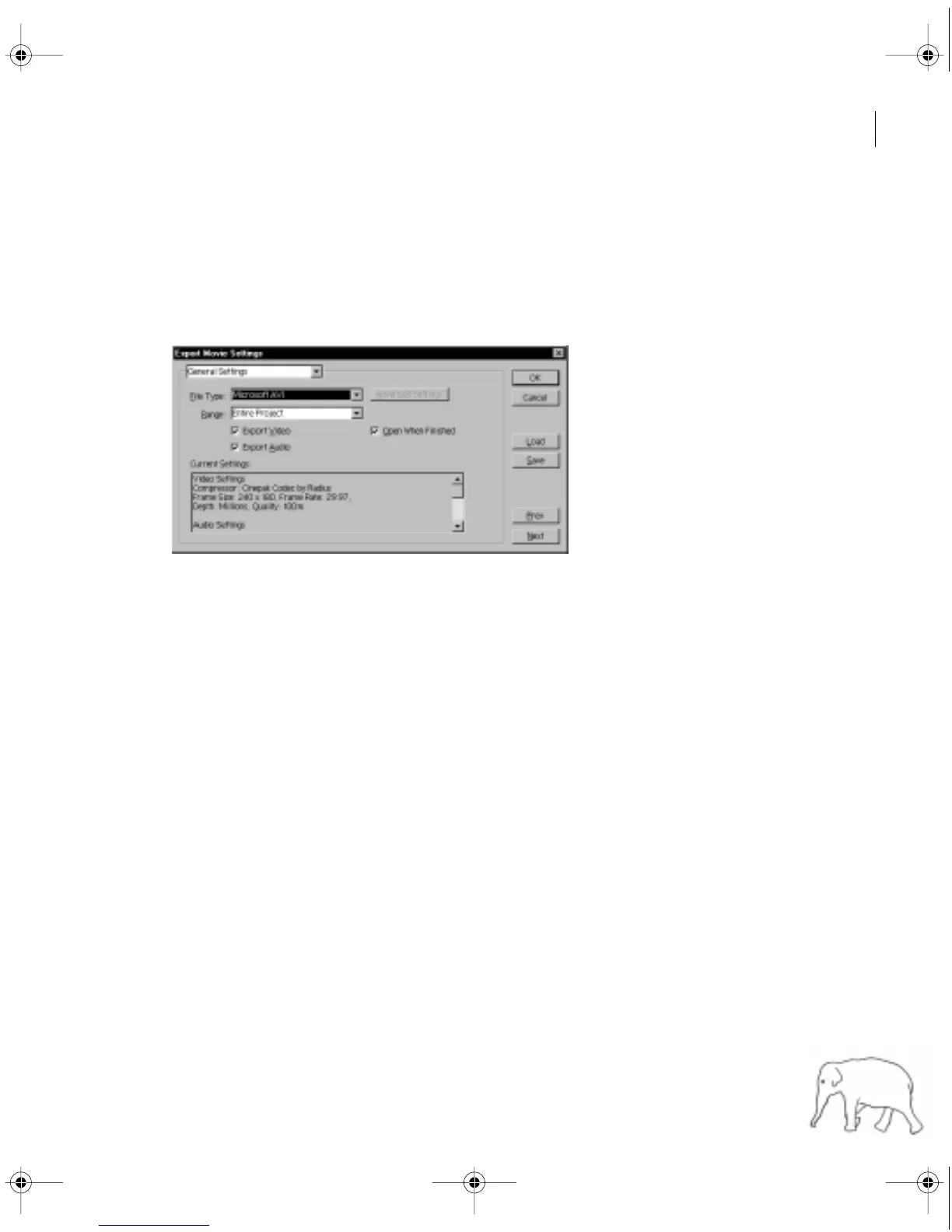
To export a video file:
1
Activate the Timeline, Source view, Program view, or a Clip window. If you are exporting
the Timeline and it includes virtual clips, make sure the work area in the Timeline includes
the main video program only. See “Nesting edits using virtual clips” on page 189.
2
Choose File > Export > Movie, and click Settings.
3
Specify the following options as needed:
•
For File Type, choose the kind of file you want to export. If available, click Advanced Settings
to specify options that vary depending on the file type you chose. For a description of the
advanced settings available when the Animated GIF or GIF Sequence file type is specified,
see “Animated GIF, GIF Sequence, and GIF” on page 314.
•
For Range, choose the range of time to export. If the Timeline or the Program view is active,
you may select Work Area to export the frame range marked by the work area markers (see
“Previewing a video program” on page 192). If you are exporting from the Source view or a
Clip window and In and Out points are marked, you may select In to Out to export the
marked range only.
•
Select Export Video to export the video tracks, or deselect to prevent exporting video tracks.
•
Select Export Audio to export the audio tracks, or deselect to prevent exporting audio tracks.
•
Select Open When Finished if you want to the exported file to be opened in Premiere after
exporting is complete.
c11.fm Page 305 Wednesday, April 1, 1998 10:08 AM



 To Next Page