51
ADOBE PREMIERE 5.0
User Guide
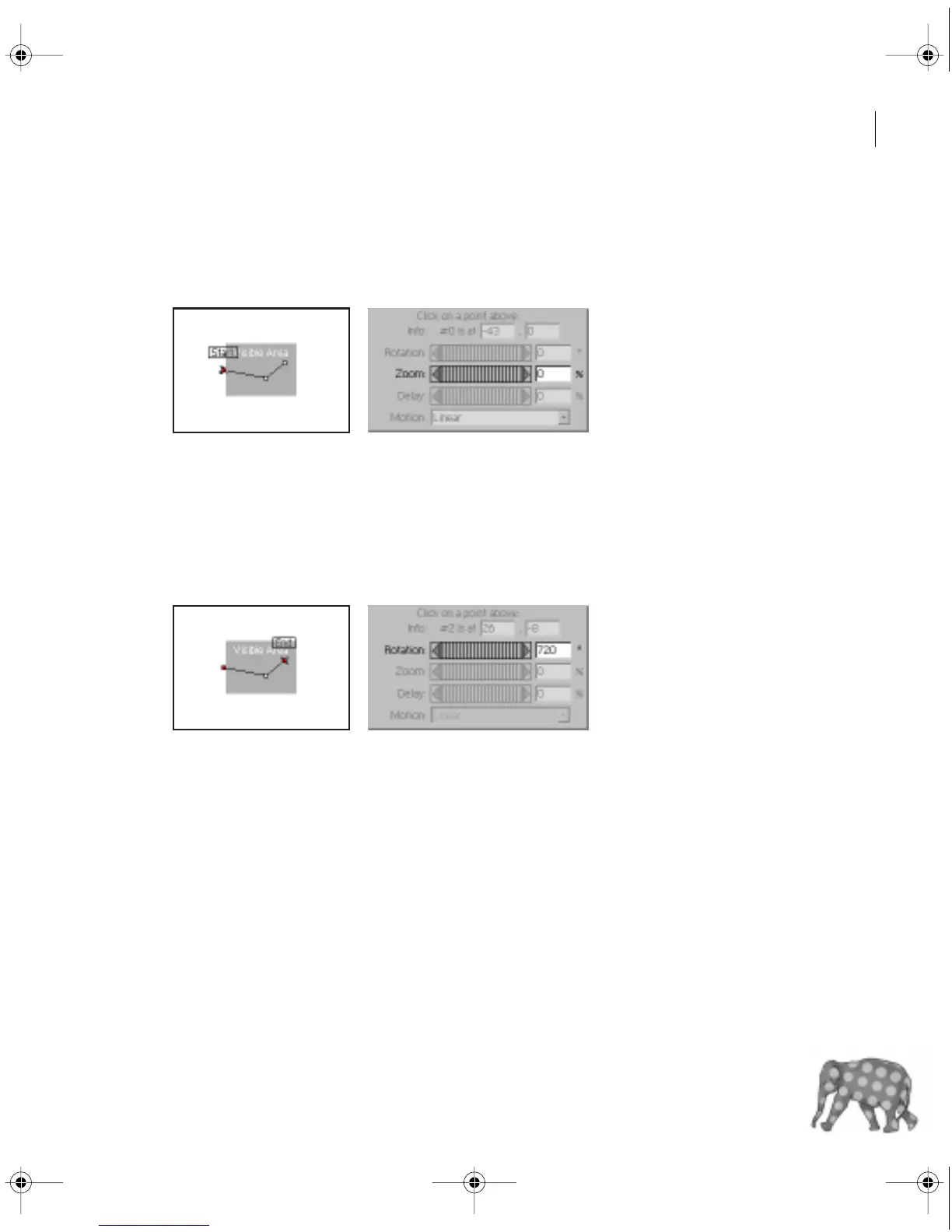
Now you’ll specify zoom values for the start and end points.
7 In the Motion Path area, select the Start point.
8 In the Zoom box at the bottom of the dialog box, type 0, and then press Tab.
9 Select the end point, type 0 in the Zoom edit box, and press Tab.
The settings you just entered make the logo appear to zoom in from the left side of the frame
and then recede into the distance.
10 With the end point still selected, type 720 in the Rotation text box near the bottom
of the dialog box, and press Tab.
Rotation values are specified in degrees. The value of 720 (360 x 2) defines two complete
circles or rotations from one point to the next.
The image now follows the motion you defined earlier as it zooms and rotates across the screen.
11 Click OK to close the Motion Settings dialog box.
Let’s preview the end of the video program to see the superimposed image moving through
the frame.
c00.book for PS Page 51 Tuesday, March 31, 1998 1:28 PM



 To Next Page