EasyManua.ls Logo

AgfaPhoto OPTIMA 1338mT - Modes; Switching between Record Mode and Playback Mode; Selecting the Record Mode Options

AgfaPhoto OPTIMA 1338mT
71 pages
Print Icon
To Next Page IconTo Next Page
To Previous Page IconTo Previous Page
Loading...
Modes
Your camera has two modes:
R
ecor
d
mode
• Set to Record mode to capture images and record videos and audio clip
s
•
R
ecord mode can be further set to:
•
Snapshot mode
.
Use
t
his mode to capture still images. Other
scene
modes can
be
selected
in
Snapshot
mode.
Camcorder
mode
.
Use
this
mode
to
record
video.
V
oice
Recorder
mode
.
Use this mode to record voice cli
p
s.
•
•
See "Selectin
g
the Record mode options" belo
w
.
Pla
yback
mode
• Set your camera to Playback mode to view and edit captured images and
playback videos and audio clips. You can also attach voice memo to images in
this mode.
When you turn on your camera using the Power button, you are automatically
turned on Record mode.
Switching
between
Record
mode
and
Playback
Mode
In Record mode, press the Playback button to switch to Playback mode.
In Playback mode, press the Playback button to switch back to Record mode.
Selecting
the
Record
mode
options
Maximize the quality and ease of use of your camera by using the different mode
options. The mode options allow you to capture images with preset settings
accordin

g
to scene conditions.
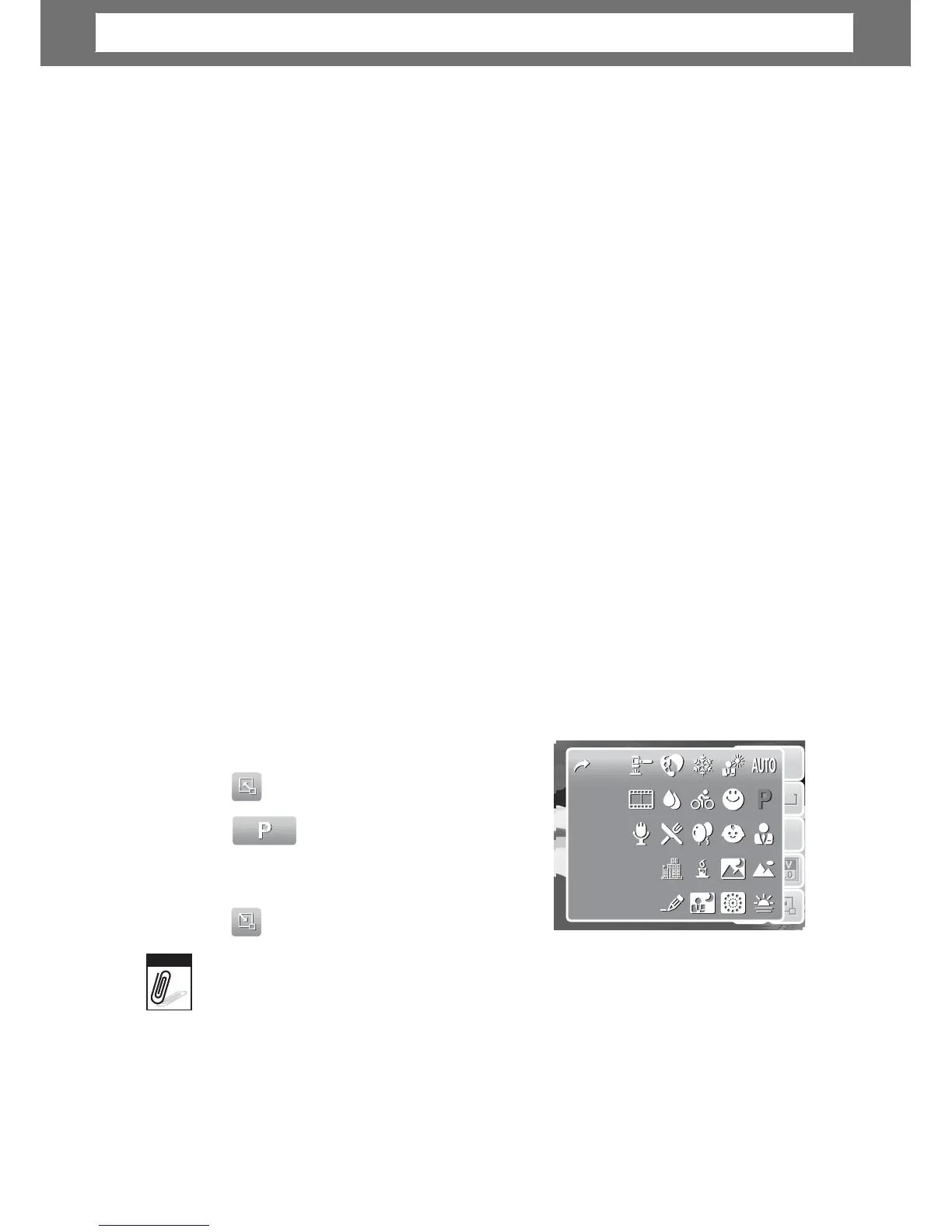
1. Set the came
r
a to
R
ecord mode.
2.
T
ap to launch Quick-Set Ba
r
.
1
1
0
0
M
M
A
A
3.
T
ap
submenu.
to launch Scene Mode
I
I
S
S
O
O
A
A
U
U
T
T
O
O
A
A
F
F
1
1
4.
T
ap to select scene.
5.
T
ap to close menu.
Scene
mode
icon may
vary
dependin
g
on the current mode.
For
more
information,
see
“Setting
Snapshot
Menu”
on
page
27
.
10
Note
Chapter
2:
Getting
Started
10M
ISO
AUTO
AF
A
1
10M
ISO
AUTO
AF
A
1

Table of Contents