www.aja.com
91
FS4 Frame Synchronizer/Converter v1.1
• “Status Screen” on page 94
• “Config Screen” on page 96
• “Video Screen” on page 98
• “Audio Screen” on page 99
• “Presets Screen” on page 100
• “Remote Screen” on page 102
• “Firmware Screen” on page 103
• “Video Channel Screens” on page 103
• “AES (and MADI) Audio Channel Screens” on page 111
Network Pane and Network Configuration Screen
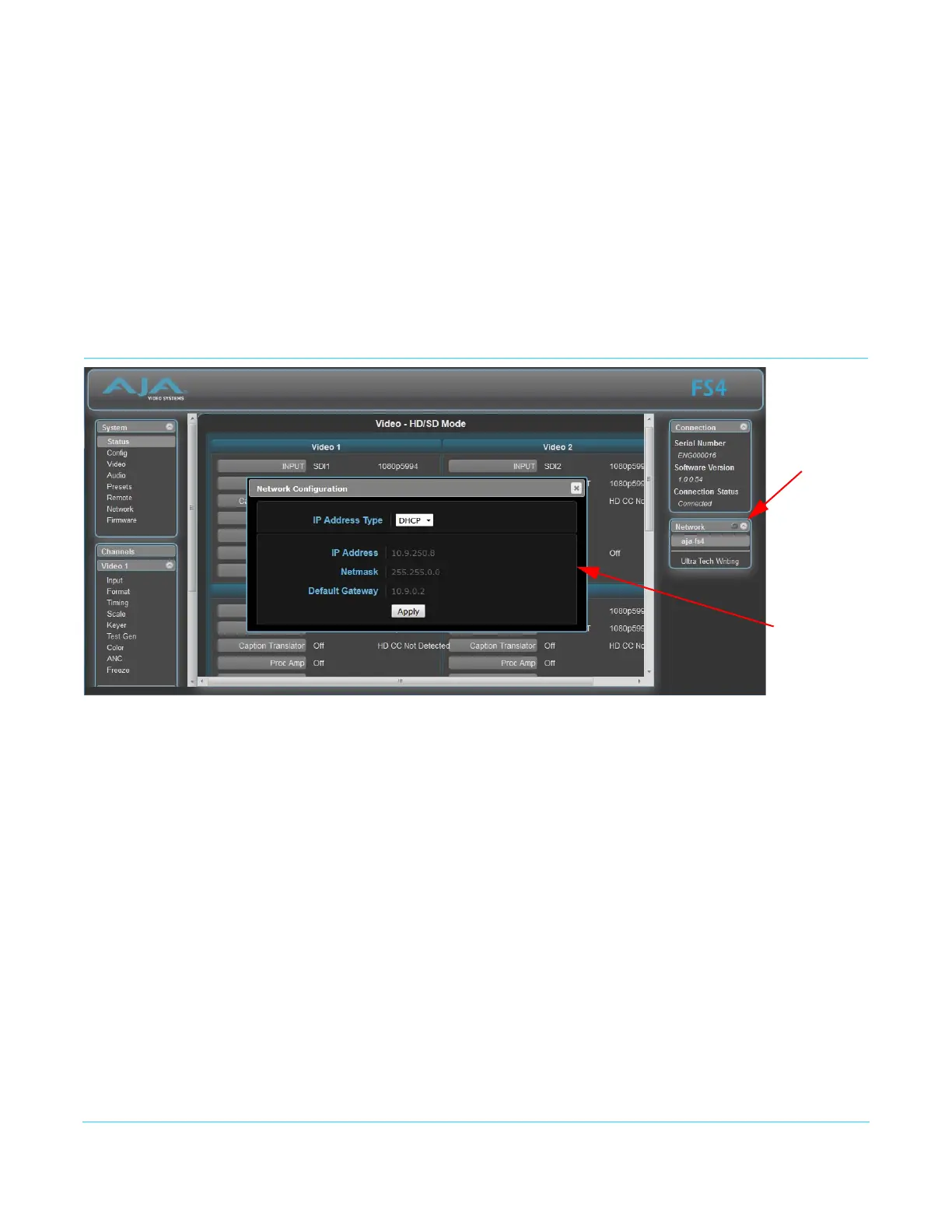
The Network pane on the right side of any screen lists the AJA FS devices that appear on
the network. This pane includes three additional controls:
• Hover the cursor over any system name to see its IP address.
• Right-click any system and select Identify to blink the system ID LEDs.
• Click the gear-shaped icon in the Network pane (or select Network from the Menu list on
the left side of the screen) to open the Network Configuration screen listing FS4 network
settings.
The Network Configuration screen allows you to view and change your FS4's network
settings and then click Apply to activate them.
See “Networking” on page 29 for detailed setup instructions for connecting the FS4 to a
network. Consult your network administrator about how to configure network settings.
IP Address Type IP Address Type determines the type of TCP/IP network configuration used by the FS4.
DHCP enables the FS4 to connect to the network DHCP server, which assigns the IP
Address, Netmask, and Gateway automatically. Static lets you set these parameters
manually.
Click the
Network
gear icon
Network
Configuration
popup display


 To Next Page