MaxCommunicator Manual 19
Getting Started
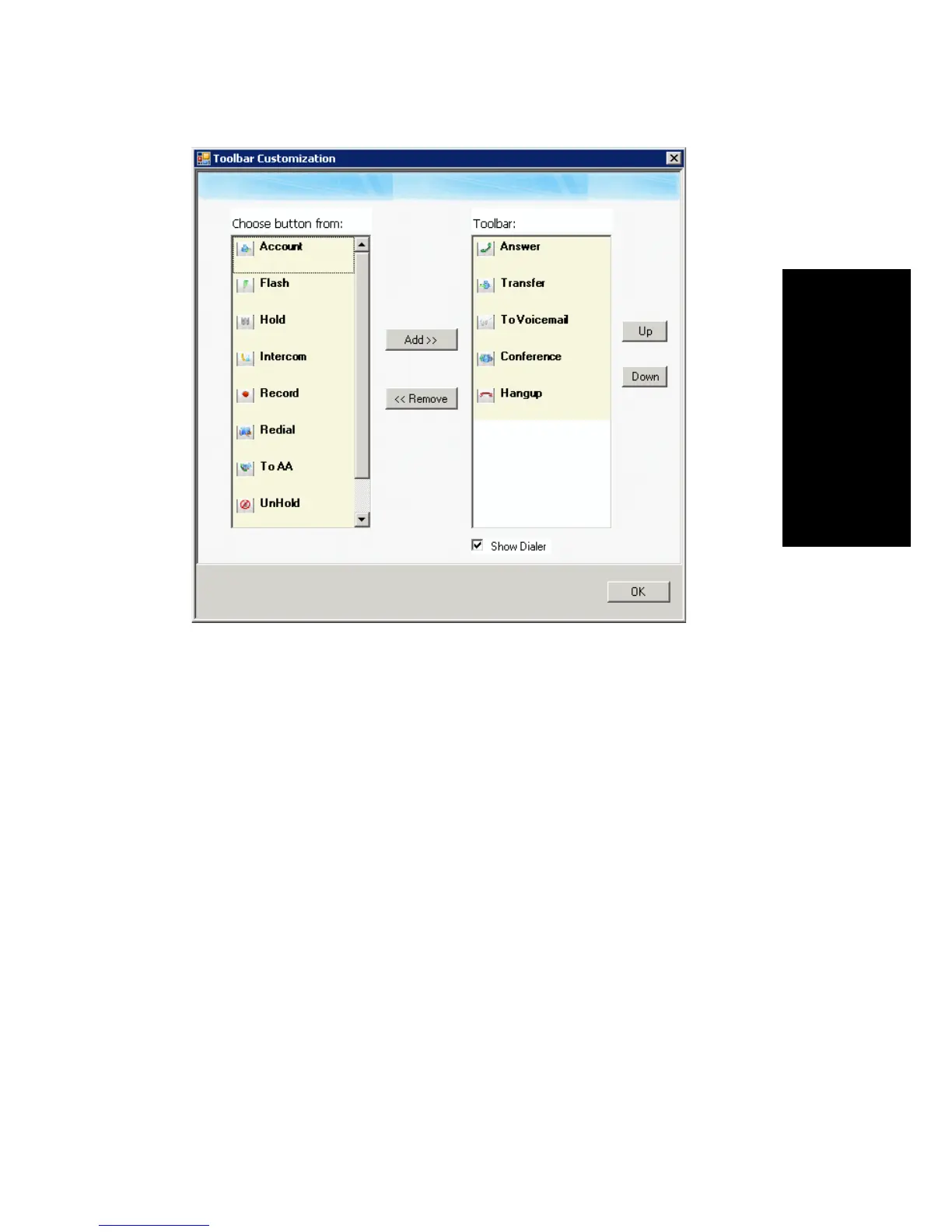
The buttons displayed in your MaxCommunicator are in the right-hand
list. To remove a toolbar button, select it and click Remove. To add a
toolbar button, select a button from the list on the left, and click Add.
To rearrange buttons, select a button from the list on the right, and
click the Up button or Down button, until the toolbar button is where
you want it. When finished, click OK.
Note: When MaxCommunicator is shrunk to a strip at the top or
bottom of your screen, you are limited to six default buttons.
• Remove the dialer field by right-clicking a toolbar button and
choosing Customize Toolbar Buttons, as above. In the Toolbar
Customization dialog box, clear the check box beside Show Dialer. To
display the dialer again, check the Show Dialer check box.
• Pop up MaxCommunicator when you have incoming calls. Pop ups
work when MaxCommunicator is minimized or is a strip at the top or
bottom of the window but not when you have exited. See “Call Alert
Options” on page 57.



 To Next Page