26
On the PTZ control setup screen, you can select or set the protocol type of the camera that is the same as
the one installed on the site. If the camera has a specific camera ID, select the camera ID using the control
button (◀ ▲ ▶ ▼).
The following options are available on the PTZ setup screen.
CHANNEL (channel number that the PTZ is connected to)
NAME (protocol type)
SPEED (19200, 14400, 9600, 4800, 2400)
ID (0-63)
3-4-4. Motion Zone Setup
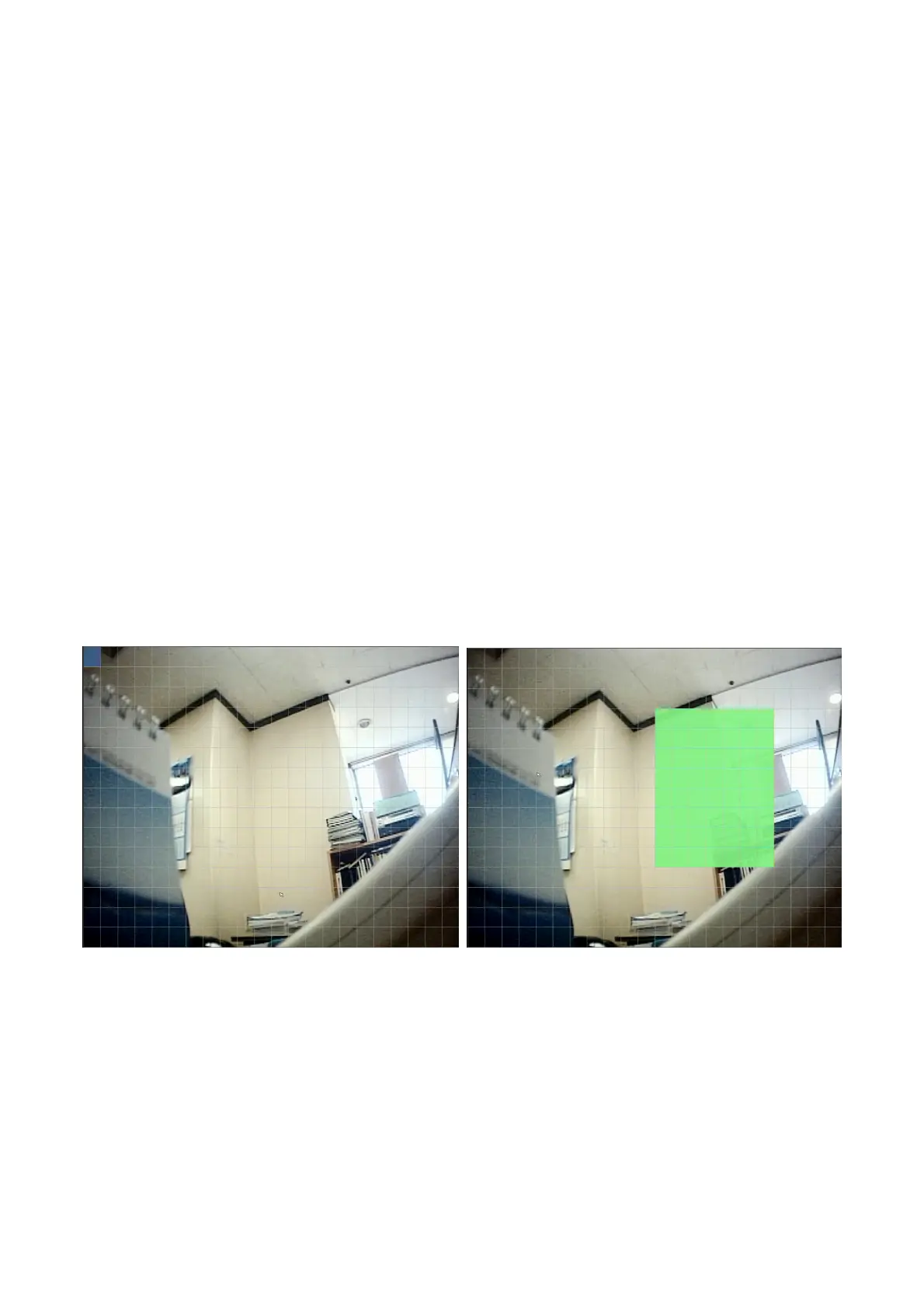
Select MOTION ZONE using the control button (◀ ▲ ▶ ▼) and select either PARTIAL ZONE or FULL
ZONE using the control button (◀ ▲ ▶ ▼). And press the SEL button.
If FULL ZONE is selected, the motion setting screen is not displayed. Only set the level of sensitivity for
MOTION SENSITIVITY.
FULL ZONE: The motion sensor is active on the whole screen.
PARTIAL ZONE: The motion sensor is active in the set detection frame.
Select the sensor detection position using the control button (◀ ▲ ▶ ▼) and press the SEL button.
Then the color of the position which is selected will be changed. Press ESC button to return to the DEVICE
setup menu.
Figure 3.4.5. Motion Zone selection screen
3-5. Setup – Storage Mode
Press the SETUP button and select STORAGE icon. Then, the STORAGE menu is displayed as picture
below. Navigate through the menu items using the control button (◀ ▲ ▶ ▼) and change the value of the
menu item using the control button (◀ ▲ ▶ ▼). To return to setup menu screen, press the ESC button.



 To Next Page