51
The DVR will convert the corresponding portion of the video into an AVI file.
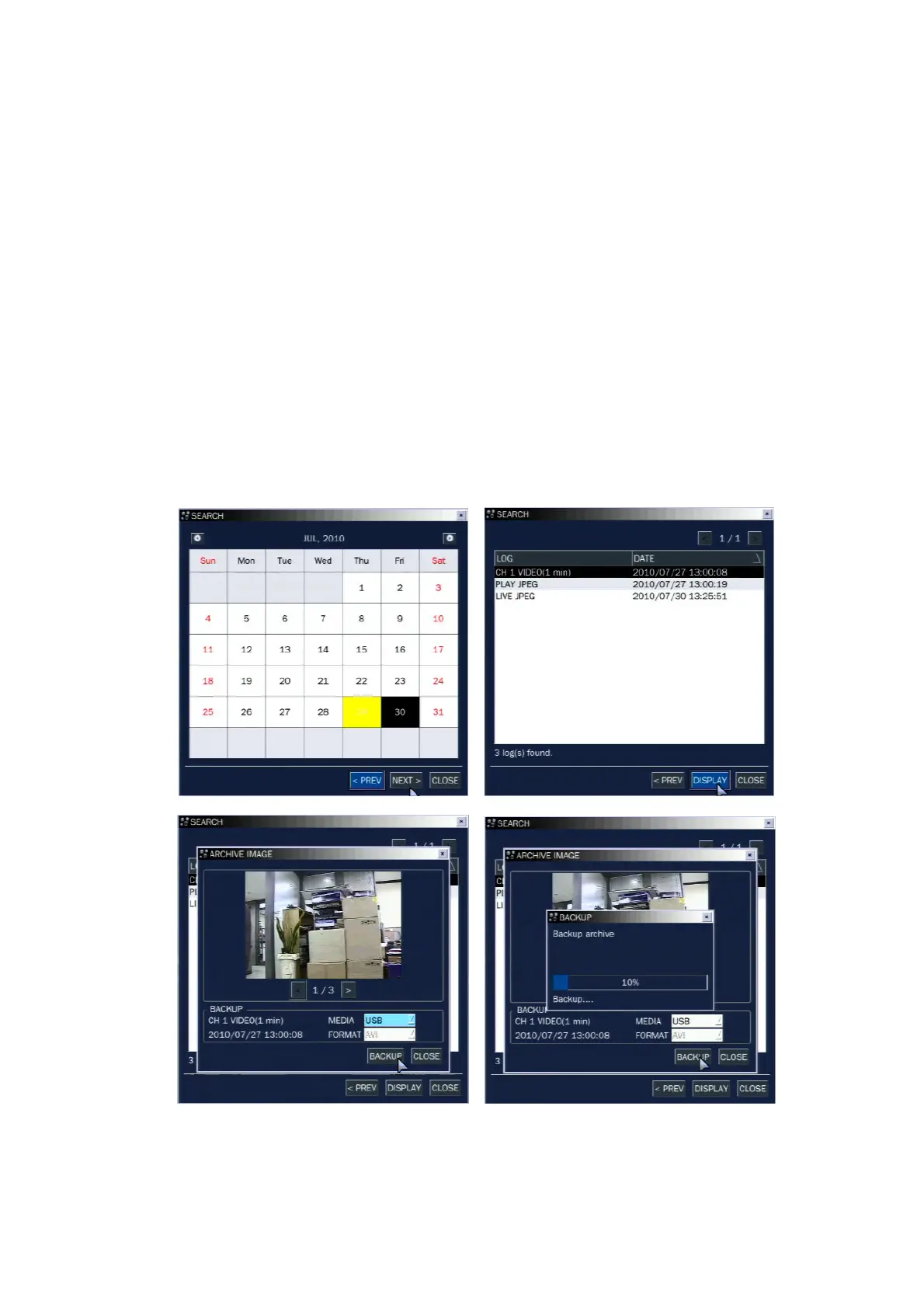
6-3. Transferring still images or video from the ARCHIVE list
The stored data onto hard drive will be found in the ARCHIVE list in SEARCH window.
User can back up still images or video into the storage device from the ARCHIVE list.
1. Select the date to begin searching and navigate through the days using the control button
(◀ ▲ ▶ ▼).
2. Once you have selected the date, press NEXT button to open the list of stored data.
3. Use the control button (
◀ ▲ ▶ ▼
) to scroll through the on-screen listings.
4. Select a list of stored events that happened previous to or after the current selection.
5. Once the desired event has been selected, press NEXT button to view the still image or the first frame
of the selected video.
6. Press the BACKUP button to launch the archiving function in playback mode.
7. Press CLOSE button to return to the SEARCH window.
Figure 6.3.1. Archive Search Screen



 To Next Page