50
6. Back up
6-1. Still Image backup onto USB flash memory
Still images can be captured and archived onto the USB stick or hard drive in live mode or while playing
back recorded video. In live mode, press the BACKUP button to launch the archive function or select BACK
UP menu on the screen using the mouse.
1. Select a specific channel which wants to backup on live screen.
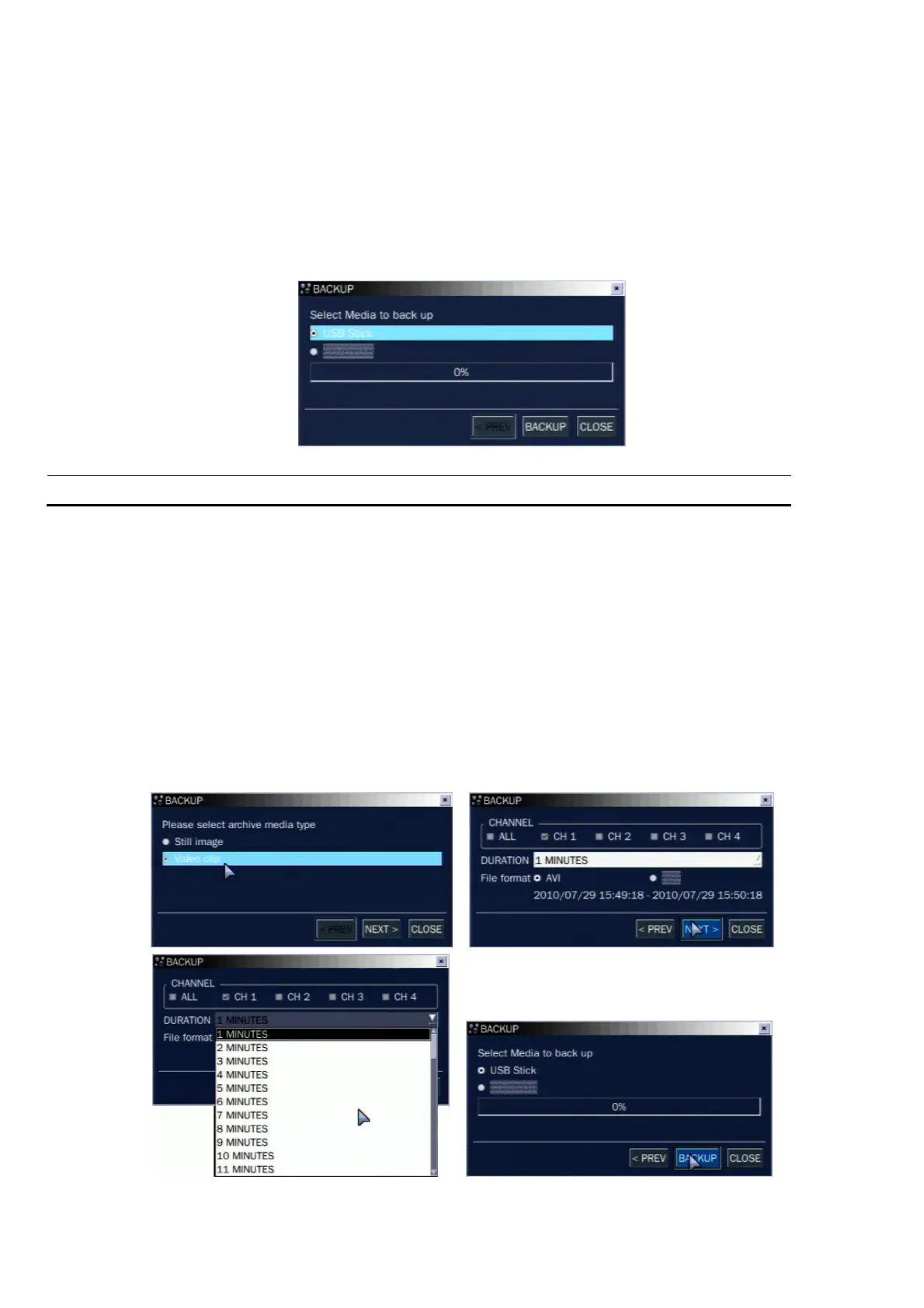
2. When you press BACKUP button, the archiving screen will display as Figure 6.1.1.
3. Once you press Backup button, the system will start to archive the data to the selected media.
Figure 6.1.1. Still Image Archiving and Backup Screen
NOTICE For a backup using a USB stick, a format of the USB stick has to be set to FAT32.
6-2. Video backup onto USB flash memory
Video can be captured and archived onto the USB stick or hard drive while playing back recorded video.
In playback mode, press the BACKUP button to launch the archiving function.
1. When you press BACKUP button, the DVR will ask whether to archive a Still Image or Video clip.
2. If the user selects VIDEO, the DVR will ask for the channel, file format and the setting of the
archiving duration. NSF format will be supported to the next version.
3. If the user sets the channel, file format and duration, the DVR will ask which media you will take for
archiving.
4. Once you select the media, the system will start to archive the data to the selected media.
Figure 6.2.1. Video Archiving and Backup Screen



 To Next Page