34
ADMIN, NETOWRK, USER1, USER2, USER3:
V check: It means the user can access to the function.
nothing: It means the user cannot access to the function.
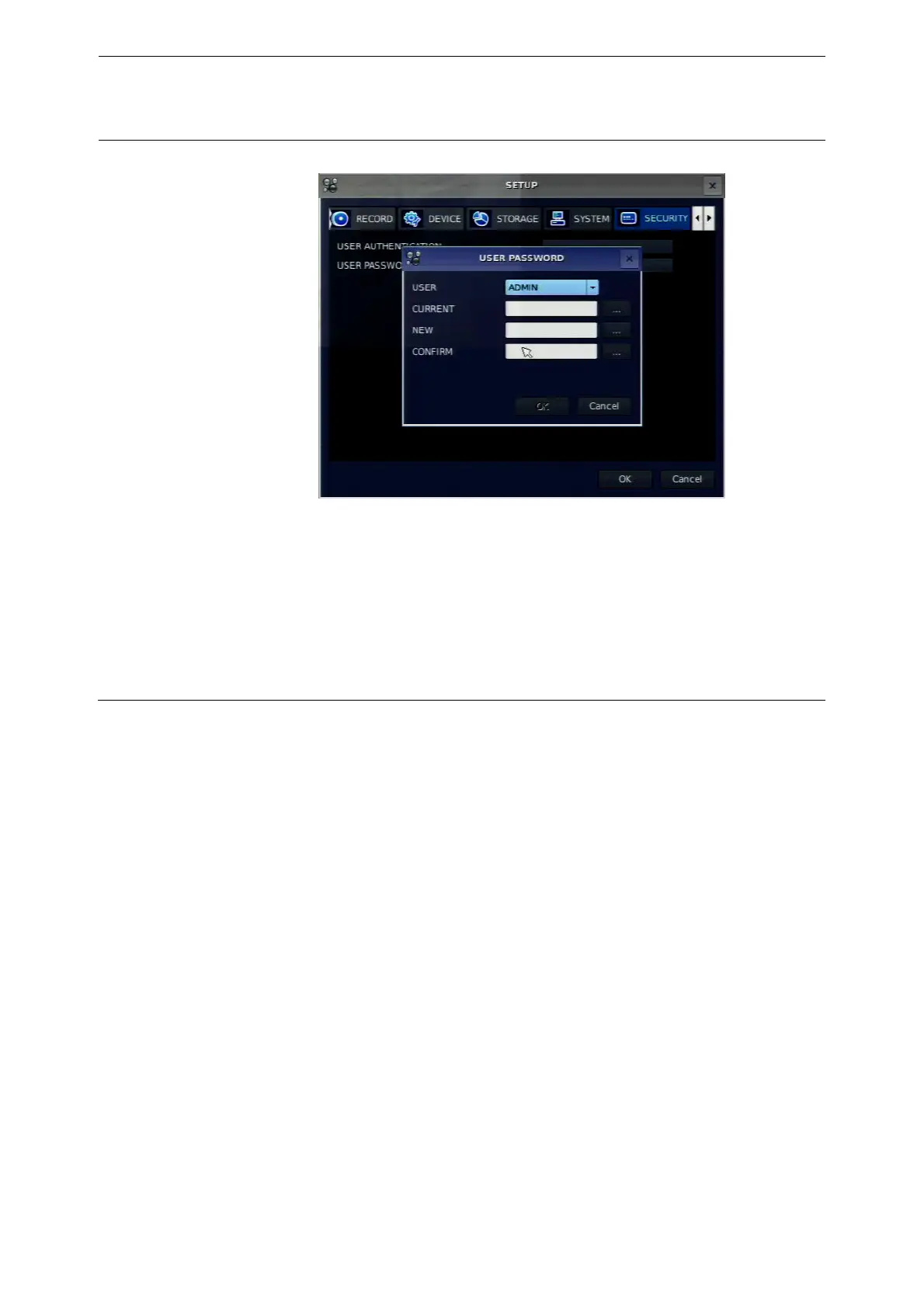
USER PASSWORD
Options are ADMIN, NETWORK, USER1, USER2 and USER3.
Select USER PASSWORD using control button (◀ ▲ ▶ ▼) and
press SEL button. Select user type using the control button (◀ ▲
▶ ▼) and SEL button. Enter the current password and select
OK. Enter the new password and select OK. Enter the same
password again to confirm and select OK. Then the message
“PASSWORD CHANGED” is displayed.
The factory default password is 1111.
When user set to use this function, they can see a user login window. Then, user can select one of user
types (ADMIN, USER1, USER2, USER3) using the control button (◀ ▲ ▶ ▼) on the remote control and
press SEL button. Then password input screen will be displayed. User can select a password using the
control button (◀ ▲ ▶ ▼) and select OK to enter the setup menu. The factory default password is 1111. It
is highly recommended to assign a new password to protect the system. User can assign a new password
in the SECURITY setup menu.
3-8. Setup – Network Mode
Press the SETUP button and select NETWORK icon. Then, the network menu is displayed as picture below.
Navigate through the menu items using the control button (◀ ▲ ▶ ▼) and change the value of the menu
item using the control button (◀ ▲ ▶ ▼). To return to setup menu screen, press the ESC button



 To Next Page