43
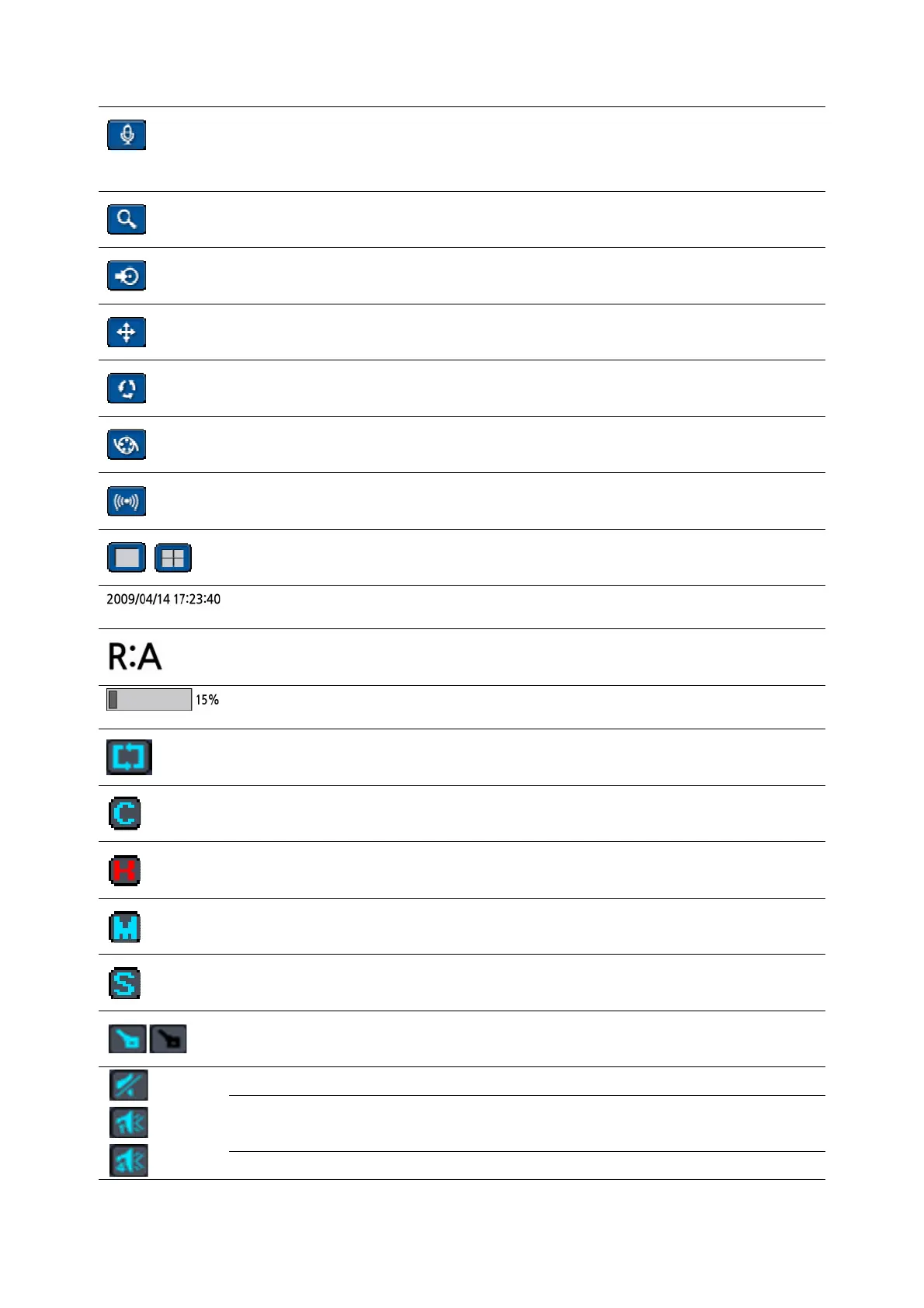
Audio button. Click this button to set an audio reception type; Audio Mute,
just 1 channel or 4 channels. To set just 1 channel, select a specific channel
on the live screen at first.
Search button. Click this button to go to a search menu.
Backup button. Click this button to do a back-up.
PTZ button. A PTZ control window displays when it clicks this button.
Sequence button. Click this button to use a sequence function.
Manual Record button. Click this button to record at once.
Alarm-out function On/Off button. An alarm is stopped and an alarm setup
lamp is right out when it clicks this button during the alarm is in progress.
Click the split screen icon to change the current split screen mode using the
mouse or SEL button.
Displays the current date and time.
Remote control ID display. If a remote ID is not set, the message “A(all)” is
displayed.
Displays the amount of recording on the hard disk from 0-99%.
Indicates that HDD is recycled.
Continuous recording in progress.
Manual recording in progress. To set the Manual recording mode, press the
Record button on the front panel.
Motion alarm recording in progress.
Sensor recording in progress.
Indicates that the lock is set. To
Audio mute. To set audio mute, press the Audio button on the front panel.
Single audio display. To set audio single for highlighted channel only, press
the Audio button on the front panel.
To mix audio display, press the Audio button on the left side.



 To Next Page