69
5. After the OVS is stopped, open the vsPreferences file:
vim /data/VS/bin/vsPreferences.cfg
Change the data network interface to the correct one.
6. Start the OVS software:
/data/VS/bin/set_run -a all
Troubleshooting 10GB Connection Issues
If you encounter any issues connecting to the server via the 10GB interface, make sure you have
configured the server as described in the Updating the Network Configuration File topic.
If you are still having problems connecting to the server using a Telnet client (such as PuTTY), try
co
nnecting to it using the IPMI console. For more information, see “Setting Up Remote Access to the
Server” on page 40. Once connected, use the ifc
onfig utility to check the status of your network
interfaces. Your working Ethernet port should have the following status:
<UP,BROADCAST,RUNNING,MULTICAST>
If only <UP,BROADCAST,MULTICAST> is displayed, check if the Ethernet cable is properly
pl
ugged in or try the second 10GB port.
RAID Recovery
In case any of the RAID drives are damaged, you can recover them using the FastServe | Live Edit /
FastServe | Ingest Web Settings.
n
Before you begin this procedure, make sure you have one or more spare media drives available. If
not, you must obtain replacement drives before proceeding.
c
In the event of a failed media drive, it is very important that you replace the failed media drive
as soon as possible.
To recover a RAID drive:
1. Identify damaged drives:
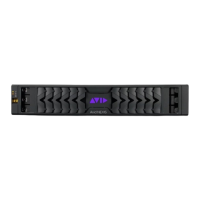
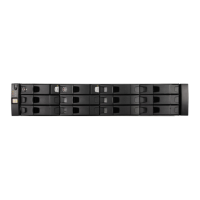
View the LEDs on the front of the server. A solid red LED
on the front of the drive indicates that
the media drive has failed. If it’s flashing RED, the drive could be rebuilding the data. If a
rebuild has already been initiated, other drives will be flashing RED, and the media drive you
need to replace will remain solid RED.
2. Open the FastServe | Live Edit / FastServe | Ingest WebSettings to confirm the status of your
RAID drives.
Open a web browser and enter theFastServe | Live Edit / FastServe | Ingest unit’s IP address as
t
he URL, with the suffix 8080. For example, 192.0.2.0:8080
In the WebSettings, open the OVS tab and go to:
Maintenance > Storage > RAID > Disks
3. Replace damaged drive as described in the following steps:
a. Obtain replacement media drives
b.
Locate the data drive(s) on the front of theFastServe | Live Edit / FastServe | Ingest server
that has both the blue and red LEDs on solid.



 To Next Page