Soft Keys 53
Viewing Soft Key Assignments in the Soft Key Editor
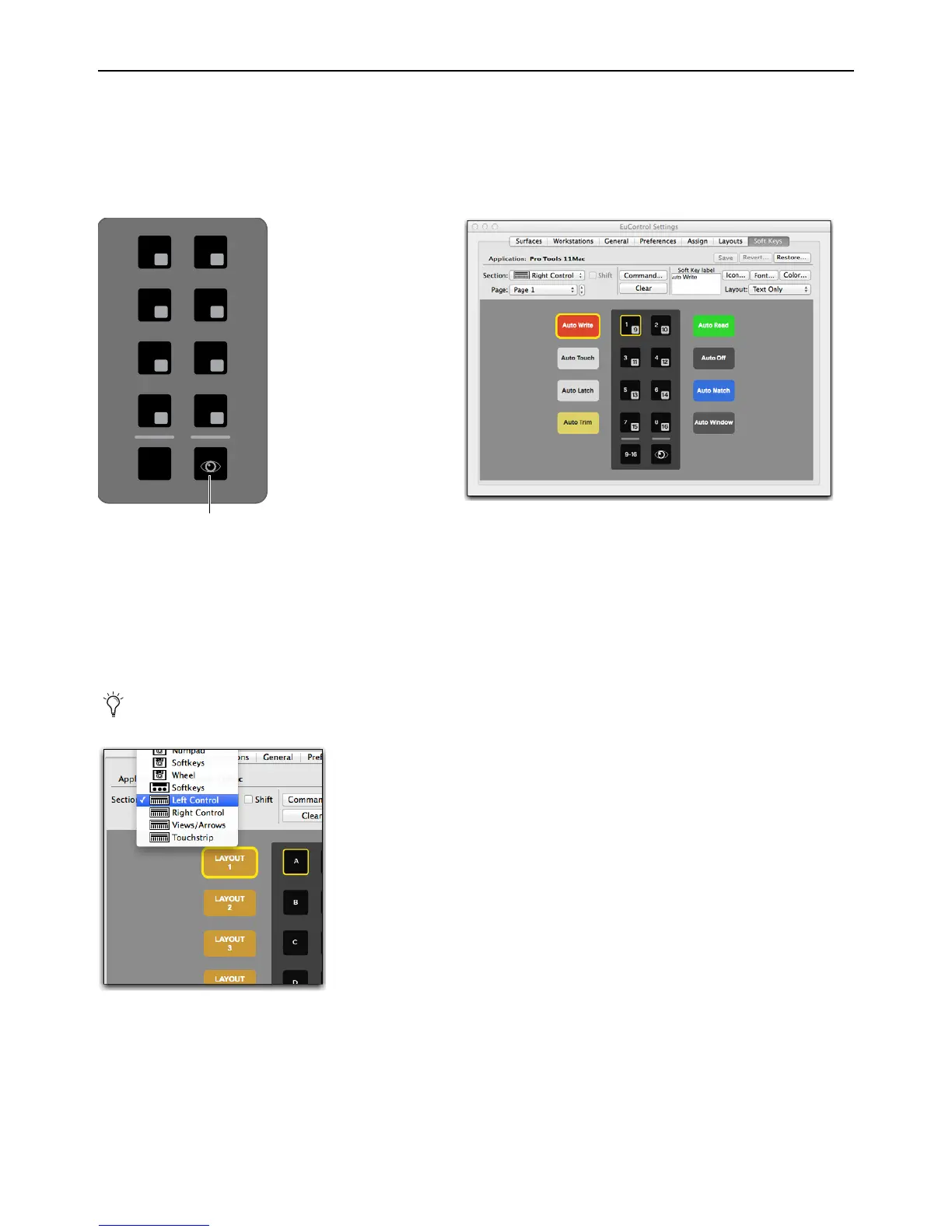
To view assignments in the Soft Key Editor:
1 Launch Pro Tools and confirm that EuControl is connected to the S3, indicated by a lit EuControl icon in the Menu Bar (Mac)
or the System Tray (Windows).
2 On S3, press the Show Me switch. The Soft Keys currently assigned to the Right Control switches are shown on-screen.
3 To view the second page of switches for the Right Control section, click the Page selector and choose Page 2 from the pop-up
menu.
4 To view assignments for the other sections of switches, click the Section selector and choose one of the following:
• Left Control
•Views/Arrows
• Touchstrip
5 To view switches assigned to the Shift layer (functions accessed by pressing the Surface SHIFT switch plus the relevant switch)
of the Left Control, Views/Arrow, or Touchstrip sections, click to enable the
Shift checkbox.
Other options such as Surface and Touchscreen are not applicable to S3.
Section selector pop-up menu
1
9
2
10
3
11
4
12
5
13
6
14
7
15
8
16
9-16
Show Me switch
Right Control Soft Key assignments












 To Next Page