5-10 Cruise / Enroute
COOL FEATURE
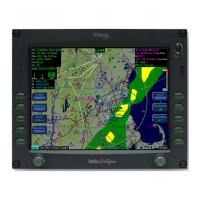
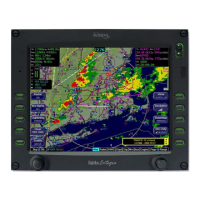
Vectors Mode Vectors mode can be used to
temporarily divert off your flight plan (e.g. to fly
around a weather buildup, airspace, or traffic, etc.)
without having to modify your flight plan or come out
of autopilot-controlled flight. When the
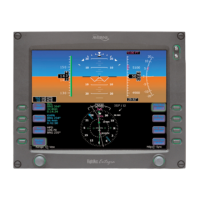
”HDG” button on the DFC100 is pressed, the PFD
Primary Nav LSK is set to FMS, and the Heading
knob is activated, a dashed magenta line is depicted
on your moving map. The autopilot will follow that
dashed line Vectors mode until the flight plan is re-
intercepted or Vectors mode is deactivated. In
skirting weather build-up or airspace scenario
mentioned above, press the “HDG” button, and turn
the Heading knob until the graphical depiction of the
Vectors mode (the magenta dashed line) avoids the
threat area, continue along that route of flight until it
is time to dial in a new target Vector that re-
intercepts your original solid magenta flight plan
line. Notice an automatic curvature of the dashed
Vectors line as it builds an “on-ramp” back to your
solid magenta active leg line.
Note: Never use the Entegra Integrated Flight
Display System to penetrate severe weather such
as thunderstorms or cells. Avoid severe weather
areas with a safe margin of distance.
If the Primary Nav selection is set to NAV1 or NAV2,
the “Fly Vectors” LSK on the PFD will need to be
pressed to enter Vectors mode.



 To Next Page