5-12 Cruise / Enroute
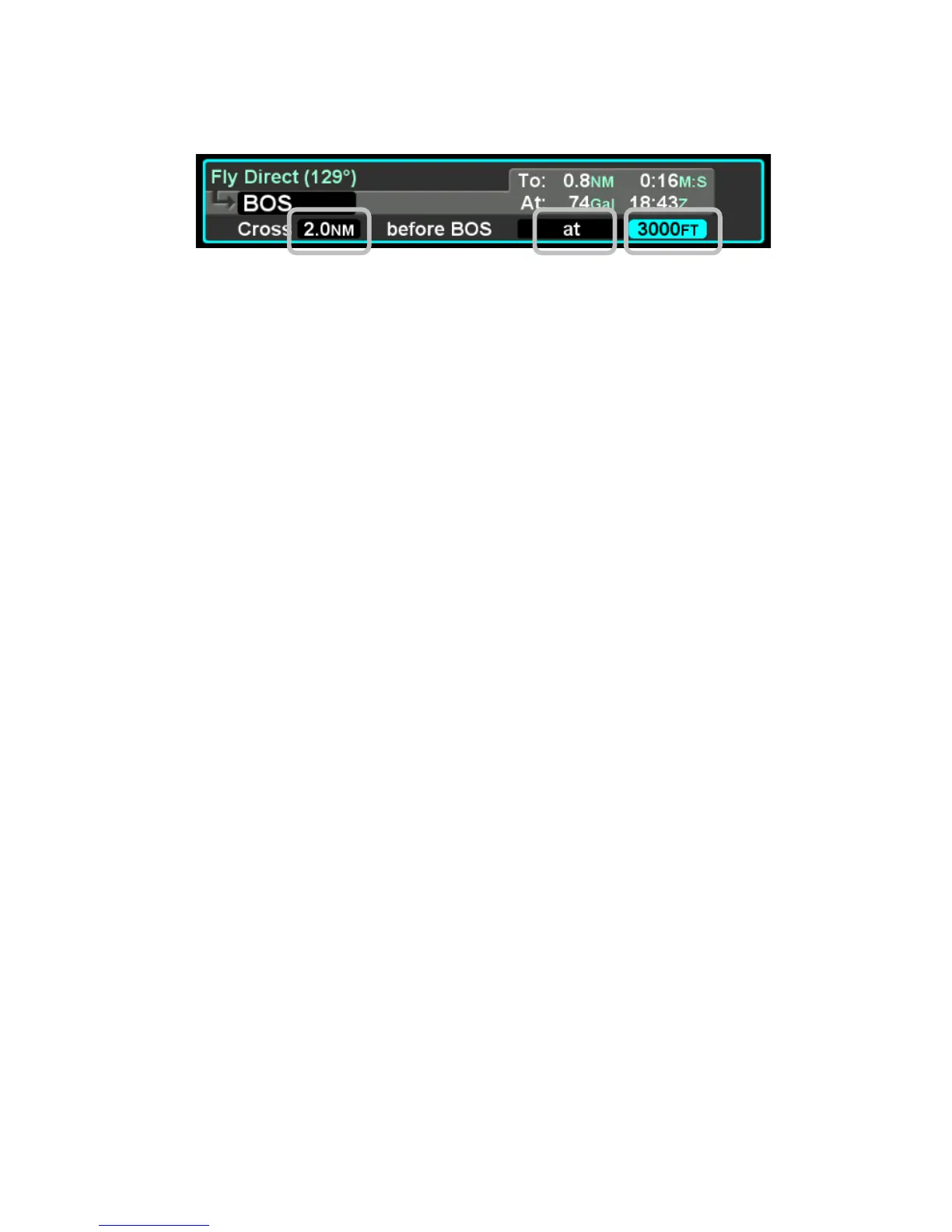
Vertical Constraint Fields
The only waypoints that do not permit vertical constraints are:
• Origin
• Destination, provided there is an approach loaded for it
• Missed Approach Point
• Altitude Terminated Legs
CREATING A USER WAYPOINT
There are 4 methods of creating a user waypoint from the “User
Wpts” tab of the “FMS” page:
• Present Position – Press the “PPOS” LSK to take
snapshot of your current position. No further action is
required.
• Enter Lat/Lon – Press the “NEW” LSK then use the
“FMS” knob on the keyboard to select the lat/lon fields
and type in your desired coordinates via the keypad.
Press the “Confirm” LSK to save that new waypoint.
• Enter Place/Bearing/Distance – Press the “NEW” LSK
then use the “FMS” knob on the keyboard to select the
place, bearing and distance fields. Type in your desired
values via the keypad. This one allows you to pick an
offset from a known waypoint as a new user waypoint.
Press the “Confirm” LSK to save the new waypoint.
• Use the Map Cursor (pointer) – Ensure the PFD is
displaying the “User Waypoints” tab of the FMS page and
MFD is displaying one of the Map pages. Activate the
map pointer by moving the keyboard joystick. At that
point, a “Pointer” LSK will be displayed on PFD. Press
that LSK when your map pointer is in the spot you want.
As soon as the “Pointer” LSK is pressed, you will have
made a new user waypoint.



 To Next Page