190 Encore Presentation System • User’s Guide
5. Menu Orientation
Effects Menu
bÑÑÉÅíë=jÉåì
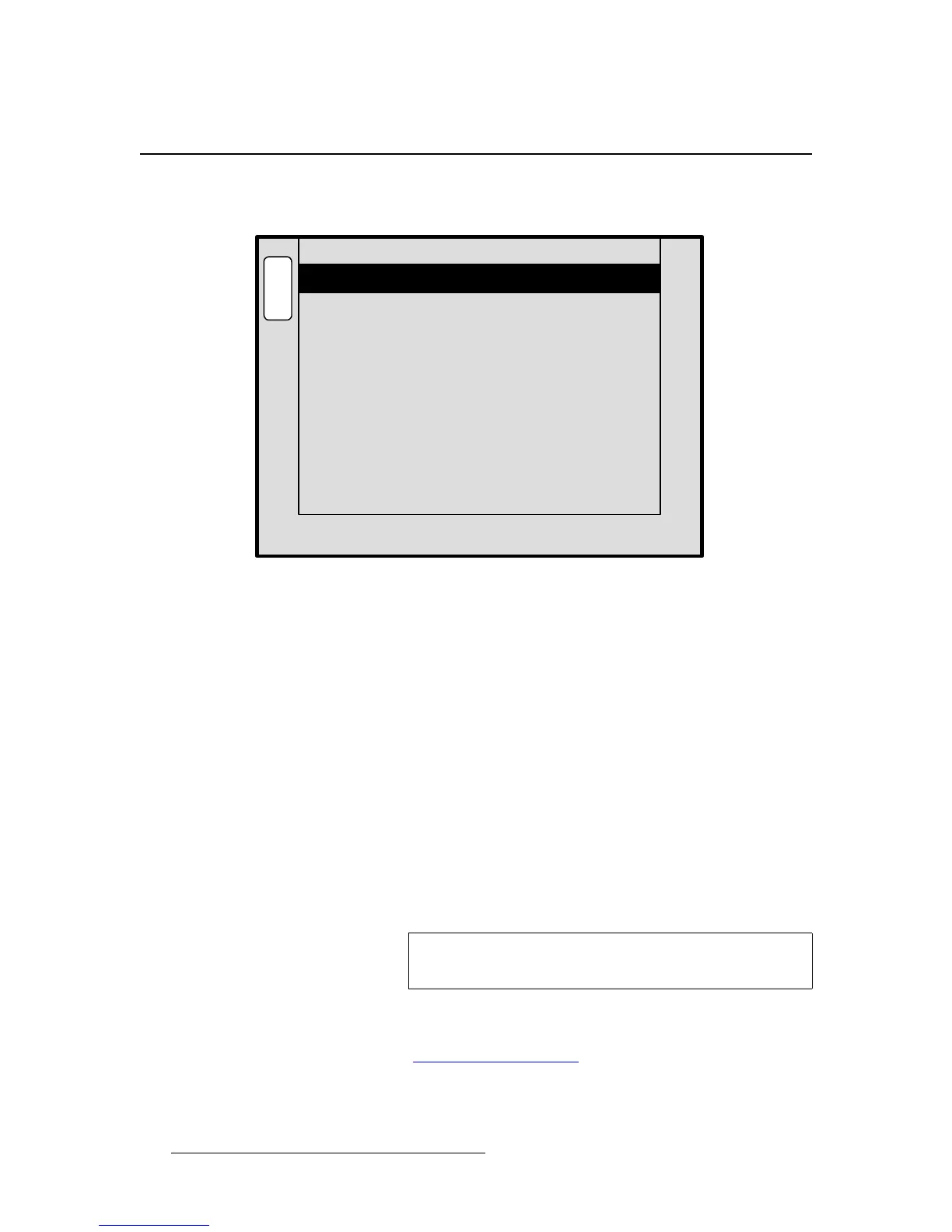
The figure below illustrates a sample Effects Menu:
Figure 5-45. Effects Menu (sample)
To access the menu:
• Press EFFECTS on the Home Menu, or press Effects in the Keypad Section.
The
Effects Menu allows you to modify and manage effects on a destination by destination
basis, including the ability to define keyframes, paths and effect properties. The following
functions are provided:
• Destination — indicates the currently selected destination (as chosen on the
Destination Bus).
• Key Frame Effect — selects the type of point-to-point motion for a “move.”
Choose between
LINEAR, LINEAR ACCL, ARCH CW, ARCH CCW, BMRNG
CW
, and BMRNG CCW.
• Transition Rate — sets the auto-transition rate that is used when the Auto Trans
button is pressed. The transition value is in 0.1 second increments.
• Transition Type — sets the transition type. Choose between Mix, Wipe Right,
Wipe Left, Wipe Down, Wipe Up, Curtain Open, Curtain Close, Box In and
Box Out.
• Transition Edge Width — When a Wipe is selected, this field sets the transition’s
edge type. The range (in pixels) is from
0 to 256.
In Chapter 7, refer to the “
Working with Transitions” section on page 320 for details.
H
O
M
E
N
A
V
A
D
J
EFFECTS MENU
Destination [ 2 ]
LINEARKey Frame Effect
1.0Transition Rate
MixTransition Type
Note
Wide screen destinations only support two wipe patterns:
Wipe Up and Wipe Down.


 To Next Page