364 Encore Presentation System • User’s Guide
`K==réÖê~ÇáåÖ=pçÑíï~êÉ
Ethernet Upgrade Method
bíÜÉêåÉí=réÖê~ÇÉ=jÉíÜçÇ
Use the following steps to upgrade Encore software using an Ethernet connection to
your PC:
1. Ensure that your PC (or laptop) uses the Windows
®
2000 or XP operating
systems.
2. Connect the Controller’s Ethernet port to a Switch.
3. Connect the Ethernet Switch to your PC. Remember that a totally “local” network
is recommended, without IP connections to the outside world.
4. Power-up the Encore Presentation System.
5. On the PC, click Start > Programs > Barco Folsom > Encore System_SPII
Controller Software #.##
.
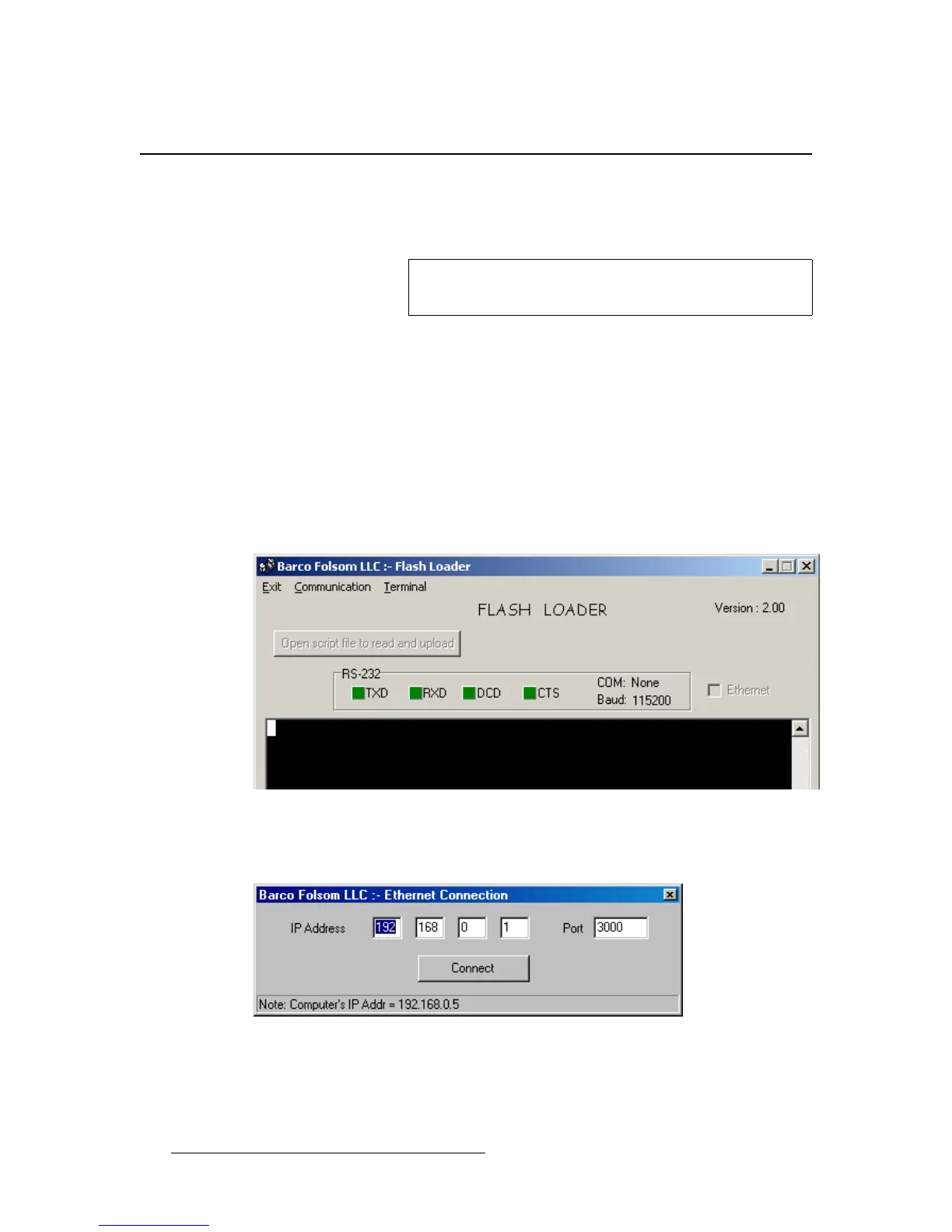
6. In the next pop-up menu in sequence, click the Flash Loader line to launch the
Flash Loader utility.
Figure C-2. Flash Loader Utility
7. Click Communication > Ethernet > Connect to display the Ethernet
Connection Dialog
.
Figure C-3. Ethernet Connection Dialog (sample)
~ If the Ethernet menu pick is grayed out, set the COM port to None.
Note
The Controller’s default IP address is 192.168.0.1. The Video
Processor’s default IP address is
192.168.0.10.


 To Next Page