282 Encore Presentation System • User’s Guide
7. Operations
Operational Configuration
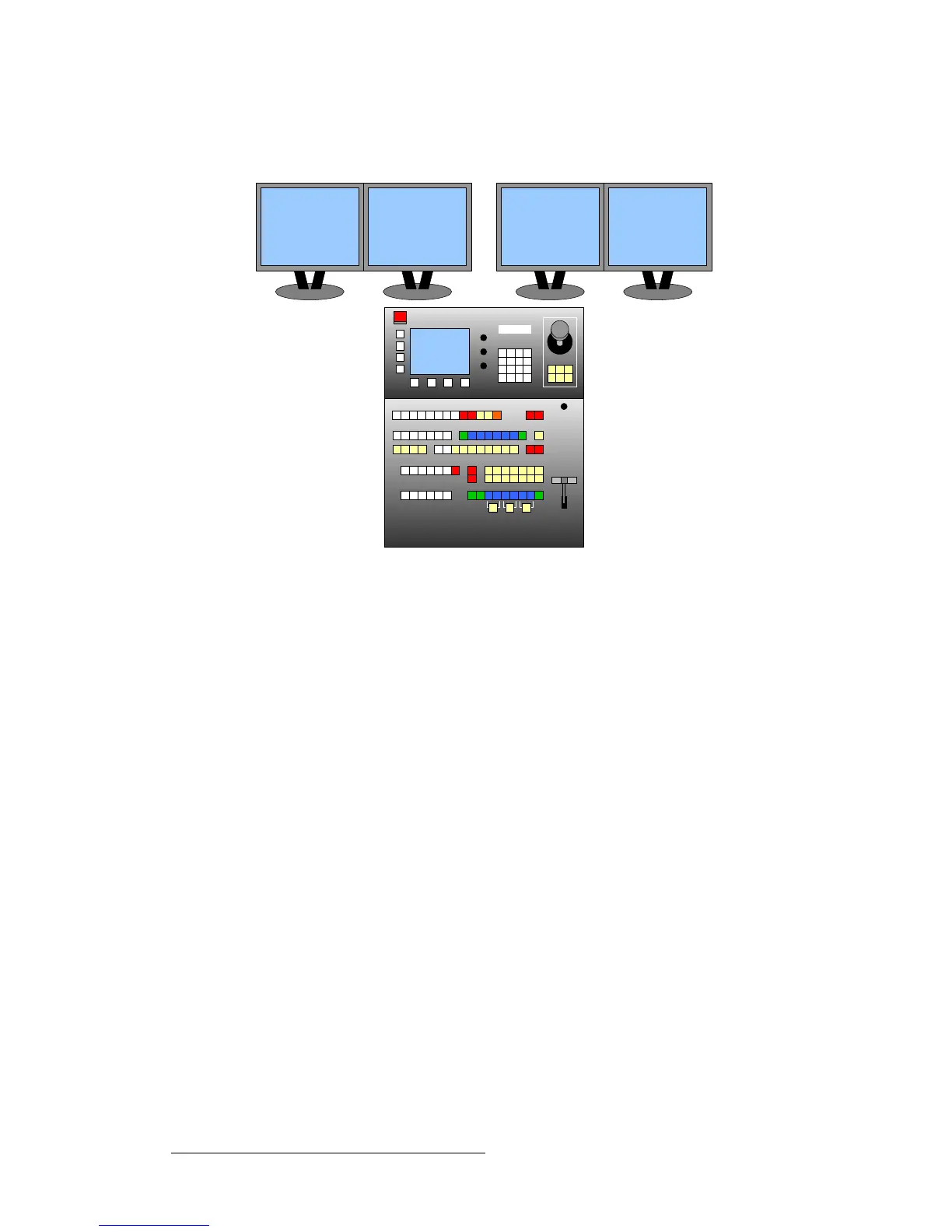
• Wide Screen Application — For optimum viewing in all wide screen applications,
place all Preview monitors on the left, and all Program monitors on the right.
Figure 7-2. Wide Screen Application Layout
qçìÅÜ=pÅêÉÉå=`~äáÄê~íáçå
As an excellent prerequisite to all operating procedures, it is recommended that you
calibrate the Touch Screen.
Use the following steps to calibrate your Touch Screen display:
1. In the System Keypad, press MISC to display the Miscellaneous Menu.
2. Press {LCD SETTINGS} to display the LCD Settings Menu.
3. Press {LCD CAL} to display the Touch Screen Calibration Menu.
4. (Controller LC only) On the top LCD line, select the LCD touchscreen that you
want to calibrate.
5. Follow the directions on the menu to complete the calibration procedure.
6. (Controller LC only) Repeat steps 1 through 5 for the other LCD touchscreen.
7. For both Controllers, use the controls on the LCD Settings Menu to adjust
brightness and contrast as desired.
When the procedure is complete, the Controller remembers this calibration setting until it is
performed again.
Preview #2 Program #1Preview #1 Program #2


 To Next Page