Encore Presentation System • User’s Guide 207
5. Menu Orientation
Key Menu
• Fill Source — permanently set to the current mixer’s Layer A (e.g., [1A]).
• Press {STATS} to display the Status Menu. Refer to the “Status Menu” section
on page 193 for details.
• Press {CLONE} to display the Clone Setup Menu (if Clone is enabled). Refer to
the “
Clone Setup Menu” section on page 197 for details
• Press {EFX} to display the Image Effects Menu. Refer to the “Image Effects
Menu” section on page 201 for details.
• Press {SIZE & POS} to display the Key Adjustment Menu. Refer to the “Key
Adjustment Menu” section on page 208 for details.
In Chapter 7, refer to the “
Working with Keys in Split Mode” section on page 302 for
instructions.
hÉó=pìÄ=jÉåìë
The following sub menus can be accessed from the Key Adjustment Menu:
• Matte Menu
• Key Adjustment Menu
j~ííÉ=jÉåì
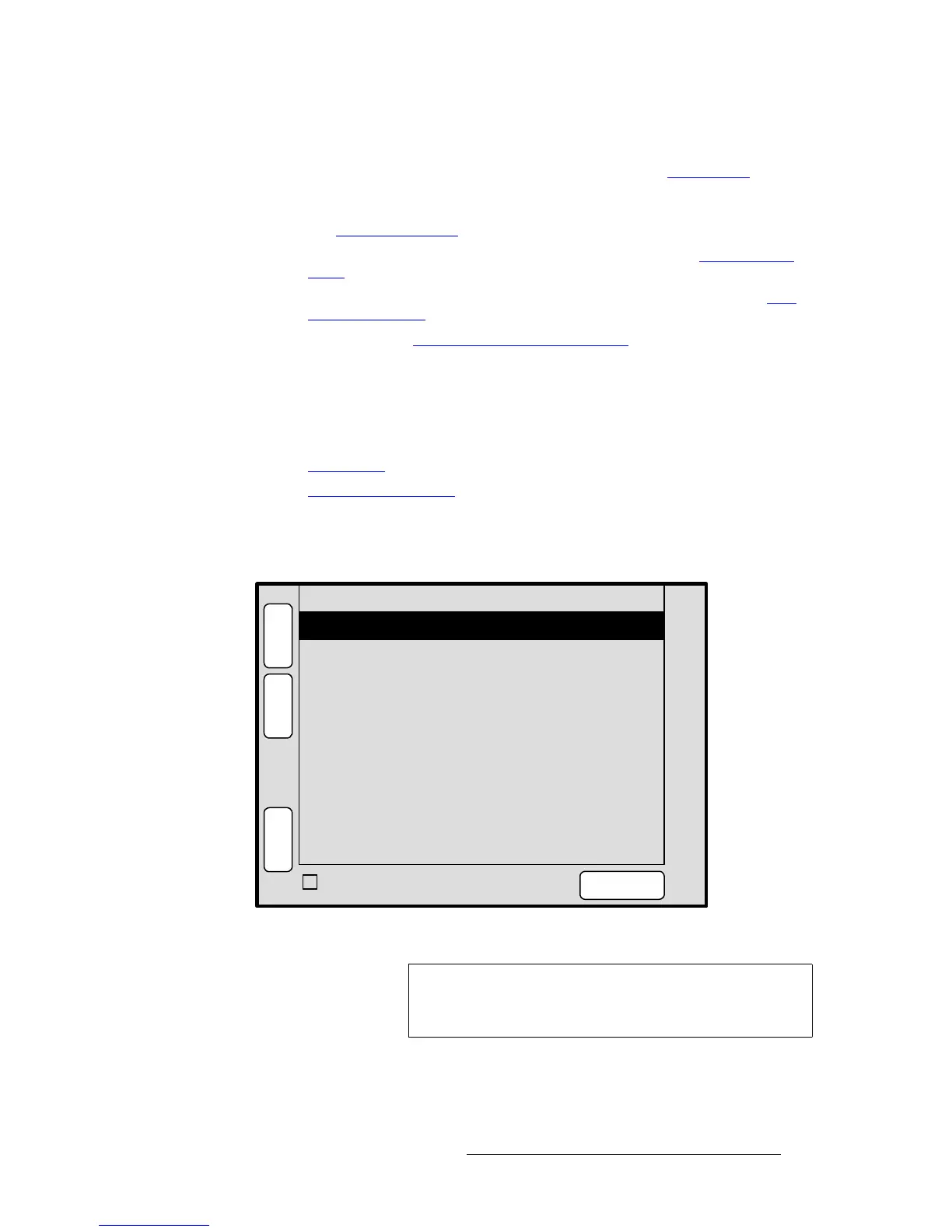
From the Key Menu, press {MATTE} to display the Matte Menu.
Figure 5-59. Matte Menu (sample)
The Matte Menu adjusts the fill color of a matte key. The following functions are provided:
• Red — adjusts the red component of the matte fill as required, from 0 to 1024.
• Green — adjusts the green component of the matte fill, from 0 to 1024.
Green 204
S
T
A
T
S
N
A
V
A
D
J
MATTE
Red 528
Blue 260
K
E
Y
E
F
X
TRACK RGB
3
SIZE &
POS
Note
The menu is also accessed from the DSK Adjustment Menu.
All functions are identical, but the menu is named the
DSK
Matte Adjustment Menu
at the top.


 To Next Page