Encore Presentation System • User’s Guide 201
5. Menu Orientation
PIP Adjustment Menu
fã~ÖÉ=bÑÑÉÅíë=jÉåì
From the PIP Adjustment Menu (or the Key Menu), press {EFX} to display the Image
Effects Menu
.
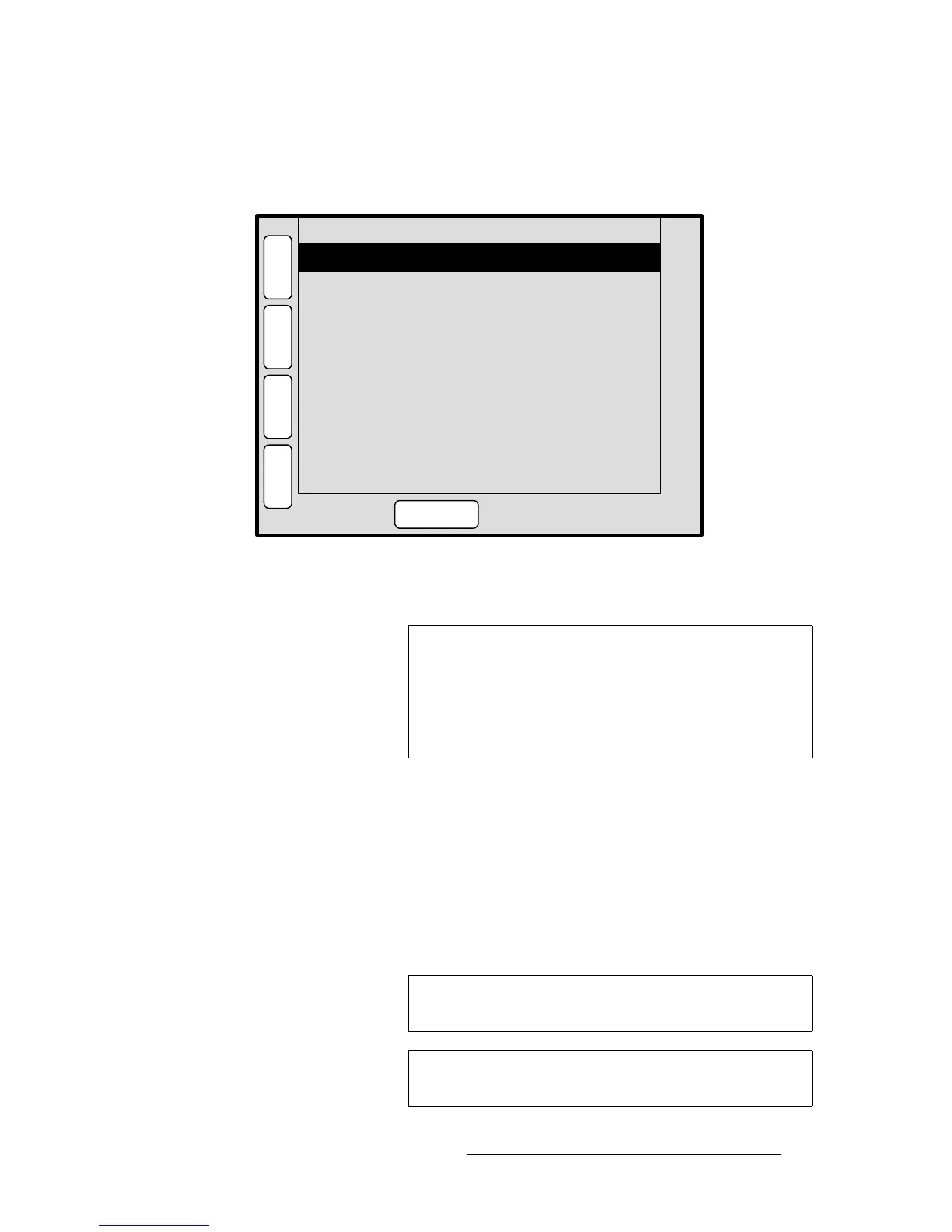
Figure 5-56. Image Effects Menu (sample)
The Image Effects Menu enables you to creatively manipulate the selected PIP or Key.
• Monochrome Mode — turns chroma on or off. When the mode is enabled, the
image is completely monochrome.
• Red — adjusts the image’s red saturation.
~ Adjustment range: 0 to 100
• Green — adjusts the image’s green saturation.
~ Adjustment range: 0 to 100
• Blue — adjusts the image’s blue saturation.
~ Adjustment range: 0 to 100
Green
Red
Hue
100
100
0
P
I
P
N
A
V
A
D
J
IMAGE EFFECTS
B
O
R
D
R
100
Monochrome Mode Off
Off
Blue
Invert
S
H
D
O
W
RESET
RGB
- - - - - - STROBE - - - - - -
Mode Off
Interval (frames) 2
C
L
O
N
E
Note
When adjusting PIPs, you can access the Image Effects
Menu
from the Border Menu, the Clone Setup Menu or the
Shadow Menu by pressing {EFX}.
When adjusting Keys, you can also access the
Image Effects
Menu
from the Key Adjustment Menu or the Matte Menu by
pressing {
EFX}.
Note
The Red, Green and Blue adjustments function whether or
not
Monochrome Mode is enabled.
Tip
For a sepia tone effect, turn Monochrome Mode on, and set
Red to 100, Green to 65 and Blue to 10.


 To Next Page