226 Encore Presentation System • User’s Guide
5. Menu Orientation
Frame Grab Menu
cê~ãÉ=dê~Ä=lîÉêîáÉï
The Encore system provides complete flexibility with regard to frame grabs:
• Temporary Frame Stores — The Encore Video Processor has three temporary
(temp) frame stores (
FG_1, FG_2 and FG_3) which function as the three sources
from which “on-air” frames originate.
• Capture Sources — All frame grabs are full screen captures. A frame can be
captured from
BG A, BG B, the DSK, or any of the scaled inputs (layers).
• Permanent Frame Stores — As standard, the Encore Video Processor has three
permanent (non-volatile) frame stores available.
• Extended Frame Grab Option — If this “ES” option is installed, you can store
and recall 100 frames in non-volatile memory.
In Chapter 7 refer to the “
Working with Frame Grabs” section on page 332 for complete
instructions on “frame grab” operations.
cê~ãÉ=dê~Ä=jÉåì=aÉëÅêáéíáçå
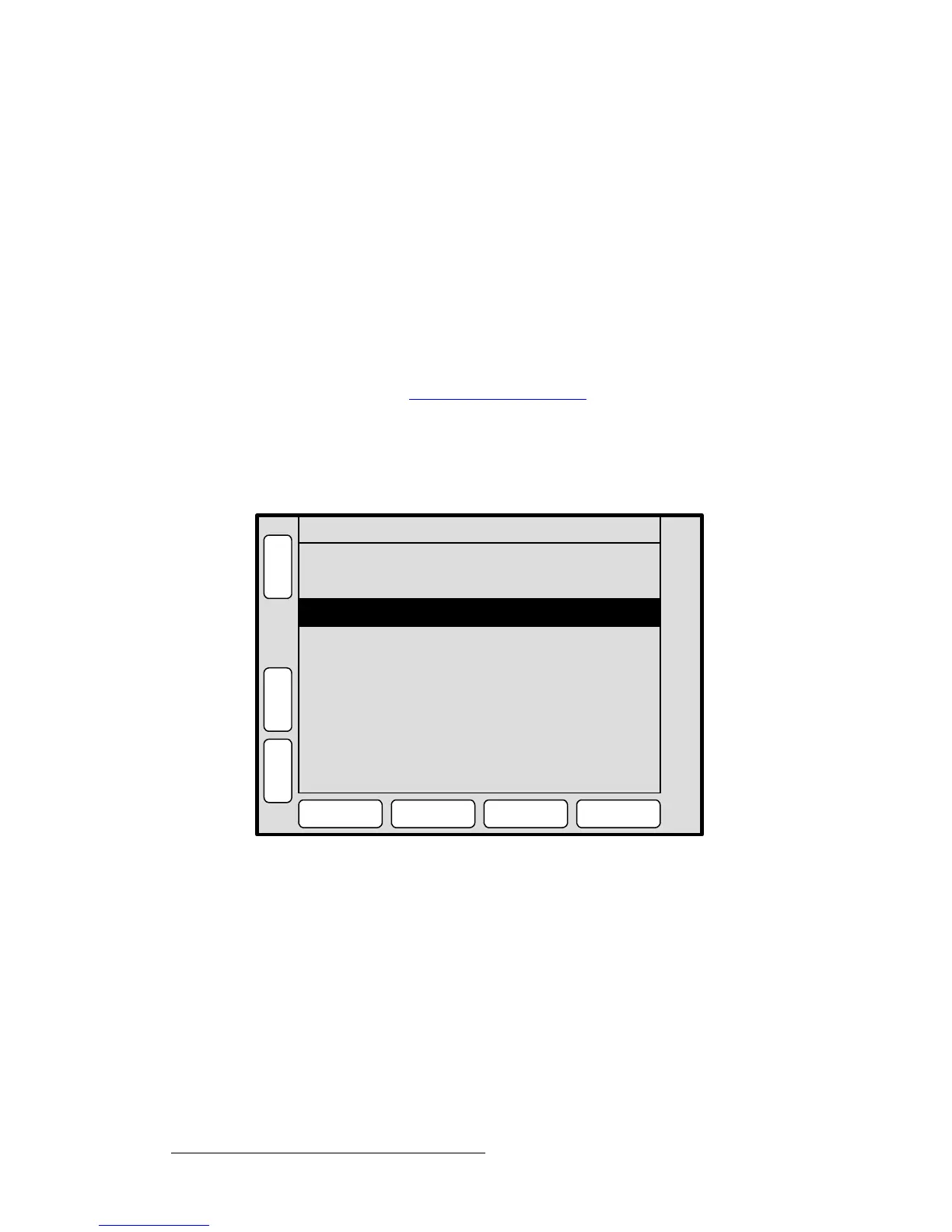
The figure below illustrates a sample Frame Grab Menu:
Figure 5-73. Frame Grab Menu (sample)
To access the Frame Grab Menu:
• On Preview, select the layer or the background source from which you want to
capture a “full screen” frame.
• Press {FRAME GRAB} in the Layer Functions Section.
The
Frame Grab Menu enables you to manage all aspects of frame grab operations. The
following functions are provided:
• Destination — displays the currently selected destination.
• ID — displays the ID(s) of the selected destination’s associated Video Processor.
• Frame Number — selects “temp” frame stores:
ID ALL
H
O
M
E
N
A
V
A
D
J
FRAME GRAB
E
R
A
S
E
Destination 1
Capture Format [ 1280 x 1024 ]
Name [ Company Logo ]
Format [ 1280 x 1024 ]
CAPTURE SAVE DELETE RECALL
Frame Number FG_1
N
A
M
E


 To Next Page